
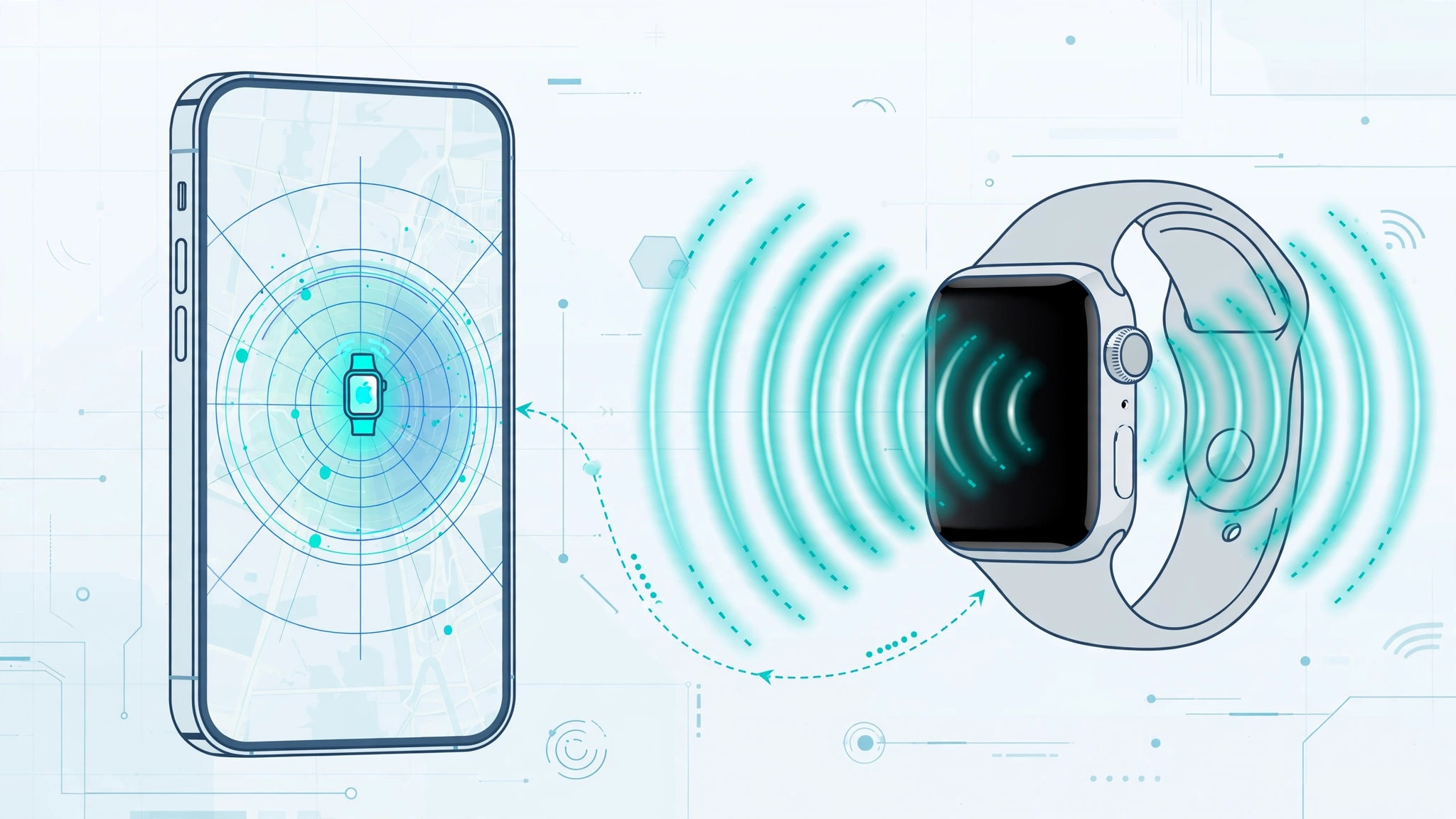
That sinking feeling when your Apple Watch isn’t on your wrist, isn’t on the charger, and isn’t anywhere obvious — we’ve all been there. The good news: your iPhone is a purpose-built Apple Watch finder, with not one but two ways to track it down. Whether the watch is buried in couch cushions or left at the office, here’s how to locate it, make it ring, or lock it down remotely.
Both methods below rely on the same foundation, so set it up before you need it: enable Find My on both devices and sign in with the same Apple ID. Apple’s support pages walk through the Find My setup if you haven’t done it yet.
Way 1: Use the Find My app
The Find My app gives you the full toolkit — map location, sound, and Lost Mode — and works even when the watch is far away.
- Open the Find My app on your iPhone and tap the Devices tab.
- Select your Apple Watch from the device list to see its last known location on the map.
- If it’s nearby, tap Play Sound — the watch will chime so you can follow your ears.
- If it’s truly lost (left somewhere), use Lost Mode from the same screen to lock the watch and display a contact message.
Play Sound even works if the watch is in silent mode, which is exactly when you need it most. MacRumors has a handy overview of Find My’s device controls if you want to explore the other options on that screen.
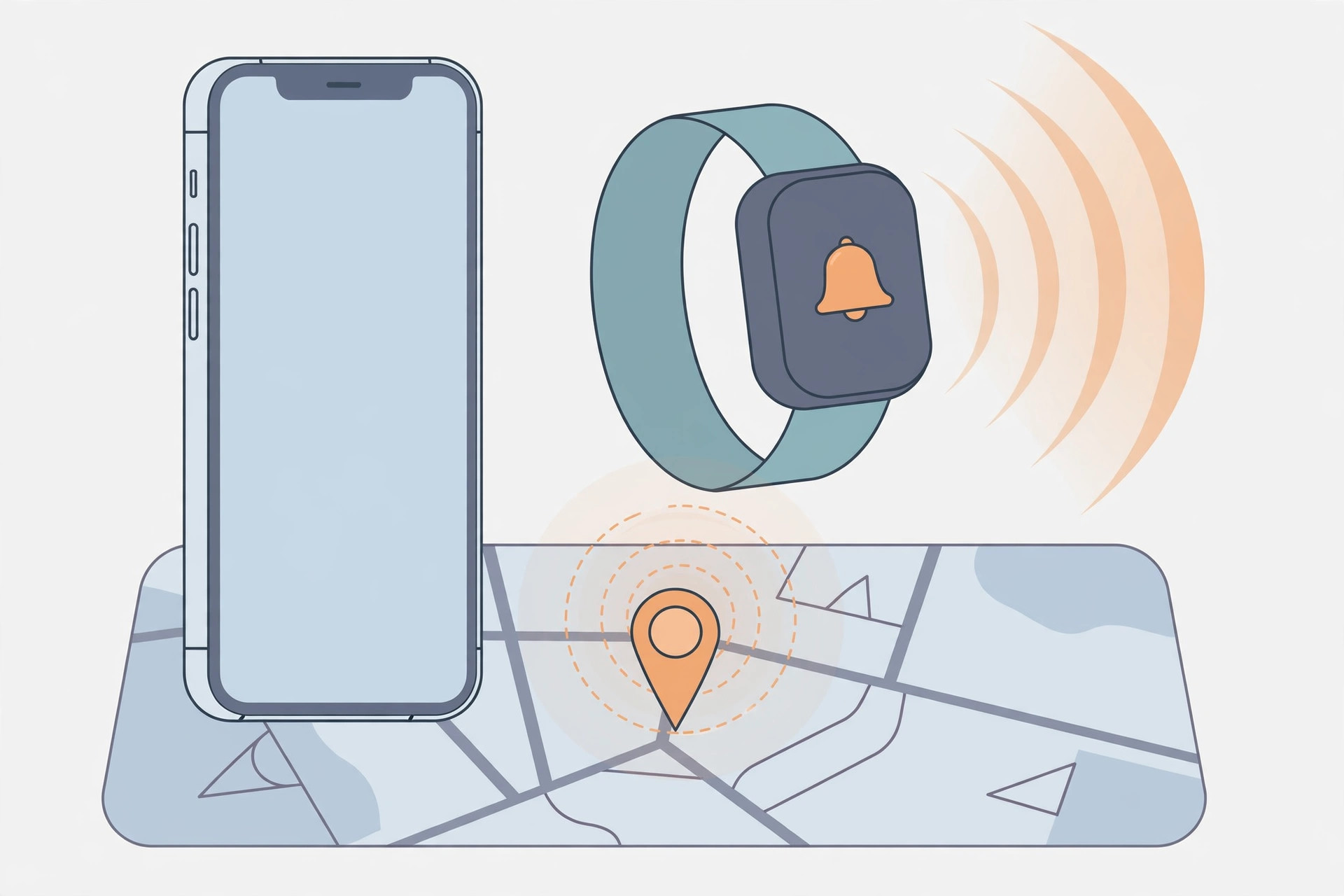
Way 2: Ping My Watch from Control Center
For the common case — the watch is somewhere in the house — there’s an even faster method. iOS 17 added a dedicated Ping My Watch button to Control Center.
- Open Settings → Control Center and add Ping My Watch to your included controls.
- Open Control Center and tap the Ping My Watch button.
- Your watch chimes immediately, even in silent mode.
This requires both devices to be connected (Bluetooth/Wi-Fi) and your iPhone to be on iOS 17 or later. It’s the fastest way to find a watch that’s just misplaced nearby — one tap, no app to open. 9to5Mac highlighted this button as one of the most useful Control Center additions in years.
Love quick Control Center tricks? You might also like our guide on turning off AirPods charging case sounds — another small annoyance with a one-toggle fix.
If it still doesn’t work
If Find My shows no location, the watch may be powered off or out of battery — check its last known location and head there. If Play Sound does nothing, confirm Bluetooth is on and the devices are paired (open the Watch app on iPhone). And if Ping My Watch is missing from Control Center, double-check you’re on iOS 17+; the button doesn’t exist on older versions. As a last resort, Lost Mode protects your data while you keep looking.
Frequently asked questions
Can I find my Apple Watch if it’s dead?
You’ll see its last known location before the battery died, but you can’t play a sound or update the location until it powers on and reconnects. This is why keeping Find My enabled matters — it banks that last location automatically.
Does Ping My Watch work over Wi-Fi?
Yes — as long as both devices are on the same network and signed into the same Apple ID, the ping goes through. Keeping your devices in sync helps everything work smoothly, so see how to set up message sync between iPhone and Mac too.
Conclusion
For a watch lost nearby, the Ping My Watch Control Center button is unbeatable — one tap and it chimes. For anything further afield, the Find My app’s map, Play Sound, and Lost Mode have you covered. Set both up now, and the next time your watch goes missing, you’ll find it in seconds.





