
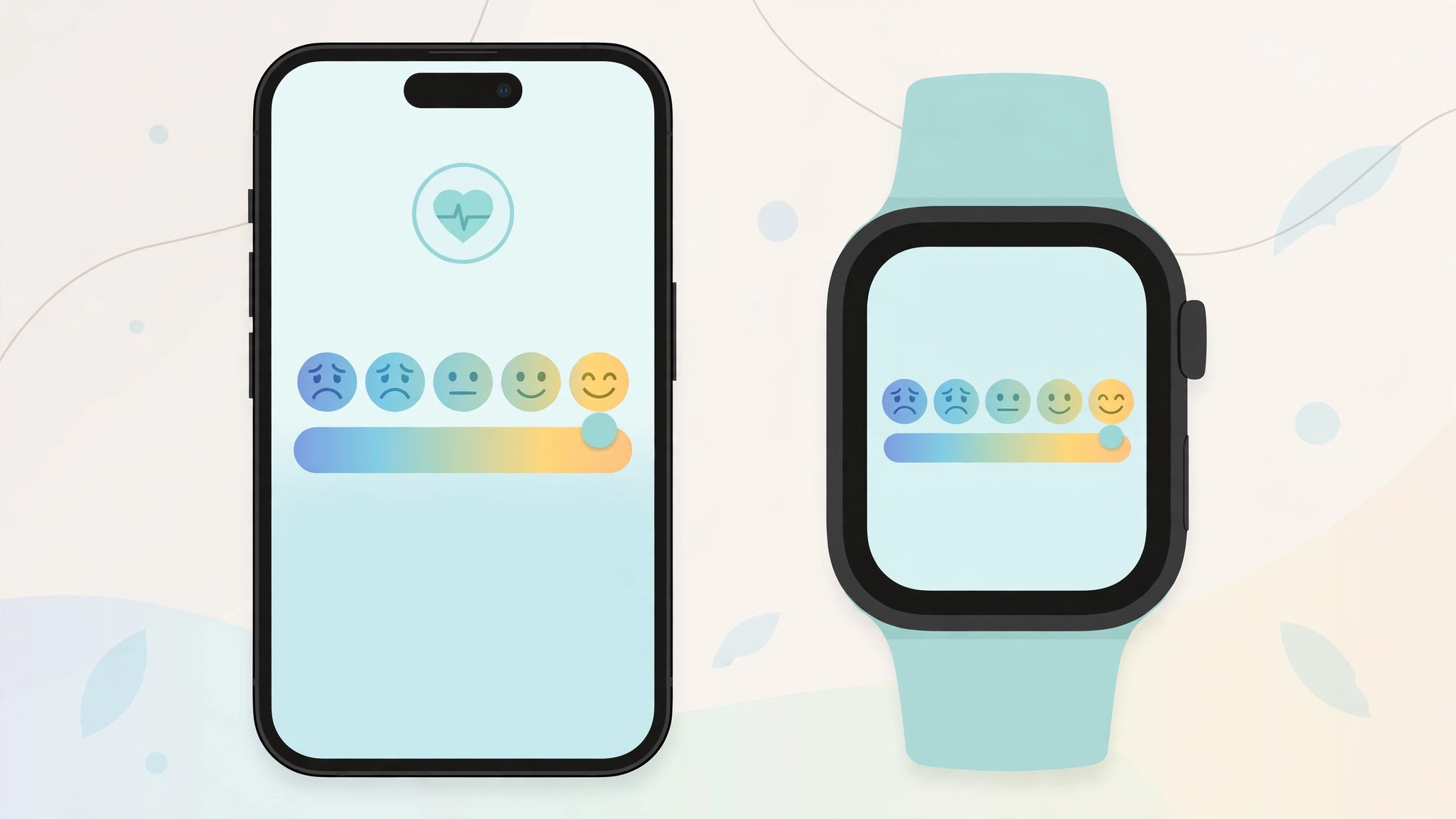
Your iPhone already counts your steps, tracks your sleep, and measures your workouts. Since iOS 17, it can also track something far more personal: how you feel. Apple added mood logging to the Health app under the name “State of Mind,” and brought the same feature to the Apple Watch via the Mindfulness app in watchOS 10. Requirements up front: you’ll need iOS 17 or later on your iPhone and watchOS 10 or later on your watch. Here’s how to turn both devices into a proper mood diary — and how to read the trends it builds for you.
Logging your mood on iPhone
- Open the Health app and tap the Browse tab at the bottom.
- Tap Mental Wellbeing, then State of Mind.
- The first time: tap Get Started, then Begin. Afterwards, just tap Log.
- Choose whether to log how you feel right now (an emotion) or how you’ve felt overall today (a mood).
- Drag the slider from Very Unpleasant through Neutral to Very Pleasant, then tap Next.
- Pick the word or words that describe it best — Calm, Content, Angry, Stressed, and more → Next.
- Optionally select what’s affecting you (Health, Family, Work, Weather, Money…), add a note for context, then tap Done.
The whole thing takes about fifteen seconds once you’ve done it a couple of times. Turn on reminders to log during the day and/or at the end of the day — consistency is what turns scattered entries into meaningful data. Apple’s iPhone support pages walk through State of Mind in detail.
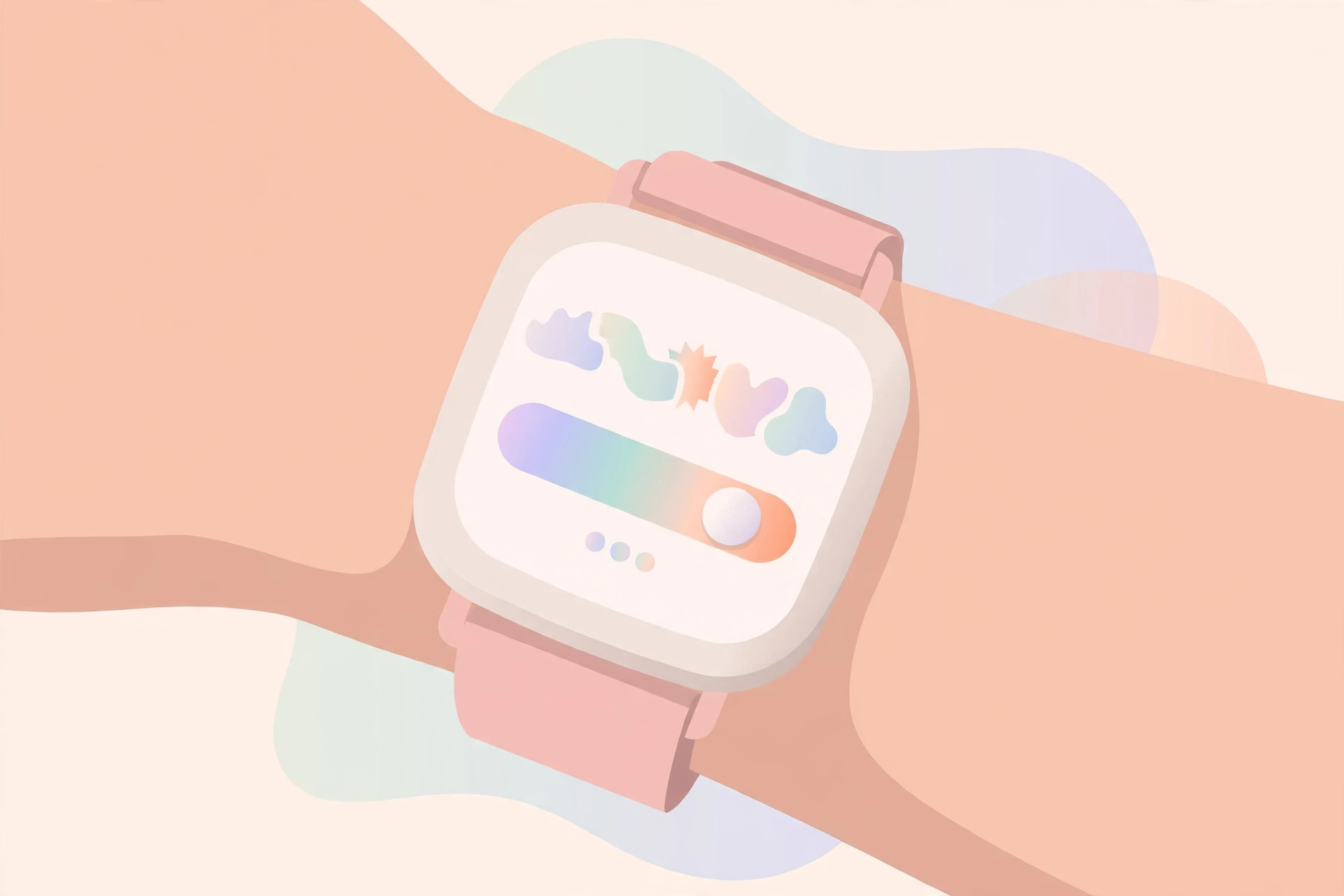
Logging your mood on Apple Watch
- Open the Mindfulness app on your watch.
- Tap State of Mind, then Get Started.
- Choose current feeling or overall mood.
- Scroll with the Digital Crown to position the slider, then confirm with the checkmark.
- Pick your emotions and affecting factors, then you’re done.
Entries sync between watch and iPhone automatically, so log wherever’s convenient. For more ways to get the most from your devices, see how to set an alarm for urgent reminders in iOS 26 and which built-in iPhone apps you can delete.
Reviewing your mood trends
Logging is only half the point. To see the payoff: Health → Browse → Mental Wellbeing → State of Mind → Show in Charts. You’ll see your entries plotted over time, alongside correlations with sleep, exercise, daylight exposure, and mindful minutes — genuinely useful for spotting patterns (bad sleep week, bad mood week — who knew). Mental Wellbeing also offers built-in, clinically validated depression- and anxiety-risk questionnaires if you want a more structured check-in.
A word on privacy
Mood data is about as personal as it gets, so it’s worth stating: Apple says State of Mind data stays on your device and is encrypted when synced via iCloud — it isn’t used for advertising or shared without your explicit action. That on-device privacy posture is a big part of why people trust the Health app with this kind of data in the first place. MacRumors and Cult of Mac have both covered the feature’s launch and its privacy design.
If it still doesn’t work
- No State of Mind option. Confirm you’re on iOS 17+ (Settings → General → Software Update) and watchOS 10+ on the watch.
- Entries aren’t syncing. Make sure both devices are signed into the same Apple Account with iCloud Health syncing enabled.
- Reminders never arrive. Check Settings → Health → State of Mind reminders, and confirm notifications are allowed for the Health app. If the interface feels unfamiliar after recent updates, turning off the Liquid Glass effect in iOS 26 can make things feel normal again.
Frequently asked questions
Is State of Mind a replacement for therapy or a mood-tracking app?
No — it’s a self-awareness tool, not a medical one. It can reveal patterns worth discussing with a professional, and the built-in questionnaires can flag risks, but it doesn’t diagnose or treat anything.
Can I export or share my mood data?
Yes. Like other Health data, you can export it or share it with your doctor through the Health app’s sharing features. Nothing leaves your device unless you explicitly send it.
Conclusion
Fifteen seconds, a slider, a few words — that’s all it takes to build a mood record that actually teaches you something. Start logging today, check your charts in a month, and you might be surprised what you learn about yourself.





