

Apple’s Journal app is a private, on-device space for capturing everyday moments and major life events — and if you can’t find it on your iPhone, you probably aren’t looking in the wrong place. The app only appears after you install a specific software update, and it can also be deleted like any other app. The good news: getting it (back) takes just a few minutes.
In this guide, you’ll learn how to check your iOS version, update your iPhone to get the Journal app, find it on your Home Screen, and reinstall it from the App Store if it was removed. Let’s walk through it step by step.
Before you start: check your iOS version
The Journal app ships with iOS 17.2, which Apple released in December 2023. Any iPhone running iOS 17.2 or later should include it, while older software simply doesn’t have the app at all. To check your version, open Settings → General → About and look at the number next to “iOS Version.”
If you’re on an older release, update first. Connect to Wi-Fi, make sure your battery is charged, then head to Settings → General → Software Update and follow the on-screen steps — Apple’s guide to updating your iPhone walks through the same process. For a broader look at what that software generation introduced, MacRumors’ iOS 17 roundup is a handy reference.
How to get the Journal app on your iPhone
- Update to iOS 17.2 or later. Go to Settings → General → Software Update, tap Download and Install, and let the update finish. Your iPhone restarts during the process, so don’t interrupt it.
- Look for Journal on your Home Screen. After the update, the Journal icon is added automatically. Swipe through your Home Screen pages or open the App Library and glance through the category folders.
- Still can’t see it? Use Spotlight search. Swipe down from the middle of the Home Screen, type “Journal,” and the app should appear near the top of the results. Tap it to open.
- Reinstall it if it was deleted. Journal is one of the built-in apps you can delete from your iPhone, so it may simply have been removed at some point. Open the App Store, search for “Journal,” and tap Get next to the app published by Apple. It’s free.
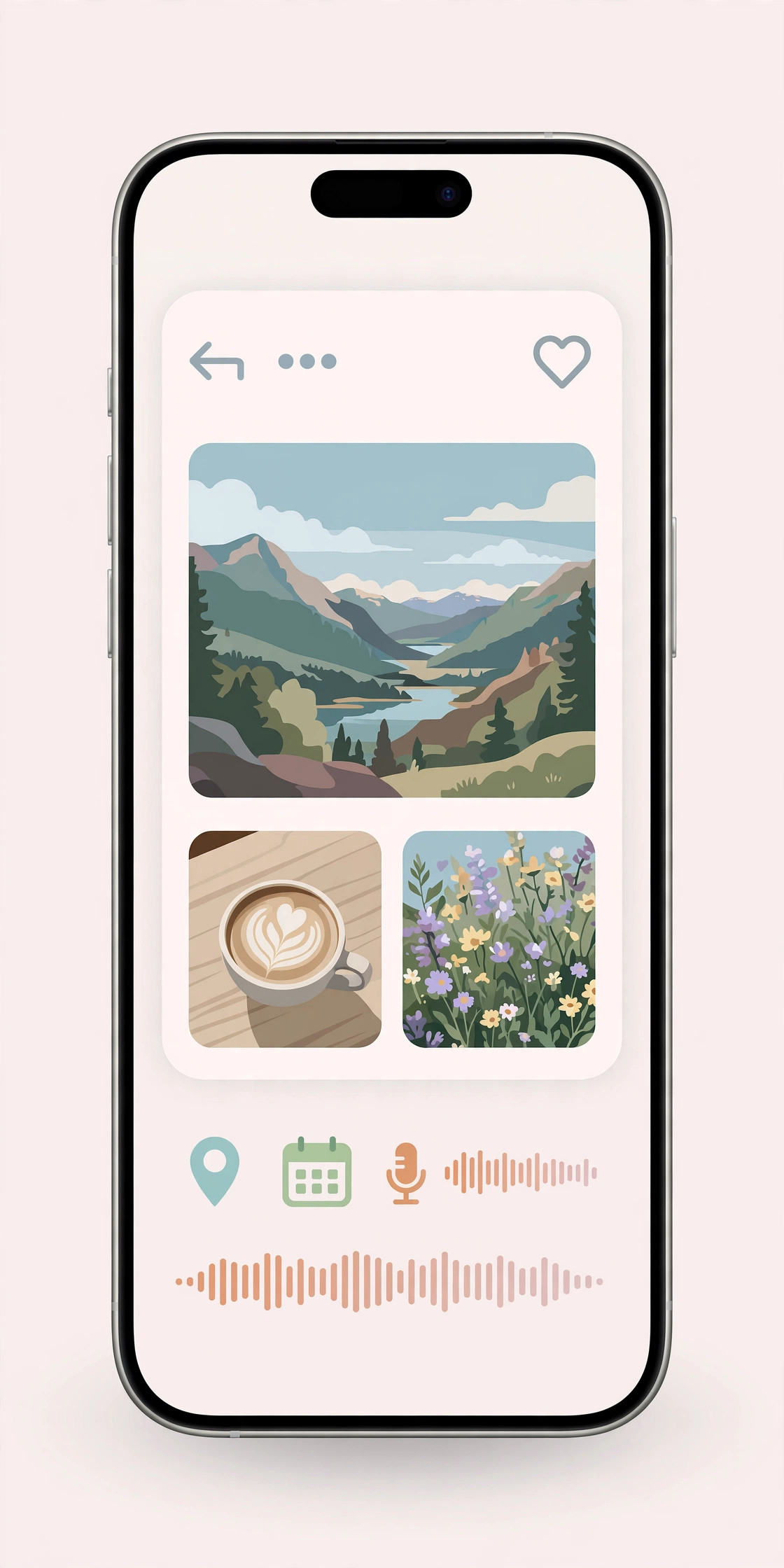
- Create your first entry. Open Journal and tap the compose button. You can write text, attach photos and videos, add voice recordings, and tag locations. Turn on journaling suggestions if you’d like your iPhone to propose moments worth writing about, and set a reminder schedule under Settings → Journal if you want a gentle daily nudge.
If it still doesn’t work
If Journal doesn’t show up even after updating, restart your iPhone and search again with Spotlight — the icon index sometimes needs a refresh. Next, check Settings → Screen Time → Content & Privacy Restrictions to make sure no restriction is hiding apps on your device. Also confirm your iPhone model actually supports iOS 17.2 (iPhone XS and later); an iPhone X or older can’t install it at all. As a last resort, restore your icon layout under Settings → General → Transfer or Reset iPhone → Reset → Reset Home Screen Layout, which returns all built-in app icons to their default places.
Frequently asked questions
Is the Journal app free?
Yes. Journal is a free, built-in Apple app with no subscription or in-app purchases. Once your iPhone runs iOS 17.2 or later, the app is yours to use.
Can I use Journal on an older iPhone?
Only if the iPhone supports iOS 17.2 or newer — that’s iPhone XS and later. Older models like the iPhone X can’t install the required update, so the Journal app isn’t available on them.
The bottom line
Getting the Journal app comes down to one requirement — iOS 17.2 or later — plus knowing where to look. Update your software, check the Home Screen and Spotlight, or grab it free from the App Store if it was deleted. Once it’s there, capturing a thought is as quick as the moment itself — much like how you can identify songs playing nearby with a single tap. Happy journaling!





