
We have all been there: a great song starts playing in a cafe, a shop, or a passing car, and by the time you open a music app, it is gone. Your iPhone can identify songs for you, but the built-in Shazam button only listens when you tap it. If you want your iPhone to automatically recognize every track playing nearby — even with the screen locked — you need the full Shazam app and its Auto Shazam mode.
Auto Shazam runs quietly in the background, listens for music around you, and saves every match to a history list you can browse later. Setup takes under a minute.
Built-in Shazam vs. Auto Shazam
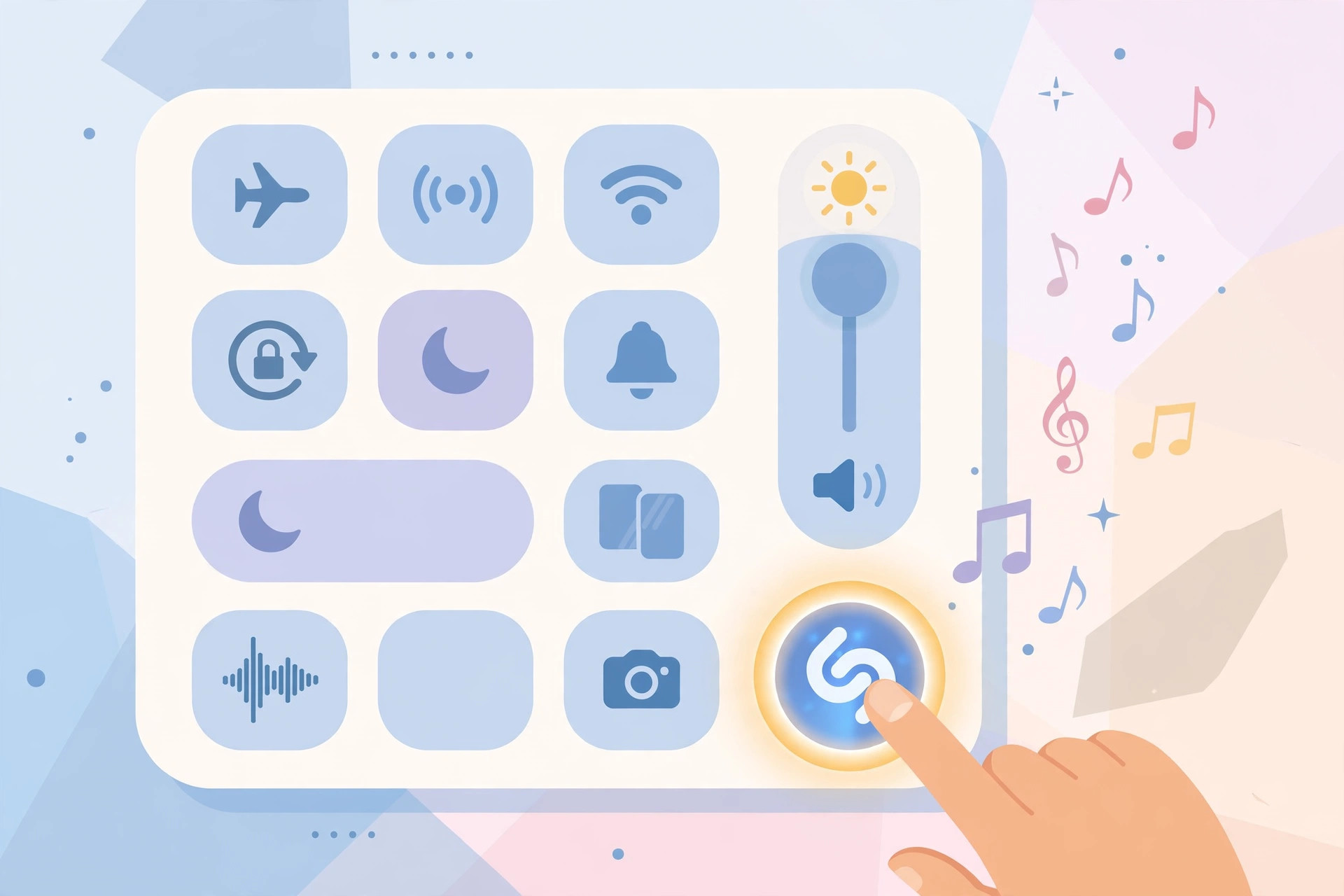
iOS has Shazam technology baked in: you can add a recognition button to Control Center, the lock screen, or a home screen widget. That is perfect for identifying one song at a time. What iOS does not offer is continuous background recognition. For that, you need the standalone Shazam app, which includes an Auto Shazam mode designed to keep listening on its own — a distinction also explained on Shazam’s official site and covered by outlets like MacRumors.
How to turn on automatic song recognition
- Install Shazam from the App Store. Download the free Shazam app on your iPhone if you do not have it already.
- Allow microphone access. Open the app for the first time and grant it permission to use your microphone when prompted — recognition cannot work without it.
- Long-press the Shazam app icon. On your home screen, touch and hold the Shazam icon until the quick actions menu appears.
- Choose Auto Shazam. Tap the Auto Shazam option in the menu. Background recognition starts immediately.
Once enabled, you will see the microphone indicator in the status bar or Dynamic Island, confirming the app is listening. You can now lock your iPhone and go about your day — every song the app recognizes is saved to your Shazam history. If you love discovering music this way, you will also enjoy sharing finds with friends; see our guide on setting up message sync between iPhone and Mac to keep those conversations flowing across devices.
Where to find your recognized songs
Open the Shazam app at any time and head to your library or recognition history to see everything Auto Shazam has identified, complete with timestamps. From there you can play previews, open tracks in Apple Music, or build playlists from your discoveries. Music creators on TikTok and Instagram often use Shazam histories to track trending sounds — your automatically built list works the same way.
If it still doesn’t work
If Auto Shazam stops recognizing songs, check that microphone permission is still granted under Settings > Privacy & Security > Microphone. Make sure Low Power Mode is off, since aggressive power saving can pause background listening, and confirm the app is not restricted under Screen Time. If recognition seems stuck, open Shazam and toggle Auto Shazam off and back on. Note that the feature drains the battery faster than normal — TechCrunch and other outlets have noted the trade-off of always-on audio features — so consider pairing it with audio gear that lasts, like the accessories in our guide to AirPods charging case sounds.
Frequently asked questions
Can I use Auto Shazam with the screen locked?
Yes — that is the whole point. Once started, Auto Shazam keeps listening in the background even when your iPhone is locked or you are using other apps, until you stop it.
How do I turn Auto Shazam off?
Open the Shazam app and stop the recognition session from the main screen. The microphone indicator will disappear, and background listening ends immediately.
Conclusion
Auto Shazam turns your iPhone into a tireless music detective: install the app, allow the microphone, long-press the icon, and enable Auto Shazam. Every track playing nearby lands in your history automatically. For more iPhone tricks, explore the tutorials on CompareWala.






[…] is no volume slider or sound picker for it. If you enjoy tweaking iPhone audio, see our guide to automatically identifying songs playing nearby on iPhone and turning off AirPods charging case sounds for more ways to customize what you […]
[…] Only when you actually pause mid-request. If you speak a short command without hesitation, Siri responds just as quickly as before — the setting only extends how long it waits during silence. And if you like hands-free iPhone tricks, see how to automatically identify songs playing nearby on iPhone. […]
[…] you’re sampling a genre you don’t want following you around for weeks. Music lovers who identify songs playing nearby on their iPhone can also automatically add Shazam discoveries to Spotify, and those private-session finds will land […]