
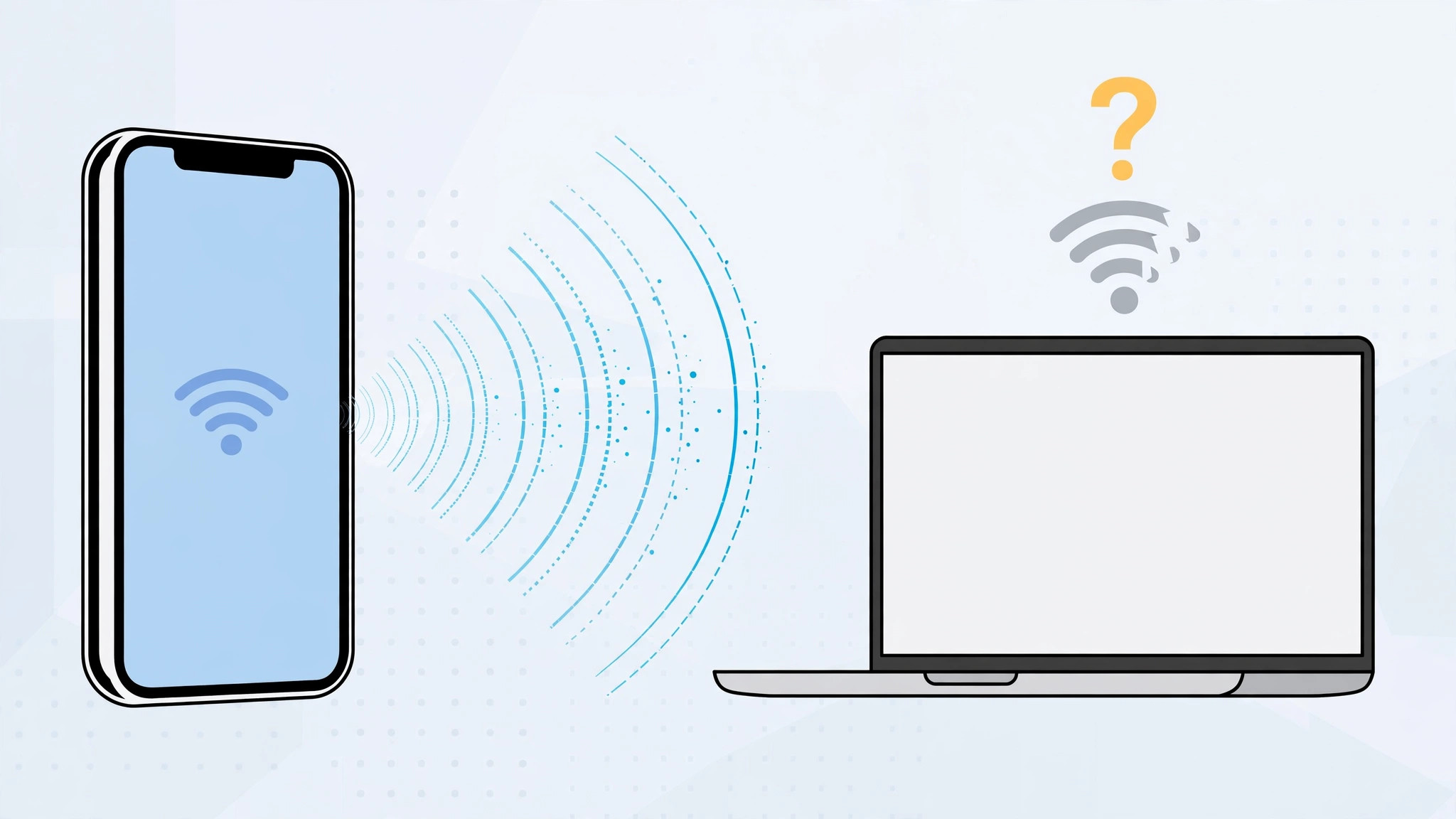
You turn on Personal Hotspot, grab your laptop or tablet, scan for Wi-Fi networks — and your iPhone is nowhere to be found. Meanwhile your friend’s phone connects to it just fine. Before you blame your carrier or restart everything in sight, know this: nine times out of ten, the culprit is a quiet mismatch between 5 GHz and 2.4 GHz Wi-Fi.
Here’s how to confirm the basics and flip the one setting that fixes it.
First, confirm the hotspot basics
Before touching anything else, verify two things. One: your mobile plan actually includes tethering — some carriers sell it as an add-on, and without it the hotspot simply won’t broadcast. Two: on your iPhone, go to Settings → Personal Hotspot and make sure Allow Others to Join is on, with a passcode set. If the toggle is off, no device will ever see you.
The real fix: turn on “Maximize Compatibility”
Here’s the mismatch. iPhones broadcast their Personal Hotspot on the 5 GHz band by default — faster, but with shorter range. Many older laptops, smart devices, and budget gadgets only have 2.4 GHz radios, so your iPhone’s hotspot is literally invisible to them. Apple’s iPhone User Guide documents the Personal Hotspot options, and MacRumors has long flagged this band mismatch as the top hotspot headache.
- On your iPhone, open Settings → Personal Hotspot.
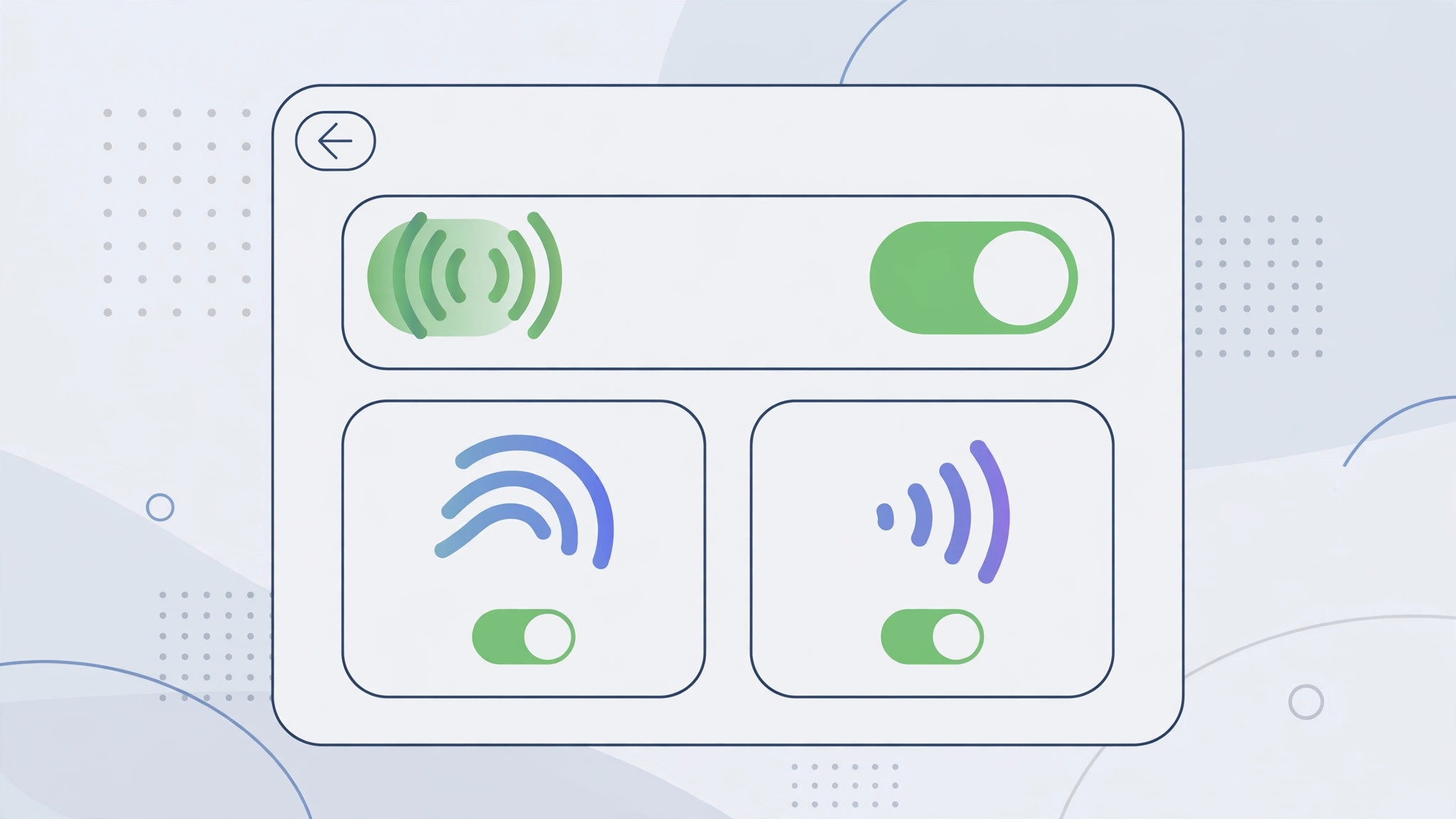
- Turn on Maximize Compatibility.
- This switches the hotspot to the 2.4 GHz band, which virtually every Wi-Fi device can see.
- On the other device, scan for Wi-Fi networks again — your iPhone should now appear. Connect with your hotspot passcode.
One trade-off to know
Maximize Compatibility drops you to 2.4 GHz, which is slower and more crowded than 5 GHz. For browsing and email you’ll never notice; for big downloads or video calls, you might. The smart move: leave it off normally, and switch it on only when a 2.4 GHz-only device needs to connect. Flip it back afterward to restore full speed.
If it still doesn’t work
If the hotspot is still invisible, restart both the iPhone and the connecting device — stale network scans are surprisingly common. Double-check the passcode for typos, and make sure the iPhone has a solid cellular data signal (no signal, no hotspot). If you’re connecting a Mac, our guide to setting up automatic hotspot connection from iPhone on Mac removes the manual scanning entirely. Family Sharing members, note that you get separate automatic hotspot access that bypasses some of these steps — and if your iPhone and Mac aren’t talking at all, see how to set up message sync between iPhone and Mac to verify the underlying continuity link.
Frequently asked questions
Why can my new laptop see the hotspot but my old tablet can’t?
That’s the classic 5 GHz vs 2.4 GHz split. Newer devices support both bands; older or cheaper ones are often 2.4 GHz-only and can’t see a 5 GHz hotspot until you enable Maximize Compatibility.
Does Maximize Compatibility use more battery?
Not meaningfully on its own. The 2.4 GHz radio reaches farther, which can marginally increase power draw, but the difference is negligible compared to the hotspot’s overall battery cost.
The bottom line
An invisible iPhone hotspot is almost never broken — it’s just broadcasting on a band your device can’t hear. Settings → Personal Hotspot → Maximize Compatibility bridges the gap in seconds.





