
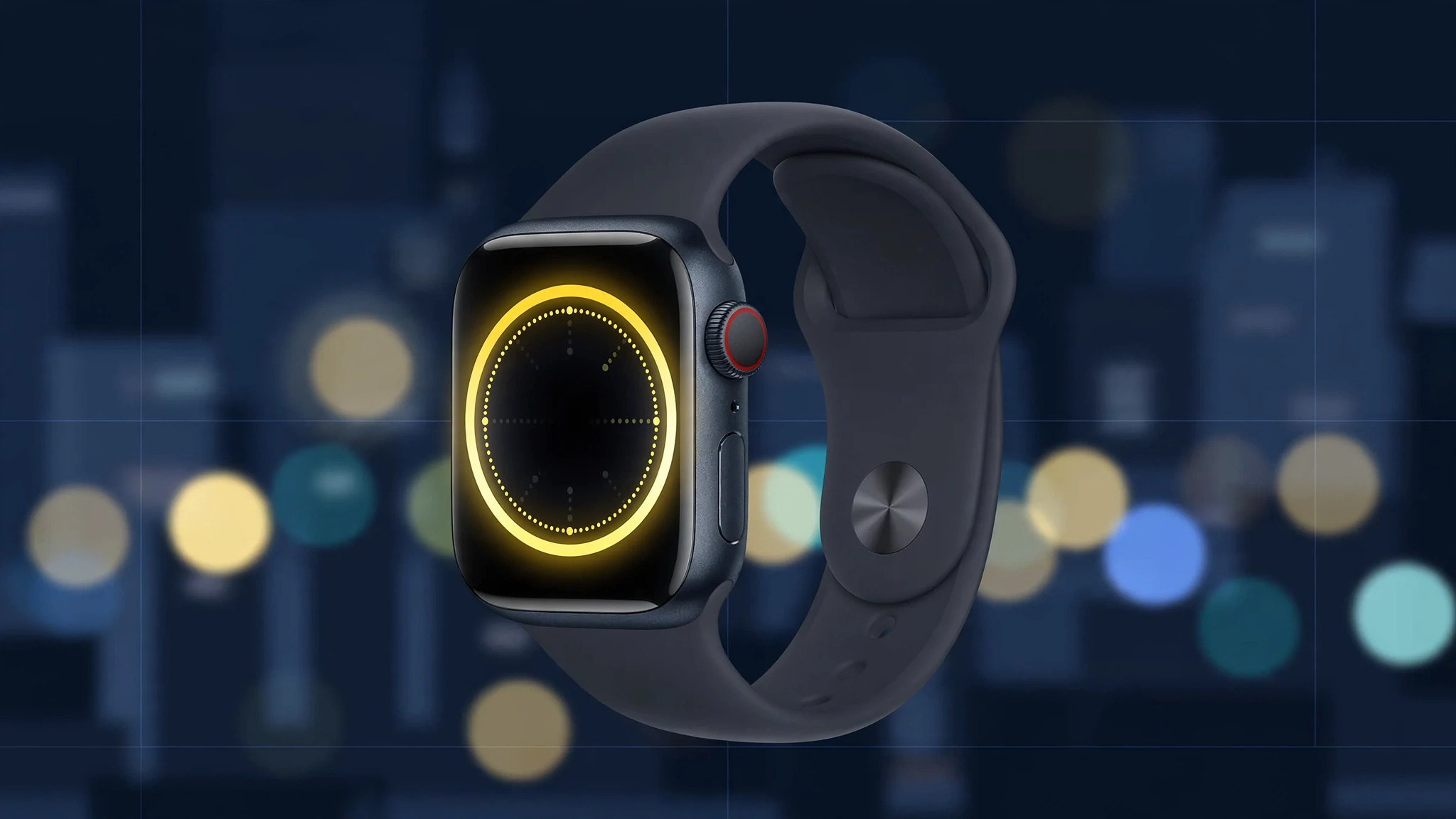
Before watchOS 9, an Apple Watch running low on battery gave you one blunt option: Power Reserve. The screen went dark, every feature shut down, and all you got was the time — tap to check it, nothing more. It saved power, but it turned your smartwatch into a pocket watch. watchOS 9 replaced that all-or-nothing mode with something far more useful: a genuine Low Power Mode that stretches the battery to a rated 36 hours on Series 4 and later — double the usual 18 — while keeping the watch genuinely usable. Here is how it works, exactly what it switches off, what keeps running, and how to turn it on.
How to turn on Low Power Mode
You can enable it three ways; the fastest takes about three seconds.
- From Control Center: swipe up on the watch face, tap the battery percentage, then toggle Low Power Mode on. This is the quickest route when you are out and the battery icon turns red.
- From Settings: open the Settings app on the watch, go to Battery, and switch Low Power Mode on. Handy when you want to enable it calmly before a long day.
- Automatic prompt: when the battery drops to 10%, watchOS asks whether you want to turn Low Power Mode on. Say yes and the watch handles the rest.
You will know it is active by the yellow battery icon. Turn it off the same way whenever you are back near a charger.
What Low Power Mode switches off
The extra hours come from trimming background activity. Here is what changes:
- Always-On display: the screen no longer stays lit; raise your wrist or tap to wake it.
- Background health readings: continuous heart-rate and blood-oxygen measurements pause, though you can still take readings on demand.
- Connectivity: Wi-Fi and cellular connections are limited to save power.
- Notifications: alerts can arrive with a slight delay instead of instantly.
- Complications: watch-face widgets refresh less often, so their data may lag behind.
Nothing here breaks the watch — it simply gets lazier about background work, which is where most of the power goes.

What keeps working
The essentials stay untouched. The time, alarms, and timers work as normal. Start a workout and the watch keeps tracking heart rate, GPS, and your Activity rings. Safety features stay on too — fall detection remains active, which matters most exactly when the battery is low.
If you like squeezing more from your Apple gear, try customizing the iOS 26 liquid glass lock screen clock for a fresh look, or learn how to enable face lighting during video calls on Mac so you look better on camera.
If Low Power Mode isn’t enough
When the battery still drains fast with Low Power Mode on, check Battery Health under Settings → Battery — a chemically aged battery holds less charge in any mode. Make sure watchOS is up to date and restart both the watch and the paired iPhone; as a last resort, unpair and re-pair the watch. If nothing helps, Apple’s official Watch support page explains service options, and 9to5Mac regularly covers watchOS battery tips and fixes.
FAQ
How is Low Power Mode different from the old Power Reserve?
Power Reserve shut down everything except the time display. Low Power Mode keeps apps, workouts, notifications, and safety features running — it only trims background measurements, the always-on screen, and connectivity.
Does the iPhone have Low Power Mode too?
Yes, the iPhone has its own separate Low Power Mode under Settings → Battery. The watch version is controlled independently on the watch itself, so you can run one, both, or neither.
Conclusion
Low Power Mode is one of the best reasons to update to watchOS 9: it doubles realistic battery life without turning your watch into a paperweight. Toggle it from Control Center before a long day, let it kick in automatically at 10%, and enjoy the extra hours with workouts, safety features, and notifications still doing their jobs.






[…] dress itself for morning, work, and night without another tap. And while you are tuning the watch, Low Power Mode in watchOS 9 is another set-and-forget setting worth […]