
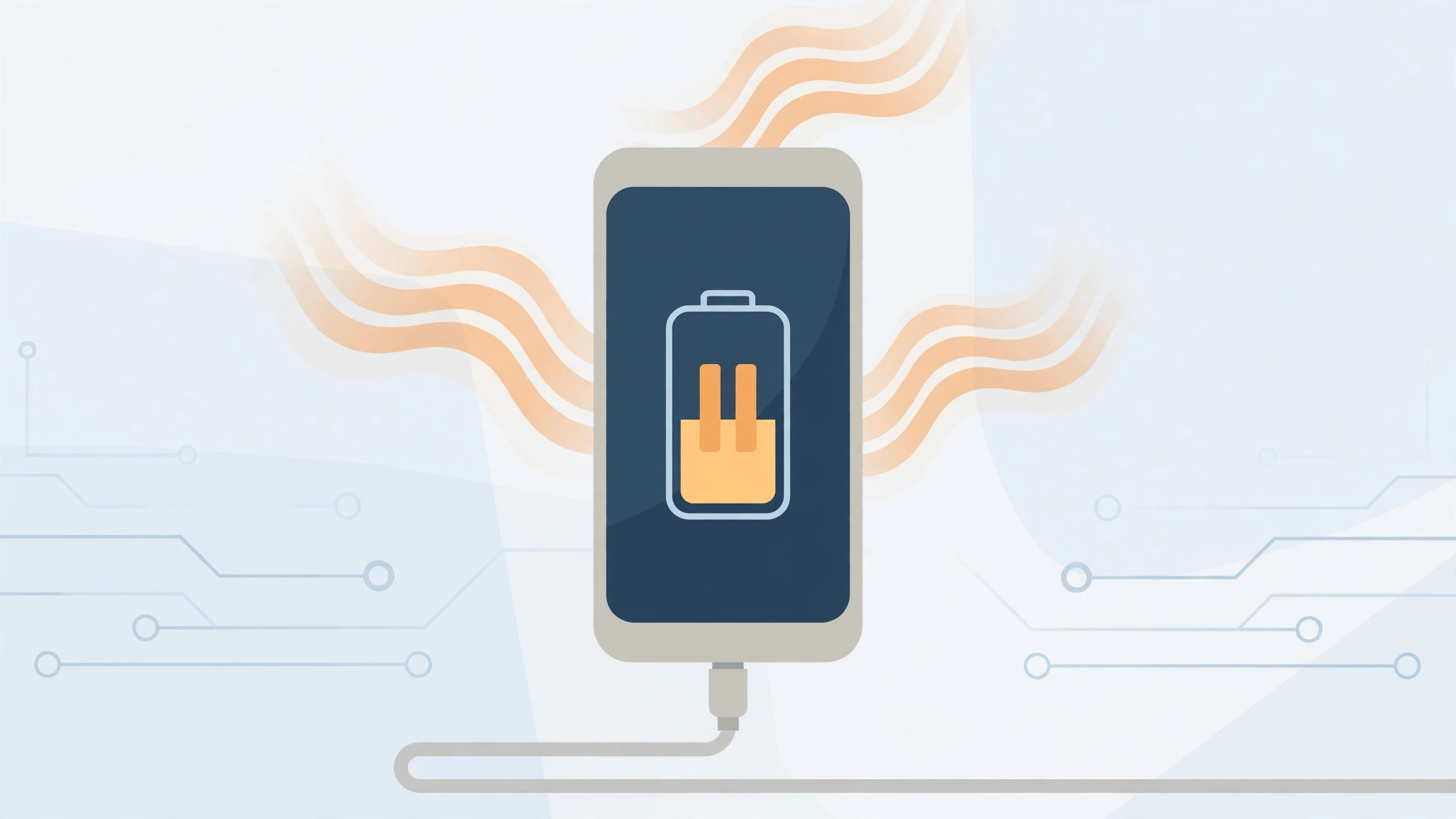
You plug in your iPhone, check the Lock screen, and instead of the charging icon you see an unfamiliar message: “Charging On Hold Due to iPhone Temperature.” The percentage does not move. Before you blame the battery or buy a new charger, know this: on iOS 16, that message almost always means your iPhone is protecting itself. Apple built thermal safeguards into the charging system, and iOS 16 reports them plainly on the Lock screen. Charging resumes automatically once conditions are safe. Here is what the message means, how to get charging again, and two iOS 16 battery settings that can quietly pause charging even when the temperature is perfectly fine.
How to get your iPhone charging again
Work through these steps in order.
- Move the phone somewhere cooler. Heat is the usual trigger — a phone baking on a car dashboard or a sunny windowsill can trip the safeguard fast, so move it into shade or an air-conditioned room. If it is bitterly cold instead, let it warm up gradually at room temperature.
- Unplug, wait, and plug back in. Disconnect the cable, give it a minute or two, then reconnect. The short break lets the charging controller re-check the battery temperature, and the warning often clears on the next attempt.
- Take the case off while charging. Thick or rugged cases trap heat against the phone’s body. Charging case-free for a while is frequently enough to make the message disappear.
- Give demanding apps a rest. Graphics-heavy games, long video calls, GPS navigation, and 4K video recording generate their own heat. Close them and let the phone sit idle until it cools down.
- Check the 80% limit. If charging always stalls at exactly 80%, that is Optimized Battery Charging, not the temperature safeguard. Go to Settings → Battery → Battery Health & Charging to switch it off, or tap the Lock-screen offer to charge to full just this once.
- Check Clean Energy Charging. On iOS 16.1 and later, Settings → Battery → Charging holds another switch that can delay charging past 80%. Turn it off if you want a full, uninterrupted charge.
- Rule out the accessories. Try a different Apple-certified cable and adapter, check the Lightning or USB-C port for pocket lint and clean it gently with a soft dry brush, then restart the iPhone.
Charging quirks are not limited to the iPhone itself. If your AirPods case beeps unexpectedly on the charger, learn how to turn off the AirPods charging case sounds — and if you would like an audible greeting every time your phone powers up, you can add and change the iPhone startup sound in iOS.
If it still doesn’t work
When the message appears while the phone feels like it is at normal room temperature, treat it as a hardware or accessory issue rather than a thermal one. Inspect the cable for fraying, try another adapter, and make sure the port is free of lint. A forced restart clears temporary glitches in the charging controller. If the warning survives all of that, the battery or charging circuitry may need professional attention — Apple’s official iPhone support page explains how to arrange service, and outlets like 9to5Mac regularly document charging issues and their fixes across iOS versions.
FAQ
Will “Charging On Hold” damage my battery?
No — it prevents damage. Charging a hot lithium-ion battery accelerates wear, so iOS pauses the current until the temperature is safe. Letting the phone cool down is the gentlest thing you can do for long-term battery health.
Why does my iPhone always stop charging at 80%?
That is Optimized Battery Charging, a separate feature that slows battery aging by holding 80% until you need a full charge. Disable it in Settings → Battery → Battery Health & Charging, or accept the one-time Lock-screen offer to charge to full.
Conclusion
“Charging On Hold” looks alarming, but on iOS 16 it is usually your iPhone looking after itself. Cool it down, unplug and reconnect, remove the heavy case, and check the Optimized Battery Charging and Clean Energy Charging switches. Reserve the worry for the rare cases when the message appears at normal temperatures: then the cable, the port, or a visit to Apple Support is the answer.





