
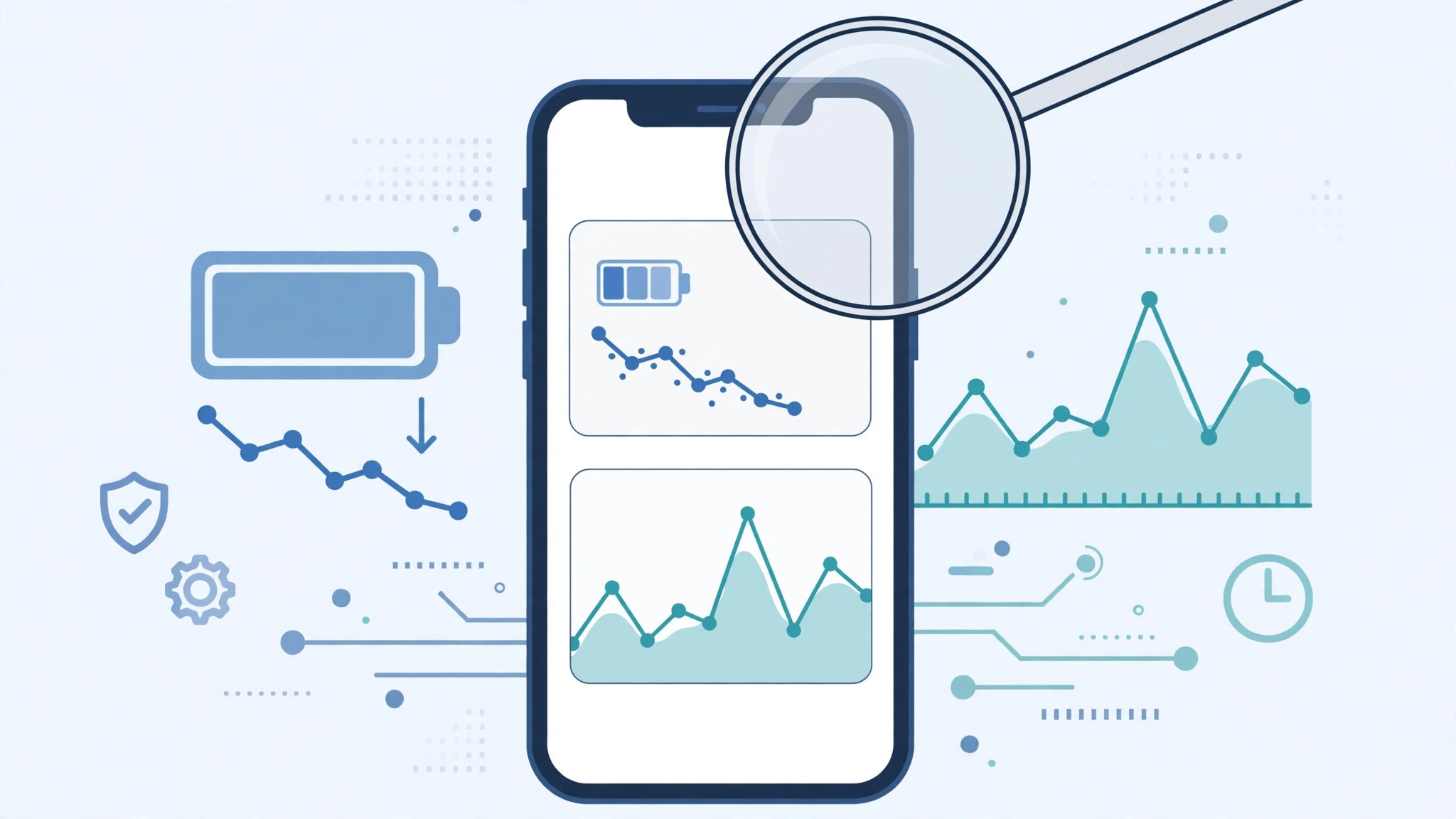
Left your iPhone on the desk and came back with a nagging feeling someone picked it up? You don’t need spy apps or detective tricks to find out — your iPhone already keeps the clues. Here are three simple, built-in ways to tell whether someone used your iPhone while you were away, plus how to make sure it can’t happen again. The tone here is practical, not accusatory: these tricks are for your own peace of mind.
Method 1: Check the app switcher
The app switcher remembers every app that was opened recently, and it’s the fastest check of all.
- Before you leave: clear the app switcher. On Face ID iPhones, swipe up from the bottom edge and pause in the middle; on Touch ID models, double-press the Home button. Then swipe every app card away so the switcher is completely empty.
- When you return: open the app switcher again. If you see an app sitting there — Photos, Messages, Safari, anything — someone launched it while you were gone. Your iPhone doesn’t open apps by itself, so an occupied switcher means hands were on your phone.
Method 2: Use Screen Time graphs
Screen Time records exactly when each app was used — perfect for absences of a couple of hours or more.
- Open Settings > Screen Time and make sure it’s turned on.
- Set a Screen Time passcode so the usage data can’t be wiped without your knowledge.
- Tap See All Activity and look at the usage graph for the period you were away. Bars showing app activity during that window tell you exactly which apps were opened and for how long. Apple Support explains how Screen Time tracks app usage, and outlets like Macworld have covered these reporting features in depth.
Method 3: Lock things down for next time
If the clues say someone got in, take a minute to secure the phone:
- Change your unlock passcode. Go to Settings > Face ID & Passcode (or Touch ID & Passcode) and choose a new code that’s hard to guess or shoulder-surf.
- Remove unknown biometrics. In the same settings screen, check the enrolled faces or fingerprints and delete any you don’t recognize. While you’re hardening things, our guide on how to stop Safari from suggesting passwords for websites on iPhone keeps your logins from being exposed, and you can disable quick camera launch from the iPhone lock screen to reduce what a locked phone reveals.
If it still doesn’t work
These methods confirm whether apps were launched, but they can’t identify who did it — Screen Time logs activity, not faces. If the app switcher is empty and Screen Time shows nothing, your iPhone almost certainly sat untouched. Keep in mind that background refresh can occasionally make an app look “recent”; cross-check with Screen Time’s usage times to be sure. And a friendly reminder: these tricks are for peace of mind, not for confrontations.
Frequently asked questions
Can Screen Time tell me exactly which app was opened?
Yes. The “See All Activity” view breaks usage down per app with timestamps, so you can see not just that the phone was used, but which apps ran and for how long — a capability highlighted in coverage by 9to5Mac.
What if someone deleted the evidence?
Clearing the app switcher manually is possible, which is why the Screen Time passcode matters — with it set, the usage history can’t be erased without the code. A passcode change plus unknown-biometric cleanup is the reliable way to prevent a repeat.
Conclusion
You don’t need special software to know if someone used your iPhone: an empty app switcher before you leave, Screen Time’s graphs when you return, and a fresh passcode to close the loop. Set them up once, and you’ll always be able to answer that nagging question with facts instead of guesses.





