
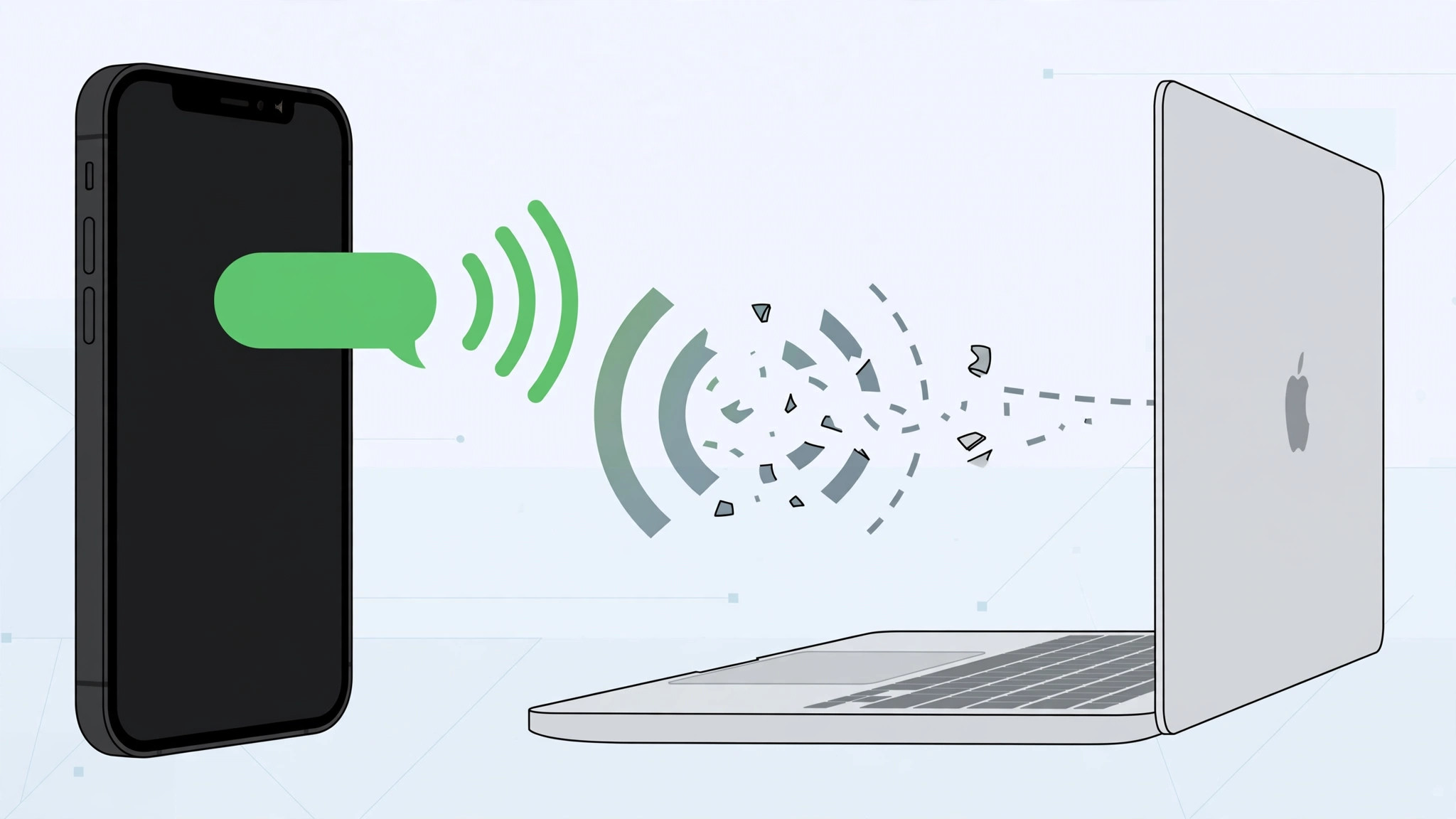
Blue bubbles show up on your Mac without any trouble, but the green-bubble SMS texts from your iPhone never arrive. It is one of the most common Mac headaches, and it almost always comes down to a few settings that must line up on both devices. The good news: the fix takes just a few minutes once you know where to look.
The key thing to understand is that SMS forwarding is a separate switch from iMessage itself. Your Mac can be signed into iMessage and still never see a single SMS until you explicitly allow your iPhone to relay them. Work through the steps below in order, and check each one even if you think it is already set.

How to get SMS texts from iPhone arriving on Mac
Go through each of these on both devices. Most people find the culprit at step three.
- Use the same Apple ID on both devices. On iPhone, check Settings > [your name] at the top; on Mac, open Messages > Settings > iMessage and look at the signed-in account. If they differ, sign out and back in with the same Apple ID on both. Apple Support covers the basics of Messages setup if you need a refresher.
- Match your iMessage identity. On iPhone, go to Settings > Messages > Send & Receive and note which phone number and email addresses are checked. On Mac, open Messages > Settings > iMessage and make sure the same addresses are enabled for sending and receiving. A mismatch here silently splits your conversations across devices.
- Turn on Text Message Forwarding — the step most people miss. On iPhone, go to Settings > Messages > Text Message Forwarding and toggle ON the switch next to your Mac. This is the permission that lets your iPhone relay SMS and MMS to the Mac. Without it, only blue-bubble iMessages arrive. Guides on 9to5Mac flag this as the number-one cause of missing texts.
- Enable Messages in iCloud on both devices. On iPhone: Settings > Apple ID > iCloud > Messages (toggle on). On Mac: Messages > Settings > iMessage > Enable Messages in iCloud. This keeps the full history — including SMS — synced across devices instead of living only on your phone. For a deeper walkthrough, see our guide on how to set up message sync between iPhone and Mac.
- Wait for the sync — or force it. After enabling everything, give it a few minutes to pull history. If texts still are not flowing, open Messages > Settings > iMessage on the Mac and press Sync Now. MacRumors forum threads confirm this nudge often kicks a stuck sync into gear.
If it still doesn’t work
First, restart both devices — it resolves a surprising number of stuck relays. Second, check that your iPhone has cellular signal; SMS forwarding needs the phone to receive the text before it can forward it. Third, make sure your Mac is online and not in a Focus mode that silences Messages — our guide on how to allow calls only from a specific SIM card in Focus mode shows how granular those filters can get. Fourth, try toggling Text Message Forwarding off and back on for the Mac to re-register it.
Frequently asked questions
Do both devices need to be on the same Wi-Fi network?
No. Both devices need to be signed into the same Apple ID and be online, but they do not have to share a Wi-Fi network. Your iPhone still needs cellular service (or Wi-Fi calling) to receive the SMS first.
Will this sync SMS texts I received before turning it on?
Messages in iCloud syncs going forward once enabled; older SMS texts stored only on the iPhone may not backfill to the Mac. Pressing Sync Now on the Mac pulls whatever the cloud already has.
Conclusion
Nine times out of ten, the missing piece is Text Message Forwarding. Flip that switch, confirm iCloud sync on both ends, and your Mac will show every text your iPhone gets — green bubbles included.





