
Your Apple Watch face is the first thing you see every time you raise your wrist — so why should it stay the same at the office, in bed, and at the gym? With a simple automation in the Shortcuts app, your watch can swap faces on its own whenever a Focus mode turns on: a data-packed face for work, a calm minimal one for sleep, a bold workout face for training.
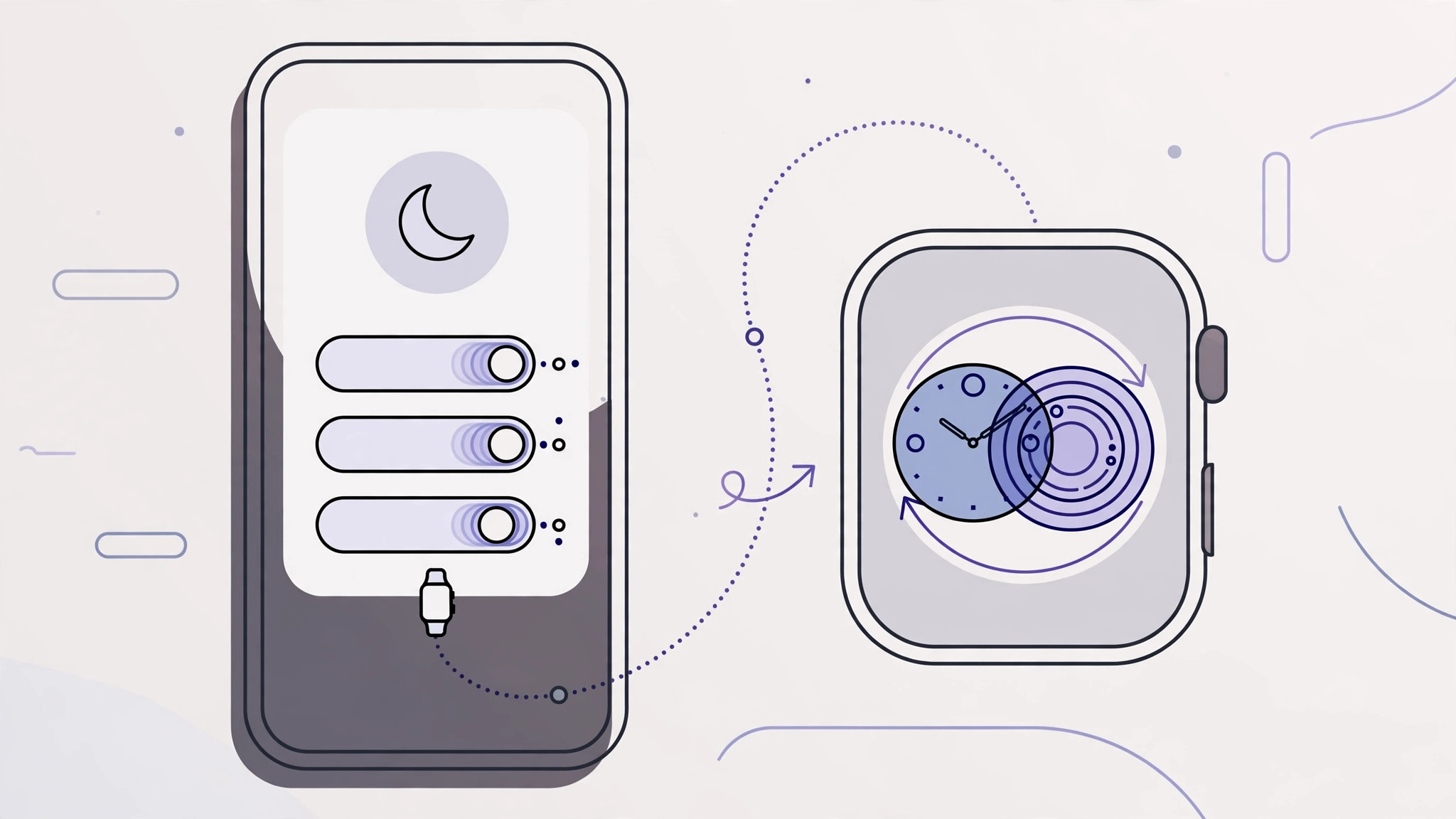
The recipe uses the Automation tab in Shortcuts. You choose a Focus mode as the trigger and the “Set Watch Face” action as the job, and from then on it runs silently in the background with no taps required. Build one automation per Focus mode, plus a reverse automation that restores your everyday face when the Focus turns off.
How to auto-change your Apple Watch face with Focus modes
Give yourself about five minutes per Focus mode — you will repeat the same recipe for each one.
- Note your exact watch face names. On your iPhone, open the Watch app and go to My Watch > My Faces, then write down the exact name of each face you want to use (for example, “Infograph” or “California”). The automation matches by name, so spelling counts. Apple Support’s guide to Apple Watch faces can spark ideas if you want new ones.
- Create a new personal automation. Open the Shortcuts app, tap the Automation tab, and create a new personal automation.
- Pick the Focus mode as the trigger. Choose the Focus mode you are setting up — Work, Sleep, Driving, or Fitness — and set the automation to run “When Turning On”. If you are new to Focus modes, our guide on how to allow calls only from a specific SIM card in Focus mode shows how flexible they can be.
- Add the “Set Watch Face” action. Add the “Set Watch Face” action and choose the face by its exact name from step 1. Walkthroughs on 9to5Mac cover this action if your Shortcuts layout looks different.
- Turn OFF “Ask Before Running”. Disable “Ask Before Running” (confirming “Don’t Ask” when prompted) so the swap happens automatically instead of waiting for your tap each time.
- Build the reverse automation. Create a second automation with the same Focus mode, but set it to run “When Turning Off”, pointing its “Set Watch Face” action at your everyday face. Without this, the special face stays on after the Focus ends. As MacRumors forum users point out, the cleanest setup is one automation per Focus mode — work, sleep, driving, fitness — each with its own matching revert.
If it still doesn’t work
First, double-check the face name spelling — the action fails silently if the name does not match exactly. Second, confirm “Ask Before Running” is off; otherwise the automation waits for a tap you never give. Third, make sure the Focus mode itself is actually activating (check Settings > Focus and its schedule). Fourth, if the face still does not change, delete the automation and recreate it — a fresh one often clears whatever glitched.
Frequently asked questions
Does the automation work when my iPhone is locked?
Yes. Once “Ask Before Running” is disabled, Focus-triggered automations run in the background even with the phone locked and in your pocket.
Can I use a different face for every Focus mode?
Absolutely — that is the whole point. Build one automation per Focus mode (Work, Sleep, Driving, Fitness), each pointing at a different face, and add a matching “turn off” automation for each so your everyday face comes back.
Conclusion
A watch face that matches the moment is a small delight you notice a dozen times a day. Set the automations up once, and your wrist keeps pace with your life on its own. For a truly undisturbed night, pair your sleep face with our guide on how to turn off AirPods charging case sounds.





