
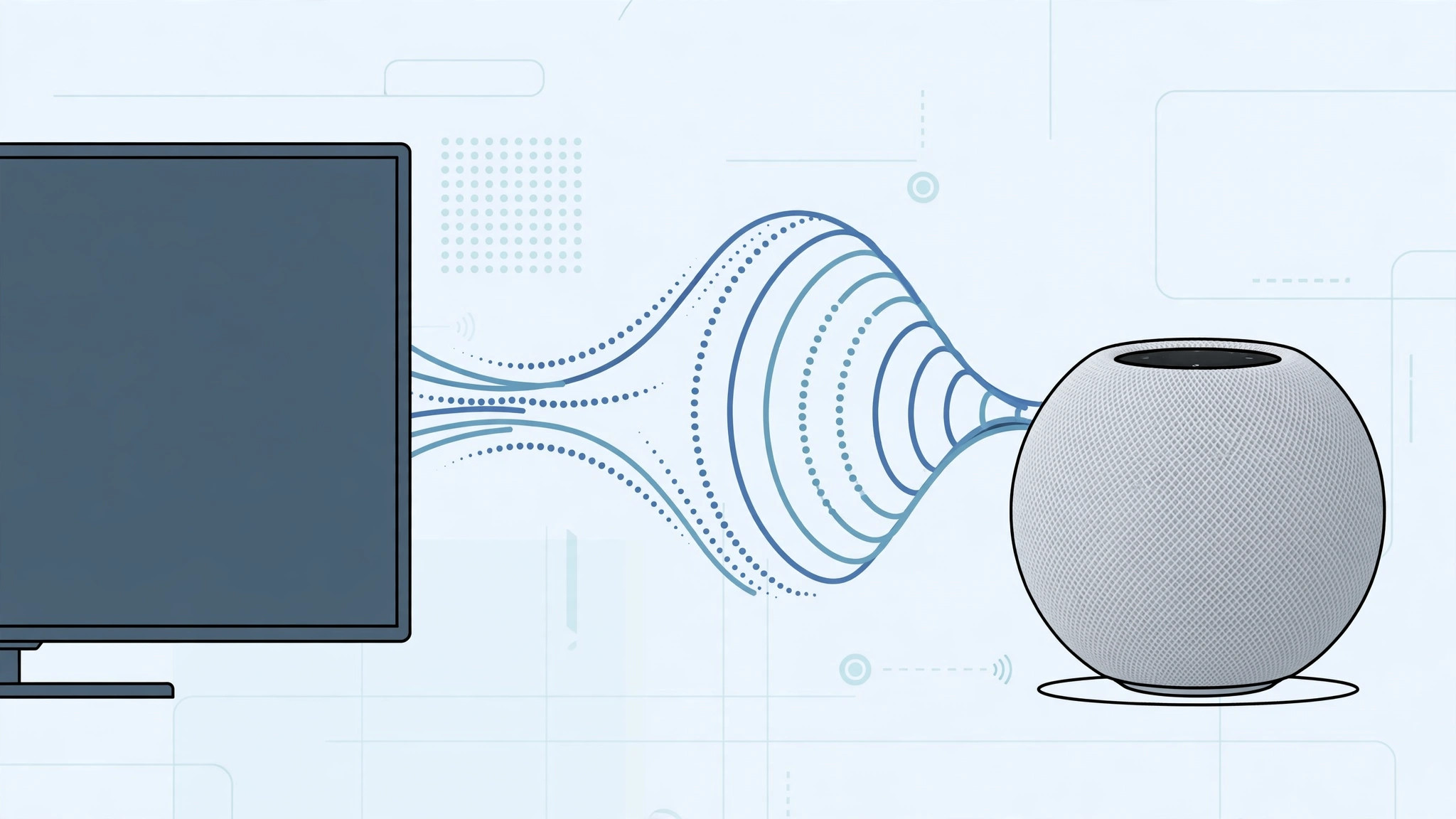
A HomePod sounds far better than the thin speakers built into most TVs — so it is natural to want your TV’s audio coming out of it. Apple supports this, but the setup depends on what you want to hear: just Apple TV content, or everything connected to your TV.
There are two levels. The easy one routes all Apple TV playback through the HomePod with a single setting. The full setup uses HDMI ARC or eARC to funnel every sound your TV makes — game consoles, cable boxes, built-in apps — through the HomePod. Here is how to set up both, and what each one needs.
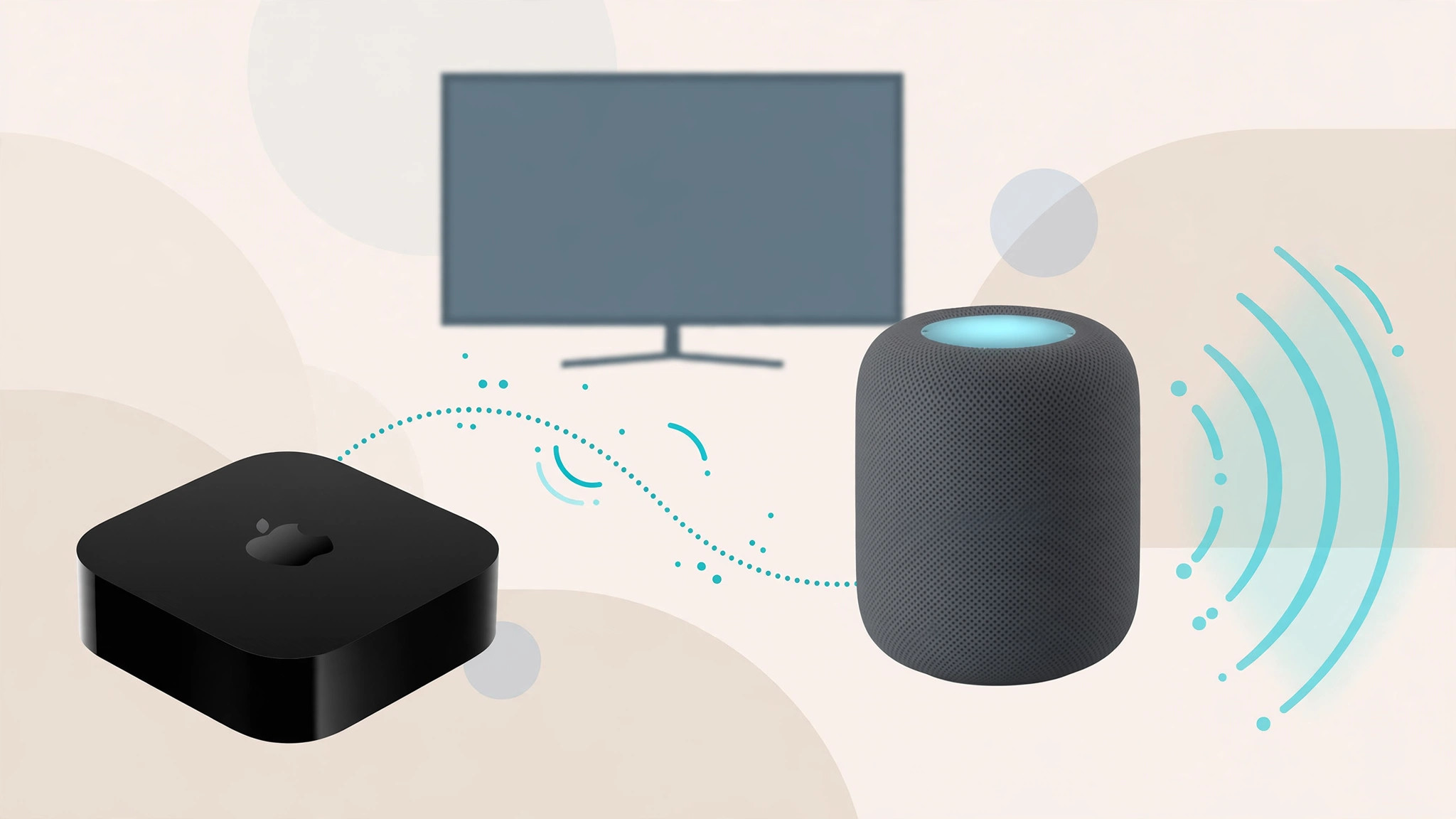
How to route TV or Apple TV audio to a HomePod
Start with the basics, then add the full-TV-audio layer if your gear supports it.
- Put Apple TV and HomePod in the same Home app room. Open the Home app and assign both devices to the same room. A stereo pair of HomePods works too — select the pair as a unit below. Apple Support documents the HomePod-as-TV-speaker setup.
- Set the HomePod as Apple TV’s default audio output. On Apple TV, go to Settings > Video and Audio > Default Audio Output and choose your HomePod. From now on, everything you play on the Apple TV — movies, shows, music — comes through the HomePod automatically.
- For ALL TV audio, check your hardware first. To hear non-Apple-TV sources (game console, cable box, the TV’s own apps), you need an Apple TV 4K (2nd generation or newer) plugged into the TV’s HDMI port labeled ARC or eARC, plus a TV that supports ARC/eARC. Without both, the full relay is not possible.
- Enable the Audio Return Channel. On Apple TV, go to Settings > Video and Audio > Audio Return Channel > Play Television Audio. When active, it shows “On (ARC)” or “On (eARC)”. The eARC walkthrough on MacRumors covers this step in detail.
- If ARC does not engage, check the TV’s own settings. Open your TV’s settings menu and make sure ARC/eARC is enabled, along with HDMI-CEC (often called Anynet+, Bravia Sync, or SimpLink depending on the brand). What Hi-Fi has brand-by-brand notes on where these toggles hide.
- Use the quick-switch shortcut for Apple TV only. If you only want the HomePod during Apple TV playback, hold the play/pause (or TV) button on the Siri Remote during playback to pick the HomePod on the fly.
Be clear on one thing: the HomePod alone cannot receive TV audio directly — there is no Bluetooth or line-in path for this. The full TV-audio relay requires the Apple TV 4K (2nd gen or newer) plus an ARC/eARC-capable TV. Without that chain, the HomePod works as a speaker for Apple TV content only.
If it still doesn’t work
First, confirm both devices are on the same Wi-Fi network and signed into the same Apple ID — dropouts usually mean a weak connection (our guide on setting up automatic hotspot connection from iPhone on Mac shows how Apple devices keep each other connected). Second, try a different HDMI cable — ARC/eARC needs a High Speed cable, and old cables fail silently. Third, power-cycle the TV and Apple TV after enabling ARC. Fourth, update your TV’s firmware. For other audio-routing frustrations, see how to stop iPhone from auto-switching audio to headphones.
Frequently asked questions
Can a HomePod mini be a TV speaker?
For Apple TV content, yes — set it as the default audio output. But the full ARC/eARC television-audio relay needs a full-size HomePod with an Apple TV 4K (2nd gen or newer); the mini does not support the return channel.
Can the HomePod play audio from a game console directly?
Only through the ARC/eARC chain: console → TV → (ARC/eARC) → Apple TV 4K → HomePod. The HomePod has no Bluetooth audio-in or AUX port, so there is no direct path.
Conclusion
Once set up, the difference is night and day — dialogue is clearer and films gain real weight. Start with the Apple TV default-output setting for instant results, then add the ARC/eARC layer if your TV supports it.





