
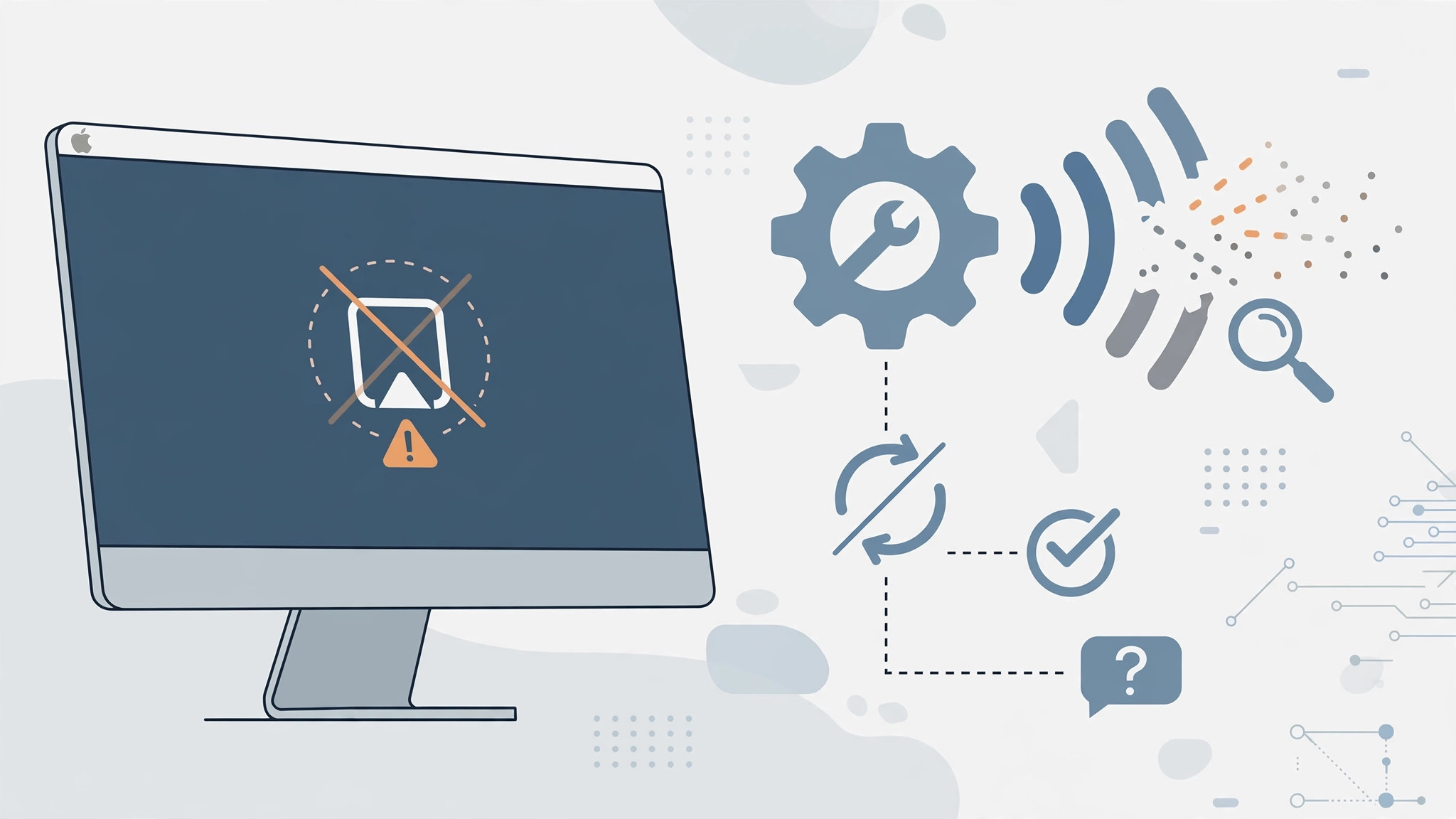
One of the best features in macOS Monterey is the ability to use your Mac as an AirPlay receiver — stream music, video, or even mirror the screen from your iPhone, iPad, or another Mac straight to your Mac’s display and speakers. But many users find the option missing or greyed out. If your Mac isn’t showing up as an AirPlay destination, the fix is usually simple. Here’s what’s going on and how to get it working.
Step-by-step: get the AirPlay receiver working
- Check that your Mac supports it. The AirPlay receiver requires a MacBook Pro or MacBook Air from 2018 or later, an iMac from 2019 or later, an iMac Pro from 2017, or a Mac mini from 2020. Older Macs simply don’t have the hardware support, no matter what macOS version they run. On the sending side, you need an iPhone 7 or later, an iPad Pro 2nd generation or later, iPad Air 3rd generation or later, iPad 6th generation or later, or iPad mini 5th generation or later.
- Put both devices on the same network. AirPlay discovery works over Wi-Fi. Make sure your Mac and your iPhone or iPad are connected to the same Wi-Fi network. If Wi-Fi is flaky, you can also connect the two devices with a USB cable — wired AirPlay works too, which is handy when sharing your iPhone’s internet with your Mac over USB.
- Enable the AirPlay receiver on your Mac. Open System Settings (or System Preferences on older macOS), go to Sharing, and look for “AirPlay Receiver” in the sidebar. Turn it on. You can also choose who is allowed to AirPlay to your Mac: just your Apple ID devices, anyone on the same network, or everyone nearby.
- Check for conflicting apps. Some third-party apps that use the same ports as AirPlay — such as certain media servers — can block the receiver. Quit any media server apps and try again.
- Restart both devices. If the Mac still doesn’t appear in the AirPlay list on your iPhone, restart both the Mac and the iPhone. This clears stale network discovery caches.
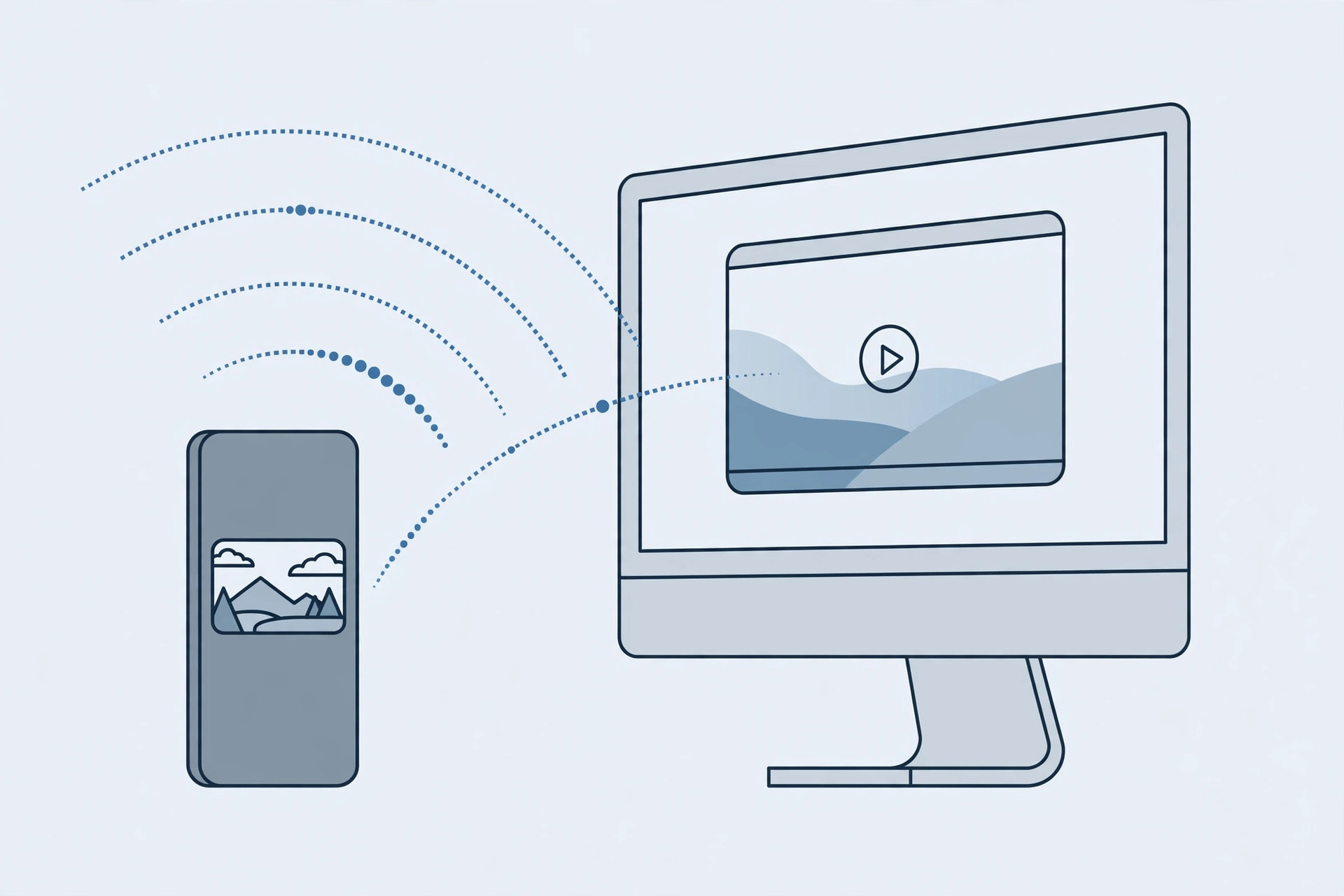
- Send something via AirPlay. On your iPhone, open Control Center, tap Screen Mirroring (or the AirPlay audio icon in a media app), and your Mac should now appear in the list. Select it and you’re streaming.
Why it happens
In most cases the receiver is simply turned off, or the Mac is too old to support the feature. The second most common cause is network segmentation: if your iPhone is on a 5 GHz band and your Mac is on 2.4 GHz with client isolation enabled on the router, the devices can’t see each other. Putting both on the same band usually fixes it. MacRumors has covered several reader reports where a router reboot alone resolved the issue.
It’s also worth knowing that AirPlay and AirDrop share the same underlying wireless discovery. If AirDrop isn’t working between your devices either, the problem is almost certainly the network, not AirPlay itself. And if you regularly hop between your iPhone and Mac, setting up automatic hotspot connections can save you a lot of fiddling.
If it still doesn’t work
Make sure both devices are updated to the latest macOS Monterey point release and the latest iOS — Apple fixed several AirPlay receiver bugs in later updates. If your Mac meets the hardware requirements and the toggle is on but nothing appears, try signing out and back into your Apple ID on both devices. Apple’s support pages list the exact compatibility requirements if you want to double-check your model.
FAQ
Can I use my Mac as an AirPlay speaker only, without video?
Yes. When you AirPlay audio from Apple Music or another app to your Mac, only the audio streams — the Mac acts as a wireless speaker. Screen mirroring is a separate option you choose explicitly.
Does the AirPlay receiver work over a wired connection?
Yes. If you connect your iPhone or iPad to the Mac with a USB cable, AirPlay can work over the wired connection even without Wi-Fi. YouTube creators have demos showing the lower latency this gives for screen mirroring.
Conclusion
An AirPlay receiver that won’t appear in macOS Monterey almost always comes down to three things: an incompatible Mac, the receiver toggle being off in Sharing settings, or the two devices being on different networks. Check those in order and you’ll be streaming to your Mac in minutes.





