
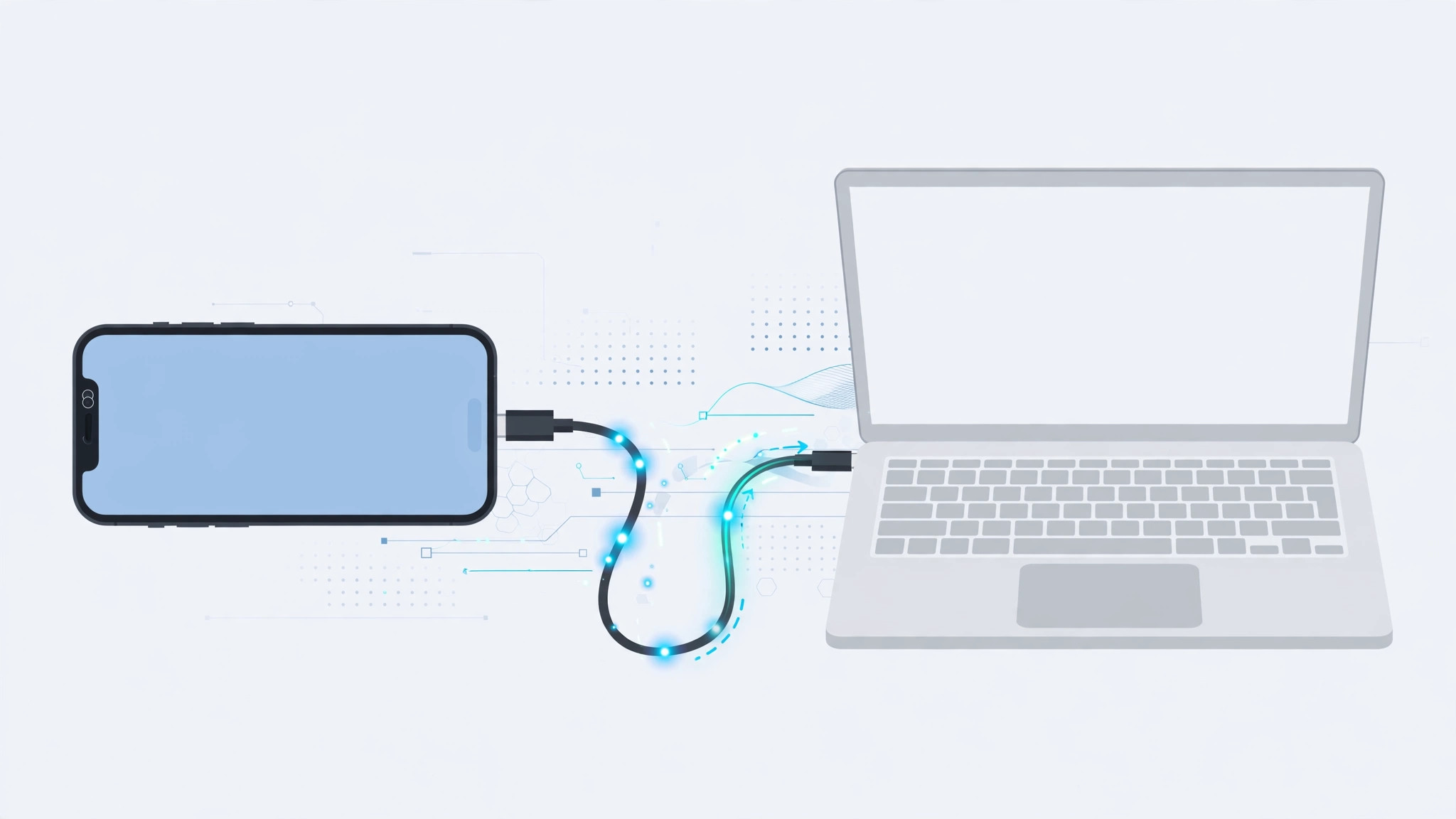
Most iPhone owners get their Mac online with a wireless Personal Hotspot. But when the Wi-Fi around you is congested, when you need the lowest latency for a video call, or when you would rather not broadcast your hotspot to every device nearby, a cable is the better choice.
USB tethering sends your iPhone’s cellular data to the Mac through a wire instead of through the air. The connection is faster, steadier, and completely private. As a bonus, your iPhone charges while it shares. Here is how to set it up.
Why tether over USB instead of Wi-Fi?
A wireless hotspot is visible to anyone in range, and its speed depends on how crowded the airwaves are. A USB connection is point-to-point: nobody else can hop on, and Wi-Fi interference cannot touch it. You also get lower latency and more consistent speeds. If you prefer wireless on most days, read our guide to setting up an automatic hotspot connection from iPhone on Mac — but for the fastest, most private link, the cable wins.
What you need
- An iPhone with an active cellular plan that includes Personal Hotspot (tethering)
- A Mac running a recent version of macOS
- A Lightning-to-USB or USB-C cable to match your iPhone model
Share iPhone internet with Mac over USB, step by step
- On the iPhone, turn off Wi-Fi and Bluetooth. This stops the phone from trying to share its connection wirelessly and forces the wired route. Use Control Center or the Settings app.
- Open Settings → Cellular and tap Personal Hotspot. Switch on Allow Others to Join.
- Choose “USB Only” when the iPhone asks how you want to share the connection.
- Connect the iPhone to the Mac with the cable. If the iPhone asks whether to trust this computer, tap Trust and enter your passcode.
- On the Mac, open System Settings → Network and turn Wi-Fi off. If the Mac is also on Ethernet, disconnect it so macOS routes traffic through the iPhone.
- Done. The Mac automatically picks up the iPhone as a network interface (listed as “iPhone USB”) and switches to it. The iPhone shows the hotspot indicator and charges while it shares.
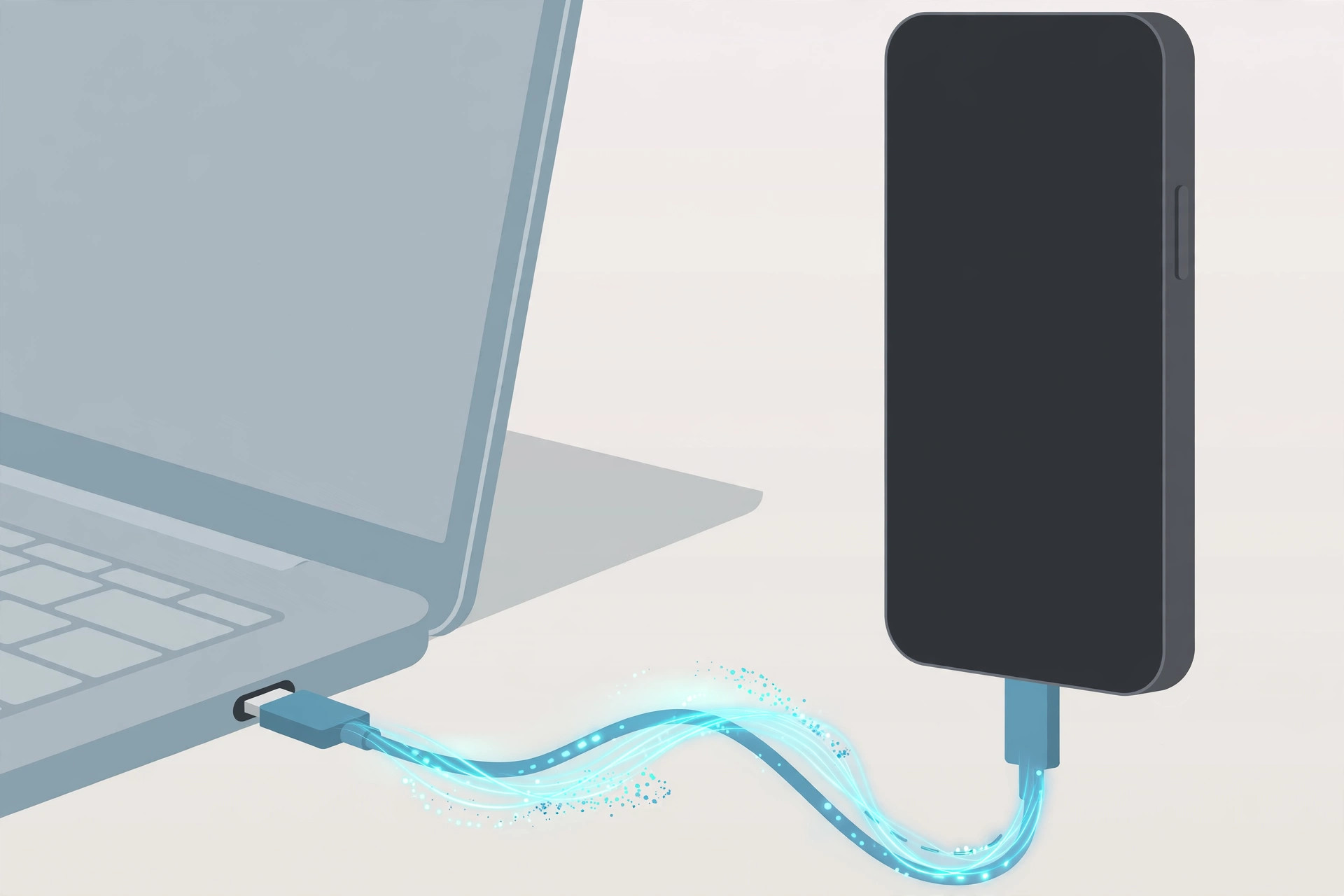
Apple documents both sides of this setup: the iPhone User Guide explains how to share your internet connection, including the USB option, and the Mac User Guide shows how to use an iPhone to get your Mac online.
If it still doesn’t work
- Try a different cable and USB port. Some cheap third-party cables carry power but not data.
- Restart both the iPhone and the Mac, then walk through the steps again.
- Check that your mobile plan actually includes tethering — some carriers block it or charge extra.
- Update both devices: iPhone in Settings → General → Software Update, Mac in System Settings → General → Software Update.
- If the Mac never lists the iPhone, check Finder: if the phone is missing there too, reconnect the cable and answer the Trust prompt again.
Frequently asked questions
Does USB tethering drain the iPhone battery?
No — quite the opposite. Because the cable carries power as well as data, your iPhone charges for the entire session. USB tethering is the only hotspot mode that tops the battery up instead of draining it.
Is USB tethering faster than a Wi-Fi hotspot?
In most cases, yes. A direct cable sidesteps Wi-Fi congestion and interference, so you get lower latency and steadier speeds. If you ever switch back to wireless, our automatic hotspot guide keeps that side painless too.
Conclusion
USB tethering is the most dependable way to get a Mac online from an iPhone: quicker than Wi-Fi, invisible to other devices, and it charges the phone at the same time. Once it is working, complete the pairing by setting up message sync between your iPhone and Mac so the two devices truly feel like one.





