
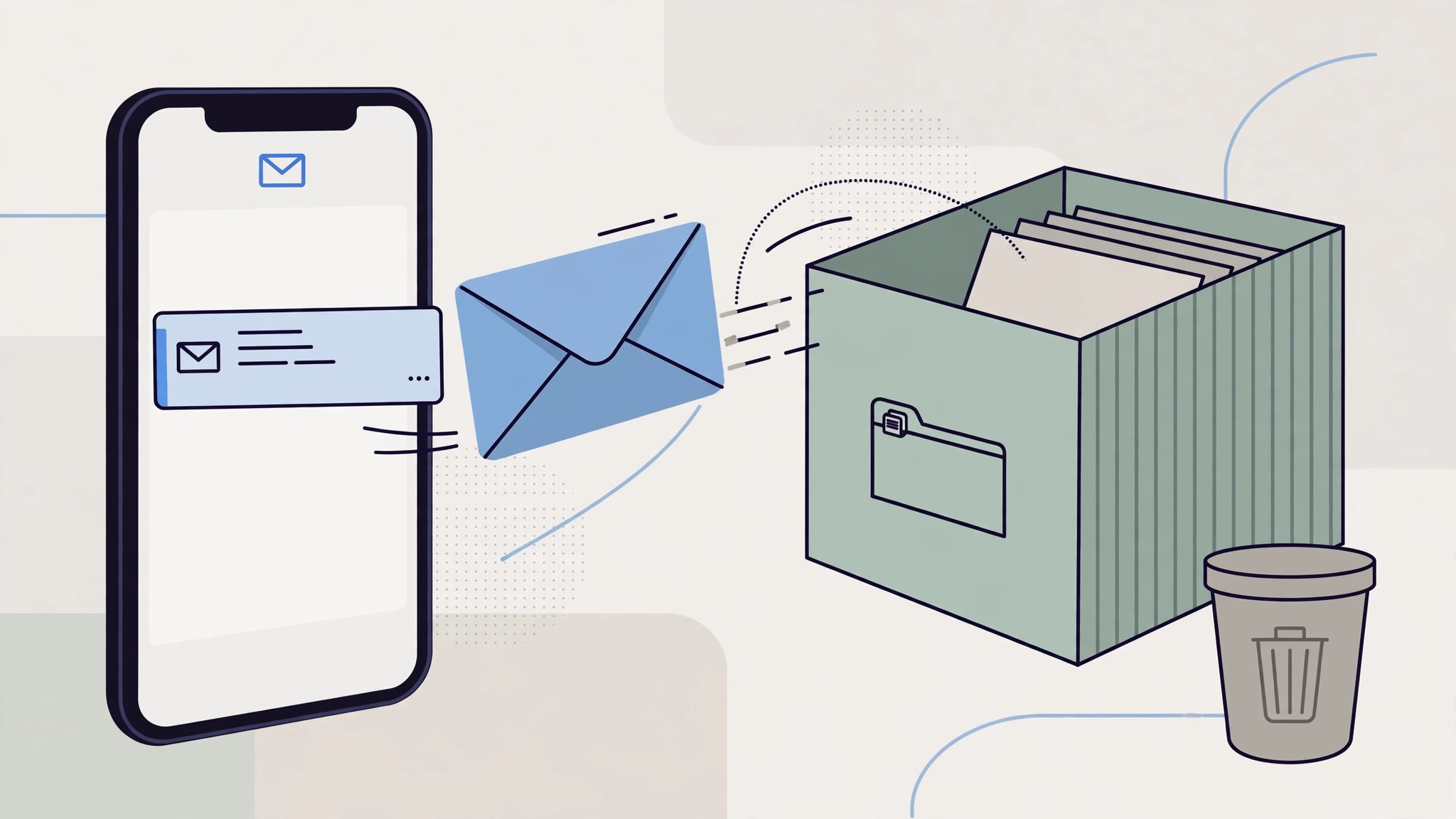
You swipe left on an email, tap the trash icon, and go to check your Trash folder later — only to find it empty. Your “deleted” messages went to the Archive folder instead. This isn’t a bug: it’s the iPhone Mail app’s default behavior for Gmail and iCloud accounts. Fortunately, fixing it takes about thirty seconds per account.
Why iPhone defaults to Archive
Apple’s philosophy is that you almost never want to truly delete an email — archiving keeps it searchable while removing it from your inbox. So for Gmail and iCloud accounts, the “Move discarded messages into” setting defaults to the Archive mailbox. Gmail users will recognize the logic: in Gmail’s world, archiving just removes the Inbox label, and Google’s own app behaves the same way. Sites like 9to5Mac have fielded reader questions about this exact quirk for years, because the Trash folder sitting empty while Archive quietly fills up confuses almost everyone at first.
Fix it for Gmail accounts
- Open Settings → Mail → Accounts and tap your Gmail account.
- Tap your account name again to open its settings, then tap Advanced.
- Under “Move Discarded Messages Into,” select Deleted Mailbox instead of Archive Mailbox.
Fix it for iCloud Mail
- Open Settings → Mail → Accounts → iCloud.
- Tap iCloud at the top, then Mail.
- Tap Advanced and, under “Move Discarded Messages Into,” choose Deleted Mailbox.
From now on, deleting a message sends it to Trash, where it waits 30 days before being permanently removed — plenty of time to rescue a mistaken deletion. Apple’s own iPhone support pages document these mailbox behaviors if you want to dig deeper.
Bonus: make the swipe gesture delete for real
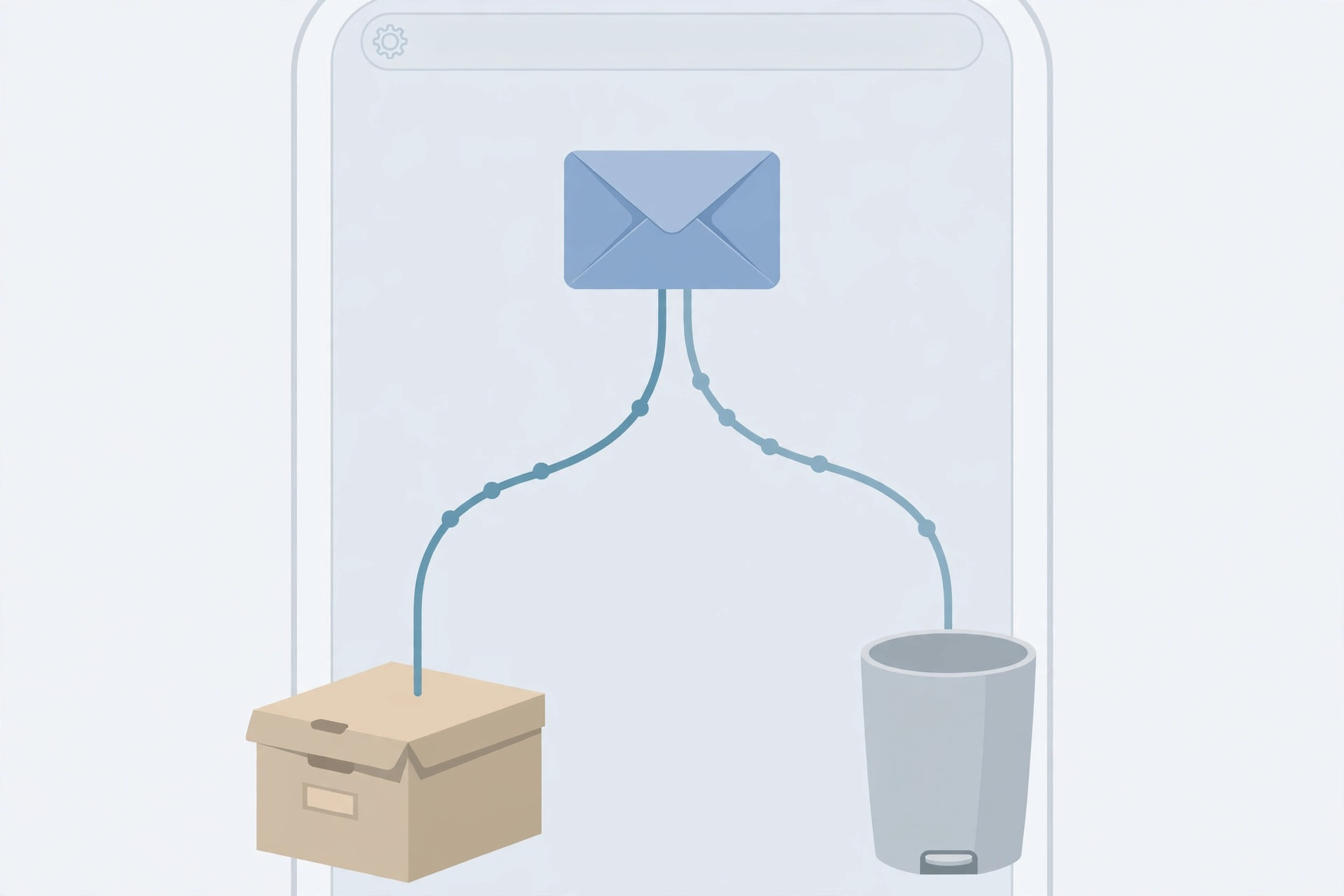
Even with the mailbox fixed, you can streamline the gesture itself. Go to Settings → Mail → Swipe Options, tap Swipe Left, and choose Trash. Now a quick swipe plus one tap deletes a message outright — no extra menus, no ambiguity about where it went.
If it still doesn’t work
If the setting keeps reverting to Archive, first make sure your iPhone is running a recent iOS version — older releases had a bug where this preference didn’t stick. If you use Outlook, Yahoo, or another provider, the equivalent option is controlled server-side, so check that provider’s own settings page or app. And if Mail is misbehaving in other ways too, take a look at our guide on why SMS won’t send on iPhone — messaging glitches often share root causes, and the fixes overlap.
Frequently asked questions
Will switching to Trash delete my archived emails?
No. Everything already sitting in Archive stays exactly where it is. The setting only changes where newly discarded messages go from this point forward.
Can I still archive emails when I want to?
Yes. With this change, the delete button and swipe gesture send mail to Trash, but you can still archive individual messages through the move menu. If you triage a lot of email, also consider setting up text replacement shortcuts to speed up composing replies.
One small setting, one big relief: your Trash folder will finally contain the messages you actually deleted.






[…] With IMAP or Exchange accounts, your messages stay on the provider’s server, so removing the account only deletes the local copy. POP accounts are the exception — mail downloaded with POP may live only on the device, so back up anything important first. See also why deleted emails on iPhone go to Archive instead of Trash. […]