
Bluetooth accessories on a Mac usually just work — until they don’t. Your earbuds refuse to pair, the mouse keeps disconnecting, or a speaker stutters no matter what you try. Restarting and re-pairing normally fixes it, but when the weirdness persists, there’s a deeper reset: macOS hides a factory reset for the Bluetooth module behind a secret menu.
Step 1: Get the Bluetooth icon into the menu bar
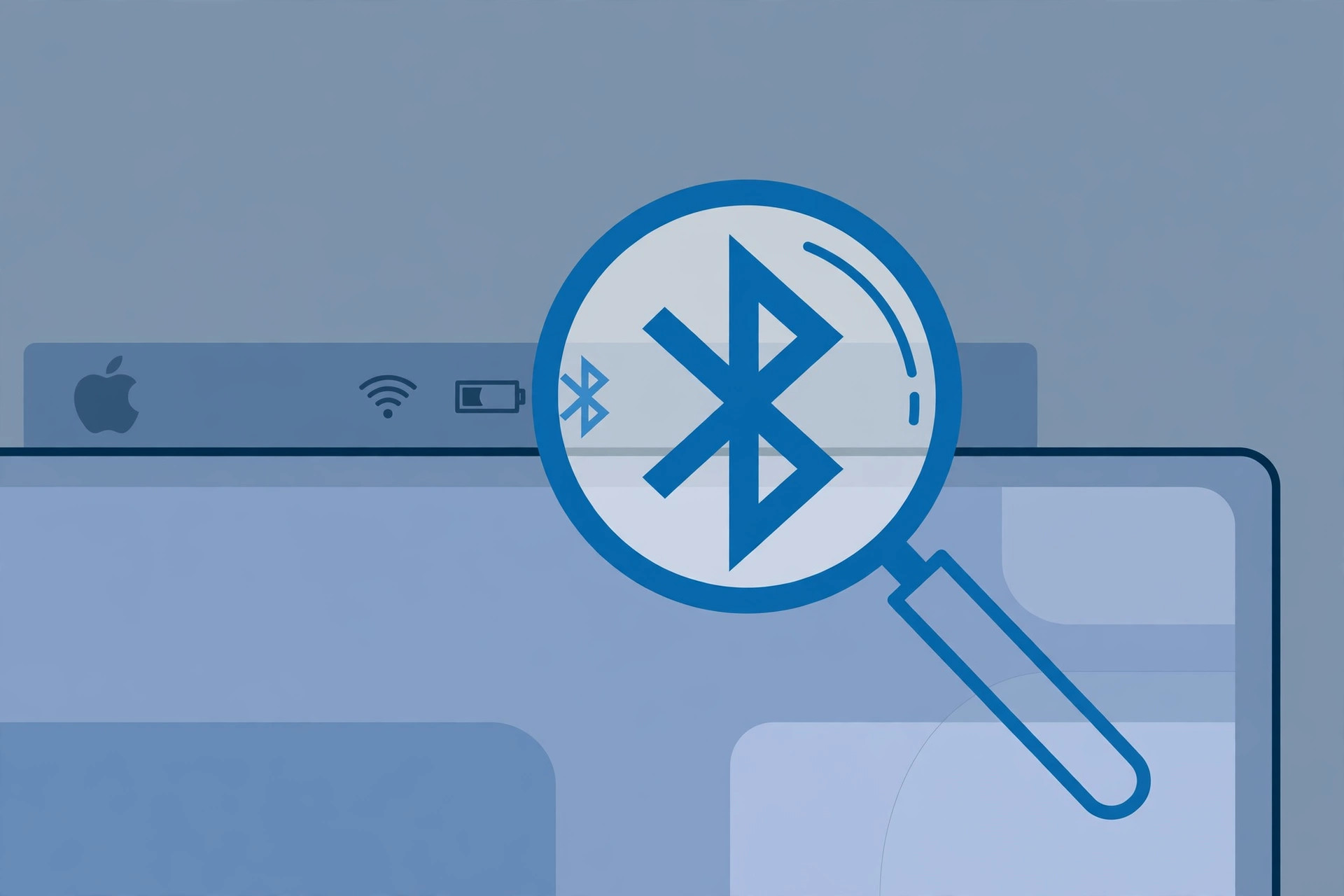
First, make sure the Bluetooth icon is visible in the macOS menu bar. On macOS Big Sur and later, open System Settings (or System Preferences) and use Control Center settings to drag the Bluetooth icon into the menu bar if it’s missing. The hidden menu we need lives behind this icon, so it has to be there.
Step 2: Open the hidden menu with Shift + Option
Hold down the Shift and Option (Alt) keys on your keyboard, then click the Bluetooth icon in the menu bar. A regular click shows the normal device list — but with Shift+Option held down, an extended context menu appears with extra options, including “Reset the Bluetooth module”. If the label looks slightly different on the newest macOS, check Apple’s Bluetooth troubleshooting guide for the current wording, since Apple has moved some of these options into Settings > Bluetooth.
Step 3: Reset the Bluetooth module and restart
Choose “Reset the Bluetooth module” from the hidden menu, then restart your Mac. The same menu also has a “Factory reset all connected Apple devices” option, which resets defaults on every paired Bluetooth gadget — pick the module reset for the safest, most targeted fix. 9to5Mac has covered this trick as a go-to fix when nothing else works. Note: this is a full reset — after the reboot, you’ll need to re-pair every Bluetooth device, so keep your accessories handy.
Step 4: Re-pair your devices
Once the Mac is back up, open System Settings > Bluetooth and pair your accessories again one by one. Most connection problems — ghost pairings, stubborn dropouts, devices that connect but won’t transmit audio — are gone after this. If you also struggle with audio hopping between devices, our guide on stopping iPhone from auto-switching headphone audio covers the iOS side, and face lighting during Mac video calls is worth setting up while you’re tuning your setup.
If it still doesn’t work
One caution for desktop Macs (iMac, Mac Pro, Mac mini): if your keyboard and mouse are Bluetooth-only, do this reset with a wired mouse or a USB-receiver mouse plugged in — you could otherwise lose all input after the module resets. If the reset doesn’t help, try booting in Safe Mode to rule out third-party interference, and consider an SMC or NVRAM reset as a last hardware-level resort.
FAQ
Will resetting the Bluetooth module delete my files?
No. It only clears Bluetooth pairings and settings. Your files, apps, and other system settings are untouched.
Does “Reset the Bluetooth module” work on every Mac?
The Shift+Option menu is available on Intel and Apple Silicon Macs running recent macOS versions, though the exact label may vary. If you can’t find it, use Settings > Bluetooth on the latest macOS.
Conclusion
A misbehaving Bluetooth stack doesn’t need a trip to the Genius Bar — one hidden menu resets the whole module in seconds. Keep a wired mouse handy, re-pair your devices, and enjoy a stable connection again.





