
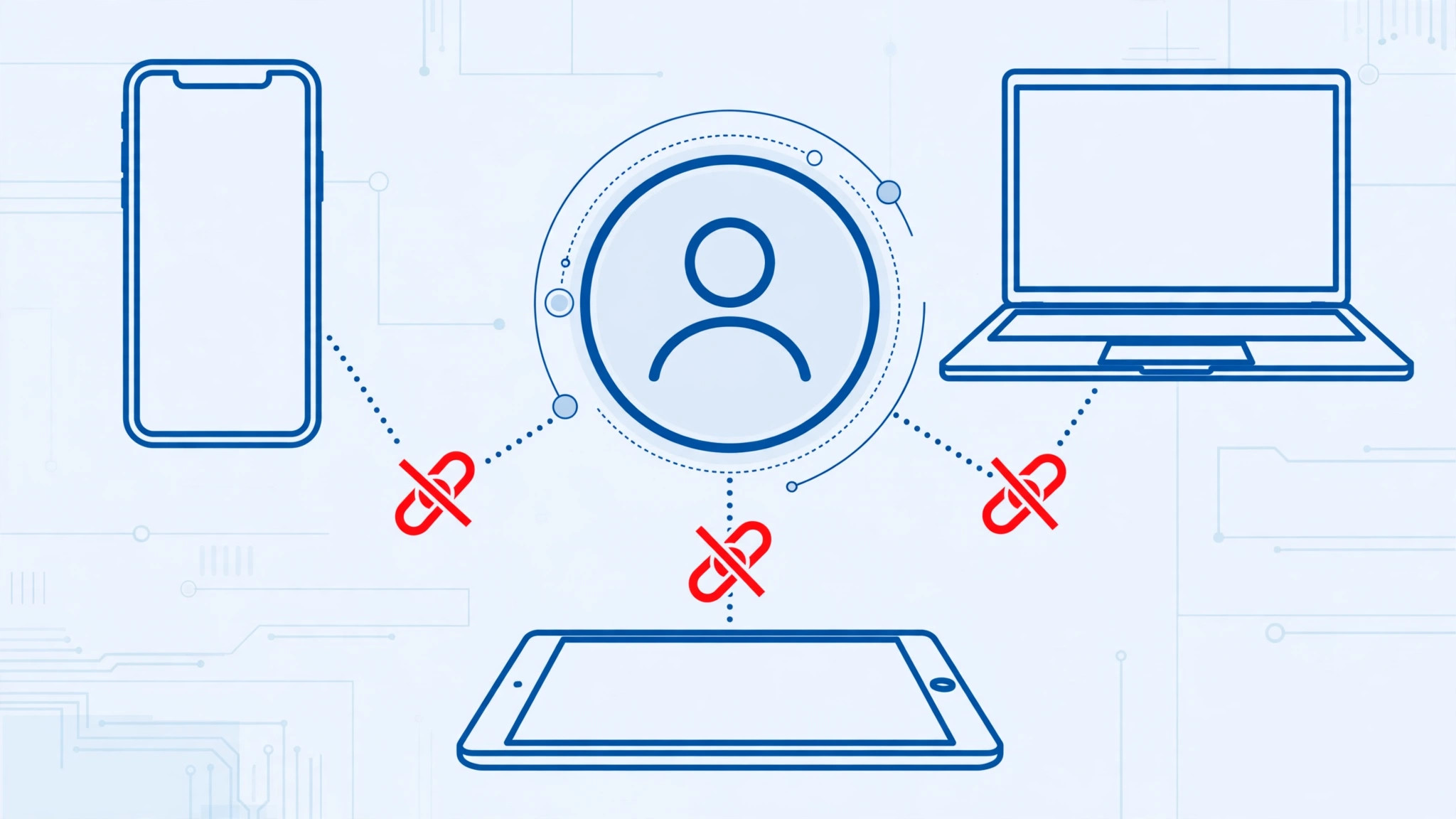
Sold your old iPhone, handed an iPad down to your parents in another city, or just realized your old Mac is still tied to your Apple ID? The good news: you don’t need the device in your hands — or to share your password with anyone — to unlink it. Apple lets you remove any device from your Apple ID remotely, and it takes seconds.
Step 1: Open your account settings on any Apple device
Grab any iPhone, iPad, or Mac signed in to the same Apple ID. On iPhone or iPad, open Settings and tap your name — your account — at the very top of the screen.
Step 2: Find the device in your device list
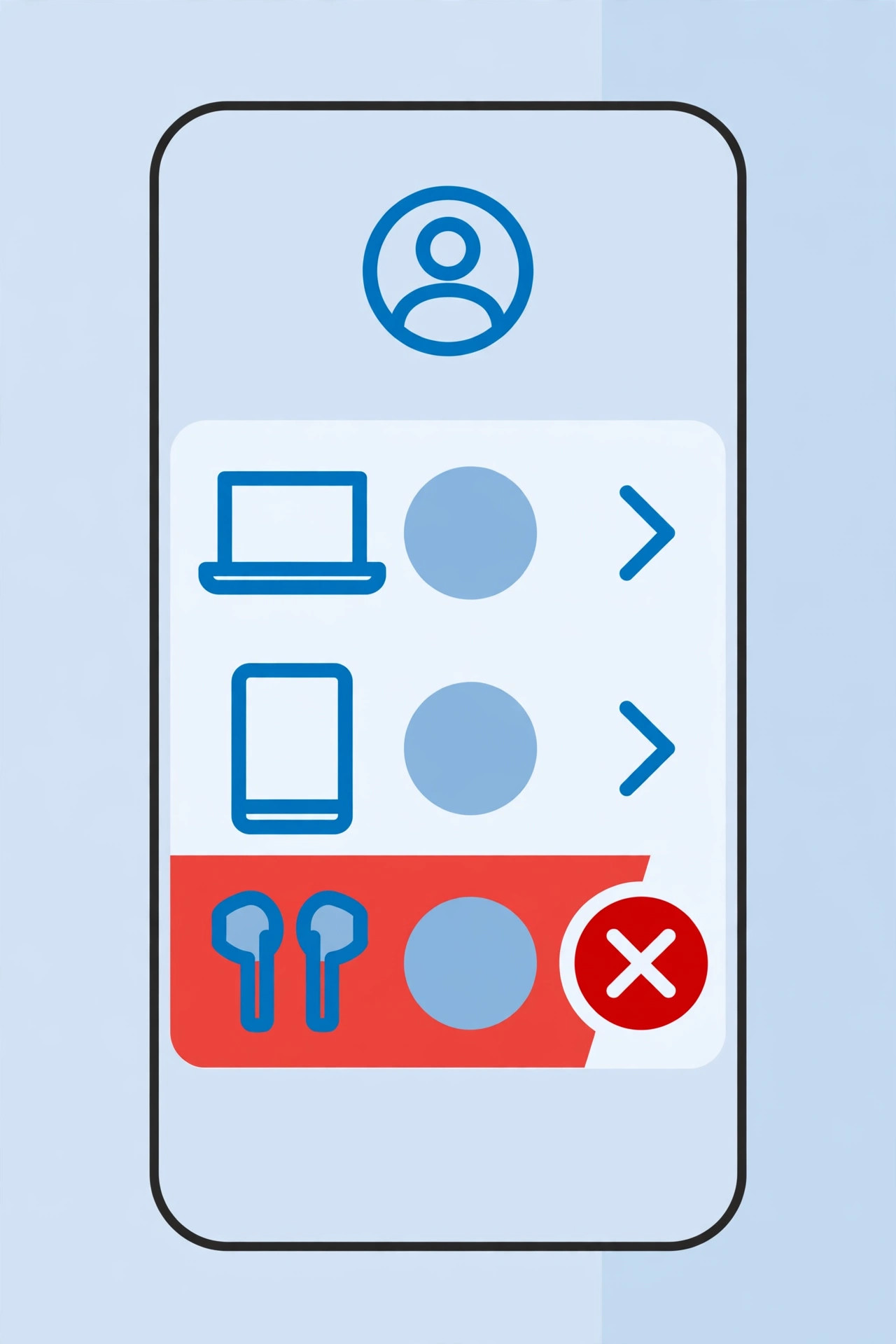
Scroll down below your personal information — you’ll see a list of every device tied to this Apple ID: iPhones, iPads, Macs, Apple Watches, even HomePods. Pick out the device you want to unlink.
Step 3: Tap “Remove from Account”
Select the device, then tap “Remove from Account” and confirm. Apple Support’s device-list guide explains this is the official way to sever a device’s association with your Apple Account. Done — the device can no longer use your Apple ID services.
Alternative: use iCloud.com
No Apple device handy? You can do the same in a browser at iCloud.com: open account settings and go to the Devices section. With two-factor authentication on, you’ll still need to approve the sign-in from one of your own devices, so have another gadget nearby. If you sync messages across your remaining devices, our guide on setting up message sync between iPhone and Mac keeps everything flowing after the unlink.
Step 4: Before you hand a device over, do the rest too
Removing the device from your account only unlinks the Apple ID. If the device was sold or given away, the new owner still needs a clean machine: they should erase it, and — critically — you must turn off Activation Lock (Find My) BEFORE handing it over, or they’ll be locked out. AppleInsider regularly covers the Activation Lock headaches that come from skipping this. Also consider whether the old device can be repurposed — our list of built-in iPhone apps you can delete is handy when setting up a hand-me-down for a family member.
If it still doesn’t work
If “Remove from Account” is grayed out or the device stubbornly reappears, check that it isn’t enrolled in Apple Business or School Manager, and confirm you’re signed in with the same Apple ID on both ends. As a last resort, erase the device itself — erasing also severs the Apple ID association.
FAQ
Does removing a device delete anything from it?
No. The device keeps its data; only the link to your Apple ID is severed. Erase it separately if it’s changing hands.
Will the new owner see my information?
Not after you remove it and they sign in with their own Apple ID. But remember: remove the device AND turn off Activation Lock before the sale.
Conclusion
Your Apple ID’s device list is a control panel you can reach from anywhere. Remove the device remotely first, then make sure Find My is off — and never share your password to get it done.





