
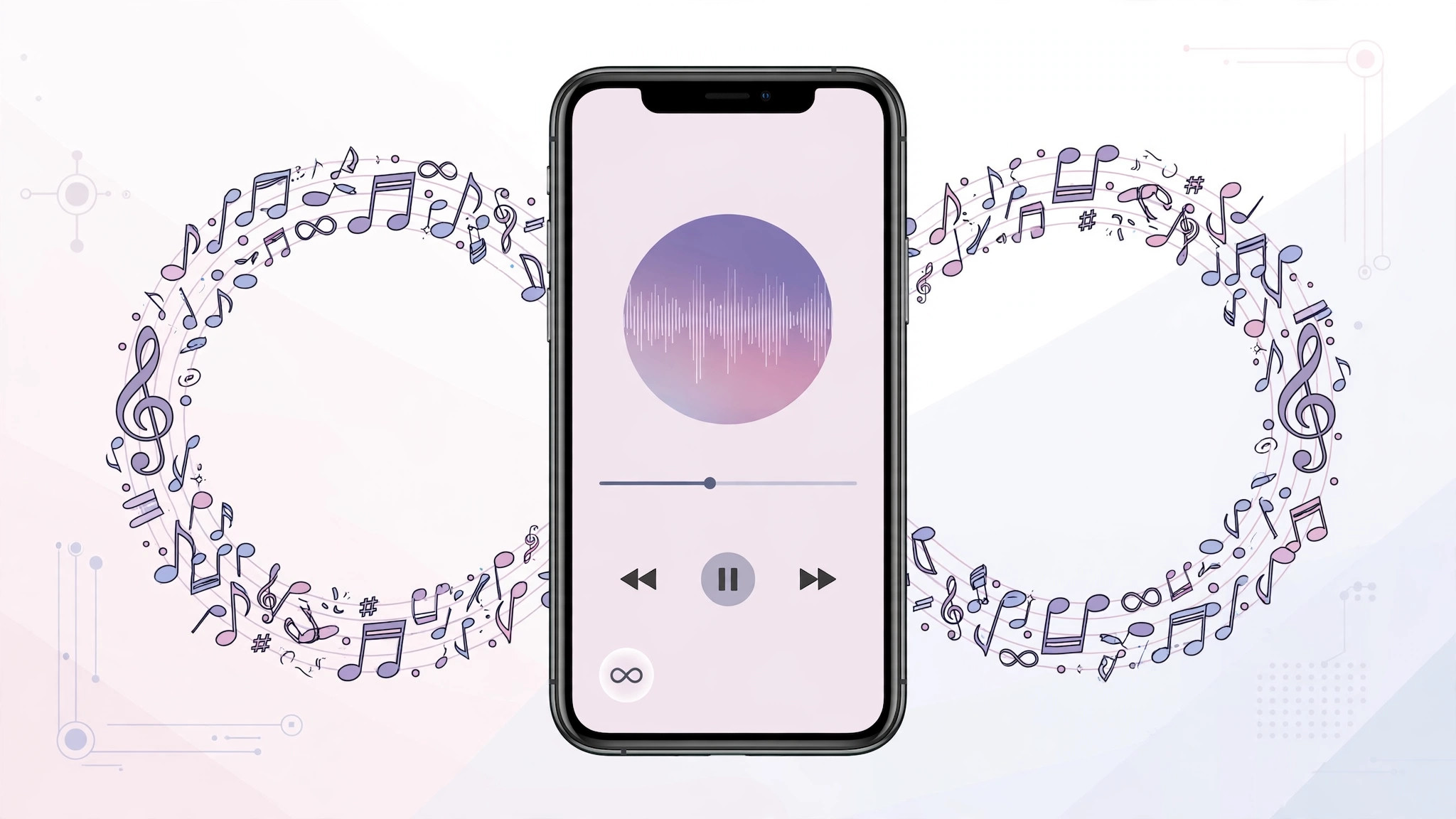
You are halfway through a long drive, the playlist ends, and silence takes over. In iOS 14, Apple Music has a built-in fix for exactly that moment: Autoplay. Switch it on and Apple Music keeps the music going with songs similar to what you were just listening to, long after your own queue runs out. The catch? The button hides inside the Up Next queue behind a small infinity symbol that most people never notice. Here is how to find it.
How to turn on Autoplay in Apple Music
- Start playing something. Open the Music app and play any song, album, or playlist.
- Open Now Playing. Tap the mini player bar at the bottom of the screen to expand the full Now Playing view.
- Open the Up Next queue. Tap the Up Next icon in the bottom-right corner — it looks like a bulleted list.
- Tap the Autoplay button. At the top of the queue you will see an infinity symbol (∞). Tap it to turn Autoplay on; it lights up when active. Tap it again any time to switch it off.
- Enjoy endless music. With Autoplay on, Apple Music automatically appends similar songs once your queue finishes, so playback never awkwardly stops.
Bonus tip: build your own queue
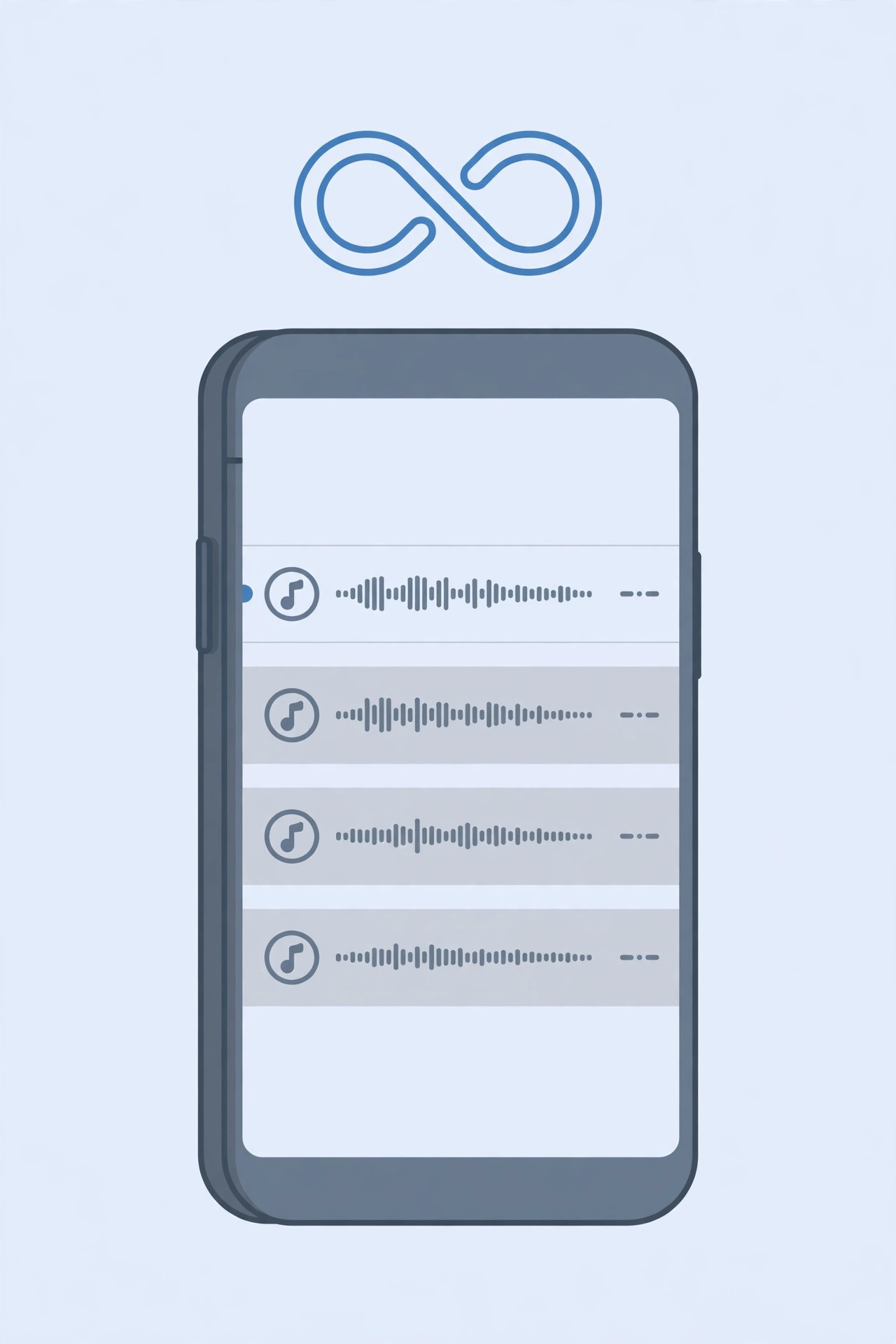
Autoplay picks similar music for you, but you can also line up songs yourself. Touch and hold any song, album, or playlist and a menu appears with Play Next, which inserts it right after the current track, and Play Later, which adds it to the end of your Up Next queue. Inside the Up Next list you can also drag songs into a new order using the three-line handles. Pair a hand-built queue with Autoplay and your music genuinely never has to stop. And if you discover new tracks with Shazam, you can auto-add Shazam discoveries to Apple Music or Spotify so they join the rotation.
If it still doesn’t work
Autoplay needs an active Apple Music subscription to fetch similar songs, so first make sure you are signed in with the right Apple ID. If the infinity icon is missing entirely, check that you are on the latest iOS 14 update under Settings > General > Software Update, then force-quit and reopen the Music app. Note that Autoplay works with streamed Apple Music content; it will not appear for some locally synced tracks. Apple’s guide to Apple Music on iPhone covers the subscription basics, and 9to5Mac documented the iOS 14 Music app redesign when it launched.
Frequently asked questions
Does Autoplay work without an Apple Music subscription?
No. The similar-song recommendations behind Autoplay are an Apple Music feature, so you need an active subscription (standalone or through Apple One). Without one, the infinity button may not appear at all.
How do I turn Autoplay off?
Exactly the same way you turned it on: open Now Playing, tap the Up Next icon, and tap the infinity symbol again so it is no longer highlighted. If you would rather have music stop on its own at night, see how to stop music on iPhone with a sleep timer.
The bottom line
Autoplay is one of those small iOS 14 touches that quietly fixes an everyday annoyance — no more silence when the queue ends. Turn it on once and forget about it, or pair it with a hand-picked queue for a session that lasts as long as you do. If the Music widget ever overstays its welcome on your lock screen, here is how to remove it.





