
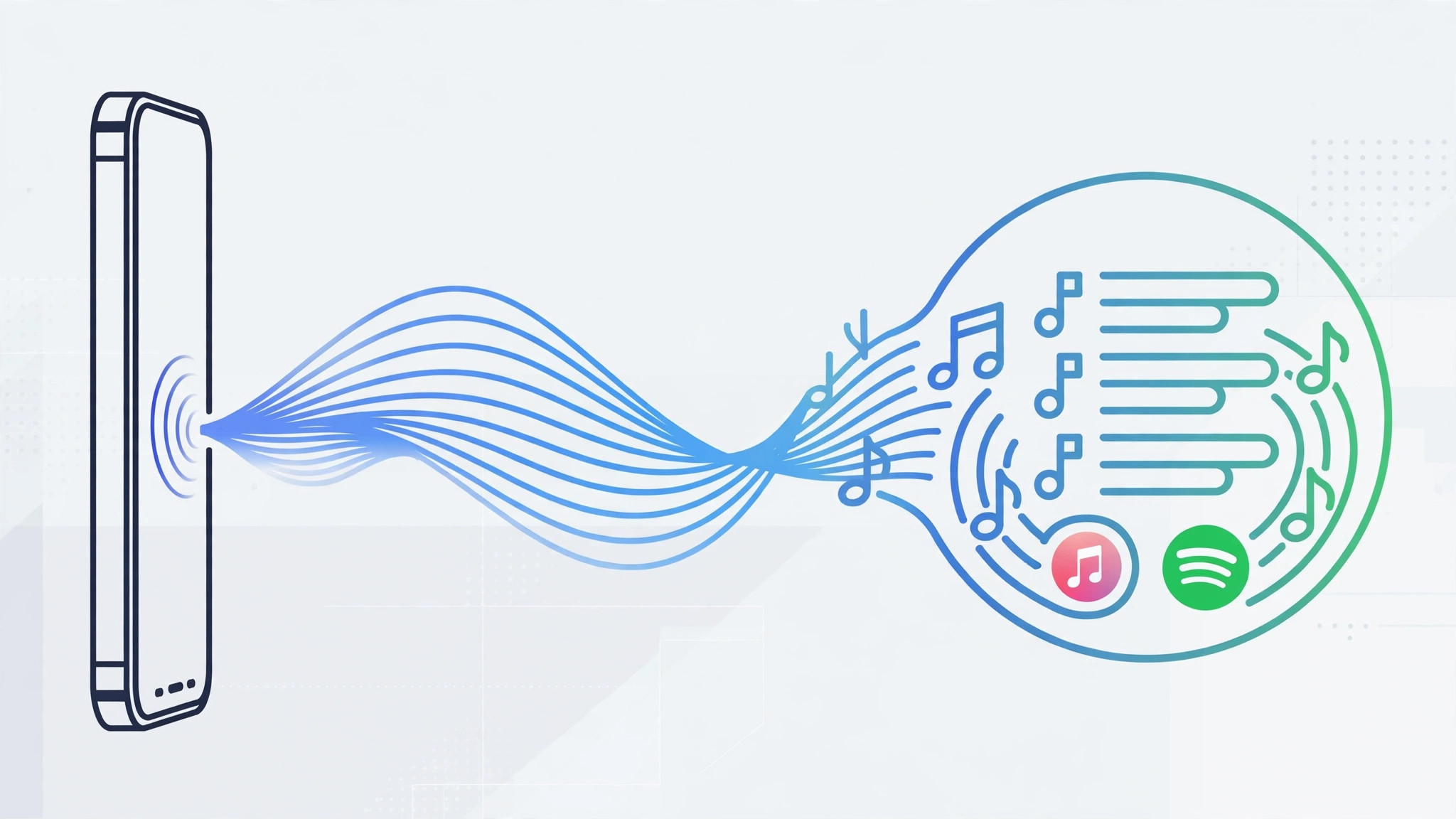
You’re in a cafe, a great song starts playing, you Shazam it – and then forget to save it. Doing that manually for every discovery is tedious, and those forgotten gems pile up. The good news: you can make Shazam do the filing for you. With one toggle, every song you recognize gets added automatically to a dedicated, ever-growing playlist in Apple Music or Spotify. Here is how to set it up – plus one important catch about where your Shazams actually live.
Before you start: know your three Shazam histories
This is the part most people miss. On iPhone, song recognition lives in three different places: the Control Center Shazam button keeps its own separate system history; recognitions made with Siri go to the Shazam app; and recognitions made inside the Shazam app itself stay there too. Only the app and Siri recognitions can auto-sync to a playlist – the Control Center button’s history stays stubbornly separate. (If you love ambient music detection, also see how to automatically identify songs playing nearby on iPhone.)
How to auto-add Shazam tracks to Apple Music or Spotify
- Install the Shazam app. Get the free Shazam app (by Apple) from the App Store if you don’t have it – the sync settings live there, not in iOS Settings.
- Open Shazam’s settings. Launch the app, swipe up to the My Music screen, and tap the gear icon to open settings.
- Turn on music sync. Toggle on “Sync Shazam with Apple Music” – or, if you use Spotify, connect your Spotify account and enable its sync option instead.
- Authorize the connection. Confirm access when Apple Music or Spotify asks. This lets Shazam create and update a playlist on your behalf, much like setting up message sync between iPhone and Mac links your devices.
- Find your auto-updating playlist. A playlist (typically called “Shazam” or “My Shazam Tracks”) now appears in your music app. Every new recognition lands there automatically – no manual saving.
- Remember the catch. Only recognitions made in the Shazam app or via Siri sync. The Control Center button keeps its own history – open any of those entries in the Shazam app once if you want them in the playlist too.
If it still doesn’t work
- No playlist appears – double-check the sync toggle is on and re-authorize the music service connection.
- Old recognitions aren’t syncing – the playlist only collects new recognitions made after you enable sync. Add older ones manually.
- Control Center Shazams are missing – expected. That button keeps a separate system history; tap an entry and open it in the Shazam app to file it.
- Spotify won’t connect – update both Shazam and Spotify to the latest versions, then try linking again. Apple Support documents the Shazam sync options if you get stuck.
- Wrong audio output while listening – if your iPhone keeps jumping between devices, see how to stop iPhone auto-switching audio between headphones.
Frequently asked questions
Does the Control Center Shazam button sync to my playlist?
No. The Control Center recognition button maintains its own system-level history that does not feed the auto-sync playlist. For automatic filing, recognize songs through the Shazam app or Siri instead – a distinction MacRumors and 9to5Mac have both highlighted.
Will it sync songs I recognized before turning this on?
No – the playlist only gathers recognitions made after you enable sync. Anything older stays in your Shazam history, and you’ll need to add those tracks to the playlist by hand.
Conclusion
One toggle turns Shazam from a forgetful notepad into an automatic DJ log: every song you discover files itself into a living playlist. Just remember the golden rule – app and Siri recognitions sync, Control Center ones don’t. Set it up once, and never lose a great find again.





