
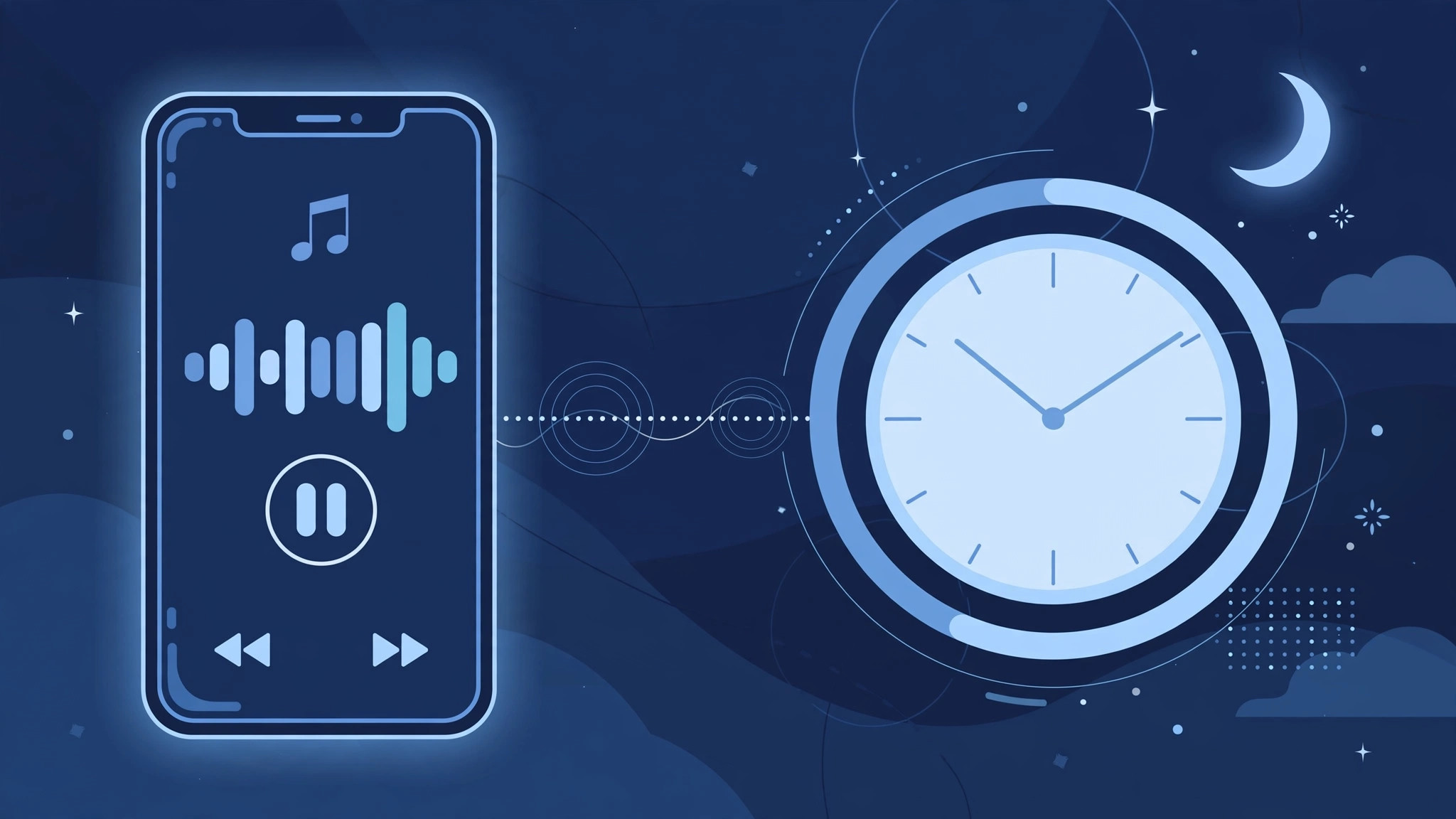
Falling asleep to music or a podcast is one of life’s small pleasures — until you wake up at 3 a.m. to a dead battery and a speaker that never stopped. Many streaming apps bury their own sleep timers deep in their settings, but there is a universal solution hiding in the iPhone’s Clock app. It works with literally any audio: Apple Music, Spotify, podcasts, audiobooks, even a YouTube video playing in the background.
The hidden “Stop Playing” timer
The iPhone’s timer has a secret option at the very bottom of its alert list: instead of playing a sound when time runs out, it can stop all audio. Apple’s iPhone support pages document the Clock app’s features, though this particular trick rarely gets the spotlight it deserves. Here is how to set it up:
- Open the Clock app and tap the Timer tab at the bottom.
- Set how long you want the audio to keep playing — 30 minutes is a good starting point.
- Tap “When Timer Ends.”
- Scroll all the way to the bottom of the list, select “Stop Playing,” then tap Set in the top-right corner.
- Tap Start and drift off.
When the countdown reaches zero, iOS silences whatever is playing — no jarring alarm, no notification sound, just silence. Because “Stop Playing” halts audio system-wide, it even works with YouTube videos. Speaking of YouTube quirks on the iPhone, if you have ever struggled with picture-in-picture not working for YouTube, that is a separate setting worth checking.
Make it a nightly habit
Once you have used it a couple of times, the routine takes seconds. You can even start it from Control Center by long-pressing the timer icon, or ask Siri: saying “Hey Siri, set a sleep timer for 30 minutes” configures Stop Playing automatically, no Clock app required. iOS remembers your last “When Timer Ends” choice, so the next night you only need to set the duration and hit Start.
If it still doesn’t work
First, make sure you tapped Set after choosing “Stop Playing” — backing out of the screen without confirming leaves the previous alert sound in place. If music keeps playing past the timer, check where the audio is actually going: the timer stops playback on the iPhone itself, so if sound was handed off to a HomePod or Bluetooth speaker, that device keeps playing. Also confirm “Stop Playing” is still selected in Clock > Timer, since a previous alarm choice can linger. And if your Apple Watch keeps auto-launching its music controls and restarting playback, silence that behavior too.
Frequently asked questions
Does the sleep timer work with Spotify and other third-party apps?
Yes. “Stop Playing” halts all audio output system-wide, so it works with Spotify, Overcast, Audible, YouTube, and anything else that makes sound on your iPhone.
Will the timer still work if my iPhone is locked?
Yes. The timer runs in the background and stops playback whether the phone is locked, the screen is off, or you are using another app.
It is a tiny feature with an outsized payoff: better sleep, a charged battery in the morning, and no more 3 a.m. wake-up calls from an autoplaying playlist. Set it once tonight and you will wonder how you lived without it.






[…] Exactly the same way you turned it on: open Now Playing, tap the Up Next icon, and tap the infinity symbol again so it is no longer highlighted. If you would rather have music stop on its own at night, see how to stop music on iPhone with a sleep timer. […]