
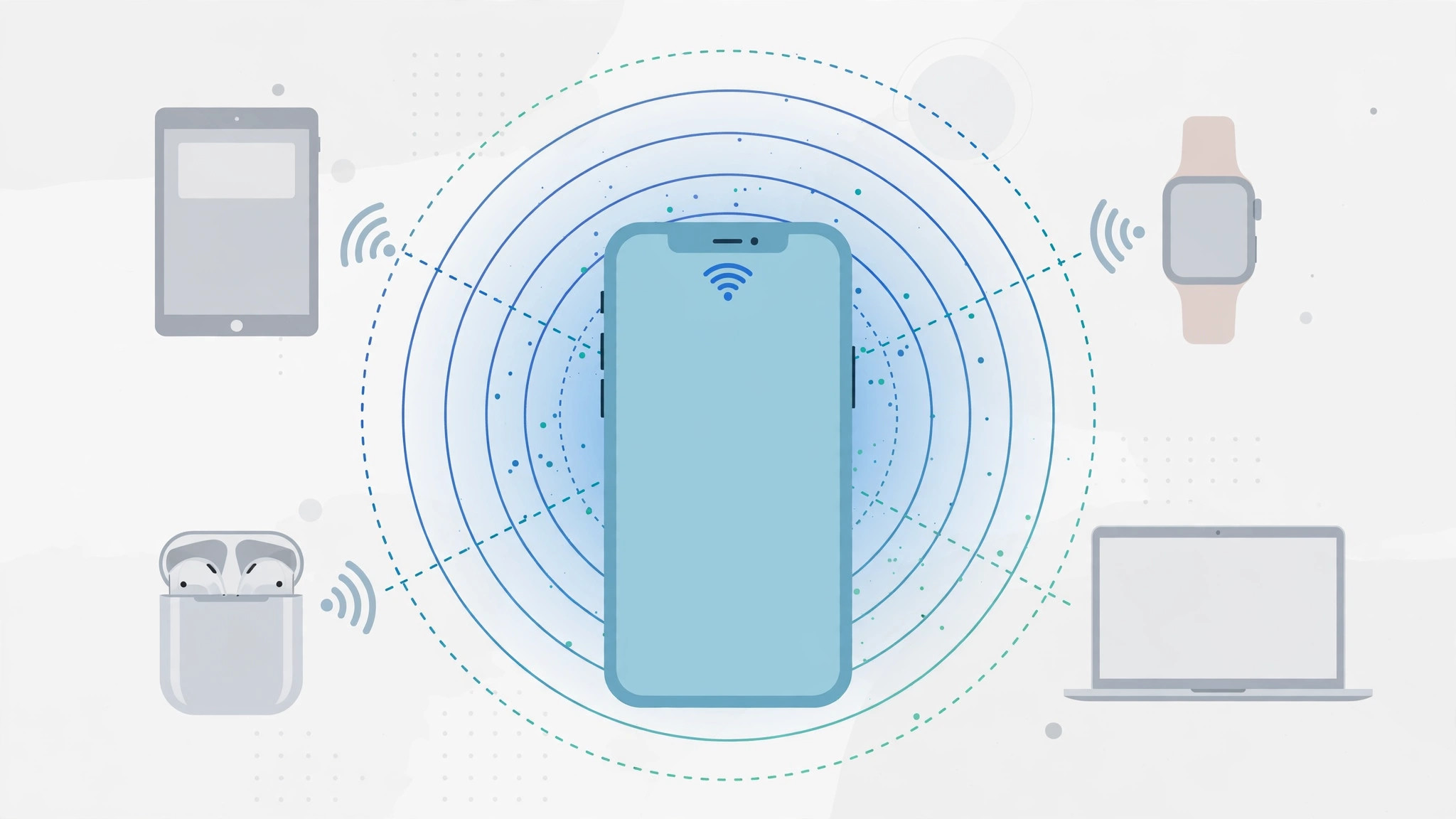
Sharing your iPhone’s internet with family should not require shouting your Wi-Fi password across the house every time someone needs to get online. If your family uses Apple’s Family Sharing, your iPhone can let family members hop onto your Personal Hotspot on their own — either automatically, or by sending you a quick approval request. Once it is set up, your kid’s iPad or your partner’s MacBook can get online through your phone without anyone typing a password.
This is different from the regular hotspot password that friends use. Family members get their own lane: you decide per person whether they connect instantly or must ask first. If you have ever wondered why a device can’t see your iPhone’s Personal Hotspot, the family approval system sidesteps most of those discovery headaches entirely.
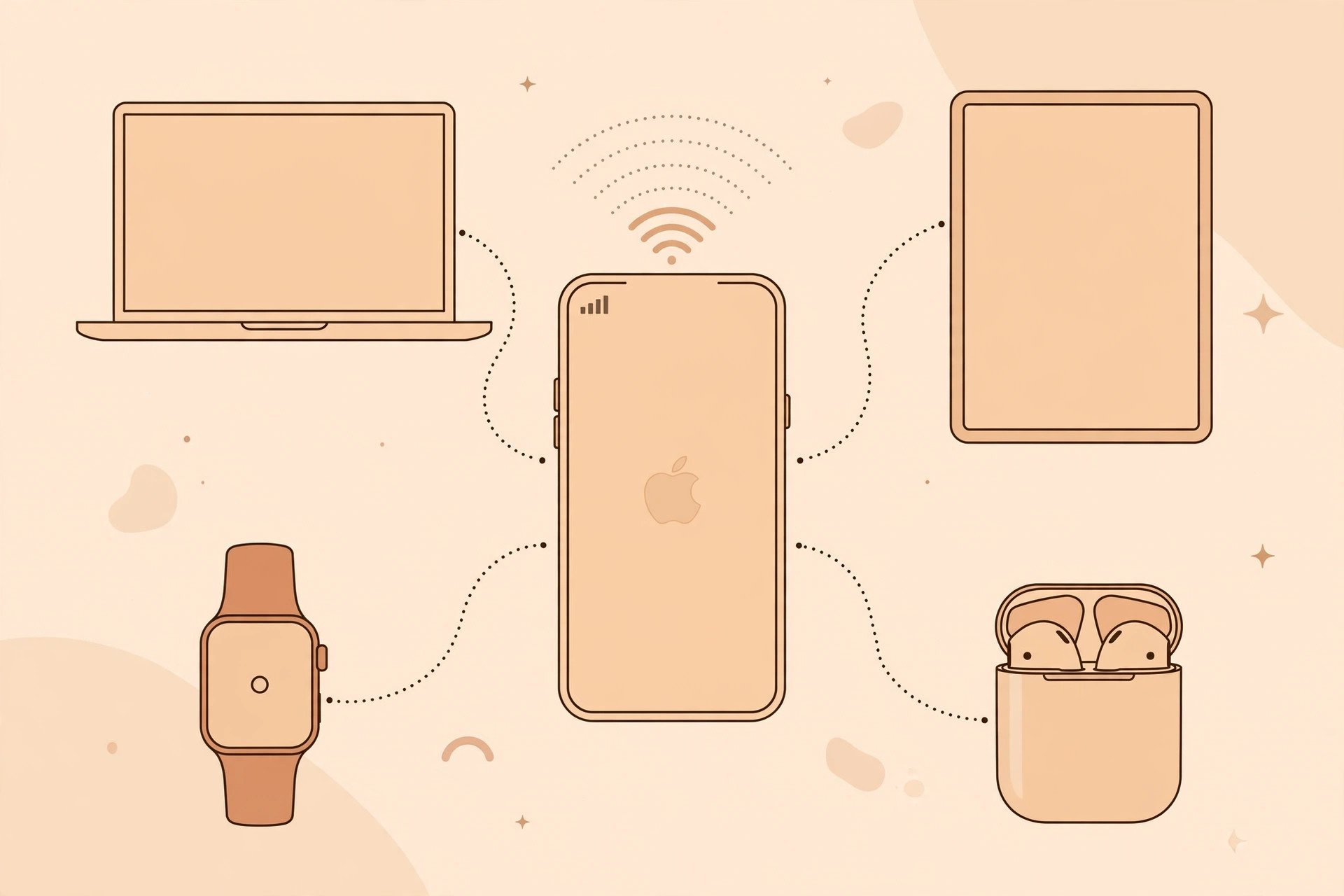
Enable Personal Hotspot requests step by step
- First, make sure Family Sharing is set up: open Settings, tap your name at the top, then tap Family Sharing. Everyone who should get hotspot access must be a member of your family group, signed in with their own Apple ID.
- On the iPhone that will share its connection (yours), open Settings > Personal Hotspot.
- Turn on Allow Others to Join. Without this, nobody — family included — can connect.
- Tap Family Sharing on the same screen.
- Toggle Family Sharing on. Your family members now appear in a list below.
- Tap a family member’s name and choose how they connect: Automatic lets them join your hotspot any time without asking, while Ask for Approval sends a request to your iPhone that you approve with one tap.
- Repeat for each family member. Settings take effect immediately — there is nothing to save and no restart needed.
Apple explains the whole system in its Personal Hotspot support article, including which carriers and plans support it. The folks at 9to5Mac have also walked through the family options in their iOS guides.
If it still doesn’t work
If a family member can’t connect, run through this checklist. Both iPhones need Wi-Fi and Bluetooth turned on, and the sharing iPhone needs an active cellular data connection — Personal Hotspot can’t share what it doesn’t have. The family member must be signed into iCloud with the Apple ID that’s in your Family Sharing group; a different Apple ID won’t see the family option. If the hotspot doesn’t appear in their Wi-Fi list at all, the usual Personal Hotspot troubleshooting steps for newer iPhones apply: toggle the hotspot off and on, restart both devices, and check that your carrier plan actually includes hotspot data. On the family member’s Mac, you can also set up an automatic hotspot connection from your iPhone so it joins without any taps at all. And if all else fails, video guides for hotspot family sharing can help you spot a missed step.
Frequently asked questions
Does family hotspot use my mobile data?
Yes — every byte your family uses goes through your iPhone’s cellular plan, and it counts against your carrier’s hotspot allowance, not just your regular data. If someone is set to Automatic, they can connect any time your hotspot is on, so keep an eye on usage if your plan is capped. Ask for Approval gives you a natural checkpoint.
Can I stop one person without removing them from the family?
Absolutely. Go back to Settings > Personal Hotspot > Family Sharing, tap their name, and switch them to Ask for Approval — then simply don’t approve. Or toggle Family Sharing off entirely to revert everyone to the regular password method. Nobody needs to leave the family group.
Conclusion
Personal Hotspot family requests turn a fiddly password ritual into a one-time setup. Choose Automatic for the people you trust completely, Ask for Approval for everyone else, and your iPhone quietly handles the rest — no more password shouting required.





