
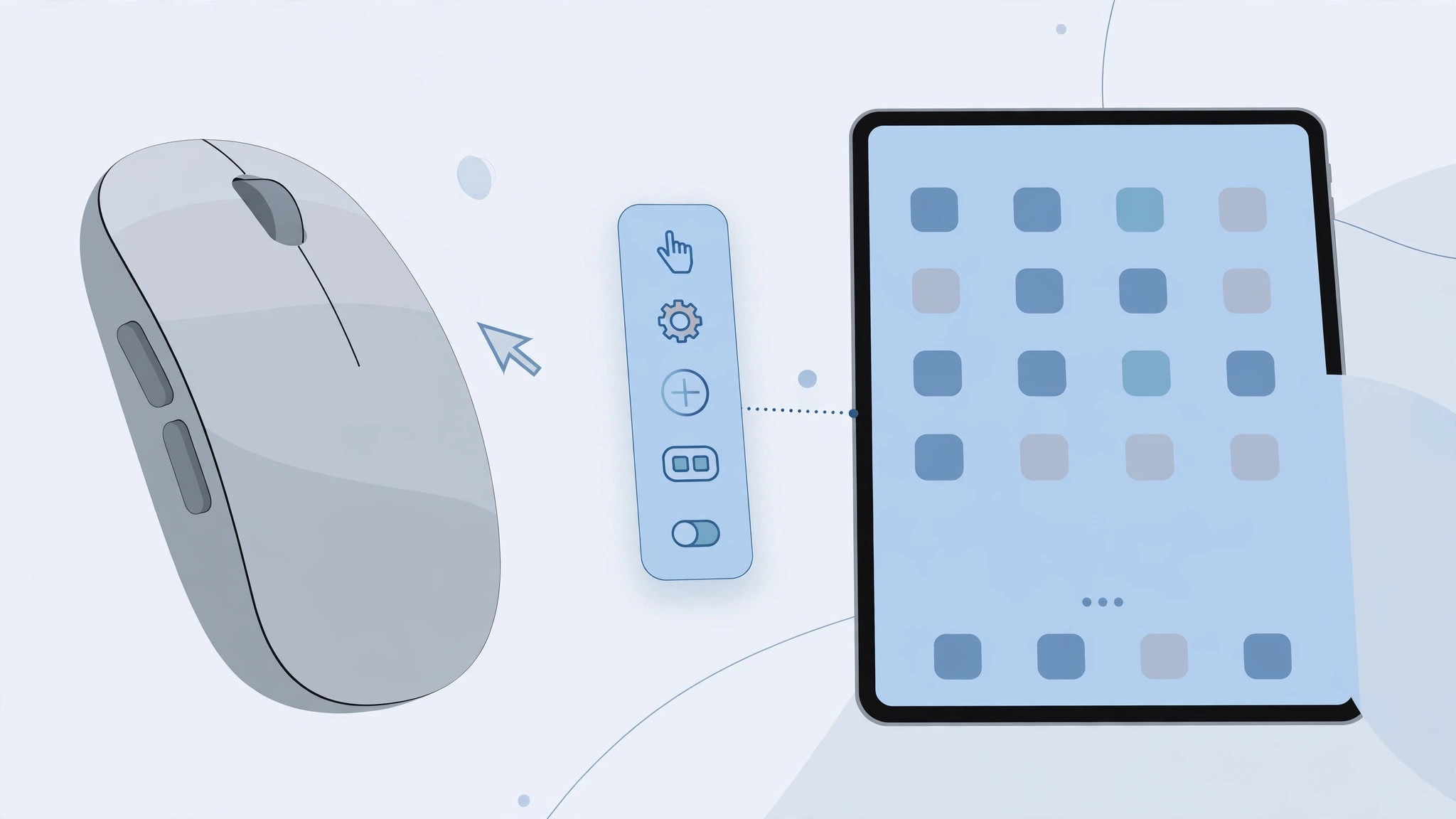
If you’ve paired a mouse with your iPad, the pointer feels surprisingly natural — but the extra side buttons do nothing useful by default. iPadOS actually lets you assign almost any action to every mouse button, from Home and App Switcher to screenshots. The feature is called AssistiveTouch, and finding it is the hardest part.
The setting isn’t under Bluetooth or Mouse — Apple buried it in Accessibility, which is why most people never find it. Once you know where to look, setup takes about two minutes and works with any Bluetooth or USB mouse on iPadOS 13 or later. Apple’s guide to connecting a mouse to iPad covers pairing if you haven’t done that yet.
What you’ll need
You’ll need an iPad running iPadOS 13 or later — that’s when mouse support arrived — and any Bluetooth or USB mouse, already paired under Settings → Bluetooth. Apple’s Magic Mouse works, but multi-button mice benefit the most.
Step 1: Turn on AssistiveTouch
- Open Settings → Accessibility → Touch.
- Tap AssistiveTouch and switch it on.
- A small floating button appears on screen — drag it to the edge; it won’t interfere with your mouse. You can fade it when idle under Idle Opacity.
Apple’s AssistiveTouch guide documents every option on this screen.
Step 2: Set up single-tap, double-tap, and long-press
Customize what single-tap, double-tap, and long-press do — tap each one and pick an action: Home, App Switcher, Control Center, and Screenshot are the most useful. These become the core actions you’ll attach to your mouse buttons next.
Step 3: Add your mouse’s extra buttons
- Tap Devices on the AssistiveTouch screen and select your connected mouse.
- Tap Add Other Buttons (labeled “Customize Additional Buttons” on newer iPadOS versions).
- Physically click the mouse button you want to configure — iPadOS detects it and offers a list of actions.
- Choose from Home, App Switcher, Dock, Control Center, Notification Center, Screenshot, pinch gestures, and more.
- Repeat for every extra button on your mouse.
Step 4: Test and fine-tune
Click each button to confirm it does what you expect; to change an assignment, go back to Devices → your mouse and re-tap the button. Tip: put App Switcher and Screenshot on your thumb buttons — the two actions you’ll reach for most.

If it still doesn’t work
If iPadOS doesn’t detect a button press, confirm the mouse shows as Connected in Settings → Bluetooth and try again. Restart the iPad and re-pair the mouse if buttons stop responding, and check you’re on iPadOS 13 or later under Settings → General → Software Update. Very old mice with proprietary (non-Bluetooth) dongles may not expose extra buttons — a standard Bluetooth mouse is the safest bet.
Frequently asked questions
Do I need a special mouse for this?
No — any Bluetooth or USB mouse works, including Apple’s Magic Mouse. Mice with more buttons just give you more to customize.
Will these assignments affect my mouse on other devices?
No — the assignments live on the iPad only. Your mouse behaves normally when paired with a Mac or PC.
Conclusion
That’s it — about two minutes of setup, and every button on your mouse does something useful. Your iPad just got one step closer to a laptop. Two more upgrades worth your time: activating Siri with the iPad Pro lock button for hands-free control, and setting up automatic hotspot connection from iPhone so your iPad is never without internet.





