
If you picked up a modern iPad Pro and instinctively reached for the Home button to summon Siri, you are not alone. Since the 2018 redesign, Apple’s pro tablets have gone completely buttonless up front: no Home key, Face ID instead of Touch ID, and a slim top edge that hides the power control. The good news is that calling up Apple’s voice assistant is just as easy — you simply use the top (lock) button instead. Here is how to switch it on and use it like a pro.
Why the iPad Pro relies on the top button
On iPads that still have a Home button, Siri wakes up with a long press of that familiar round key. The iPad Pro models from 2018 onward dropped it entirely, so Apple moved the job to the top button — the same one you press to lock the screen or power the device on and off. A quick single press still locks the display, but pressing and holding summons Siri instead. Before any of that works, though, the feature has to be switched on in Settings, because it ships turned off by default.
How to turn on “Press Top Button for Siri”
Follow these steps to activate the shortcut:
- Open the Settings app on your iPad Pro and tap Siri & Search (on newer iPadOS versions this section may be called Apple Intelligence & Siri).
- Find the switch labeled Press Top Button for Siri and turn it on. On some software versions the same option is worded as Press and Hold to Speak — it does exactly the same thing.
- While you are here, consider enabling Listen for “Hey Siri” if you want a hands-free way to wake the assistant without touching the tablet.
- If you would like Siri to answer even when the iPad is locked, switch on Allow Siri When Locked as well.
- Now press and hold the top button for about a second. The Siri glow slides onto the screen — say your request, then let go.
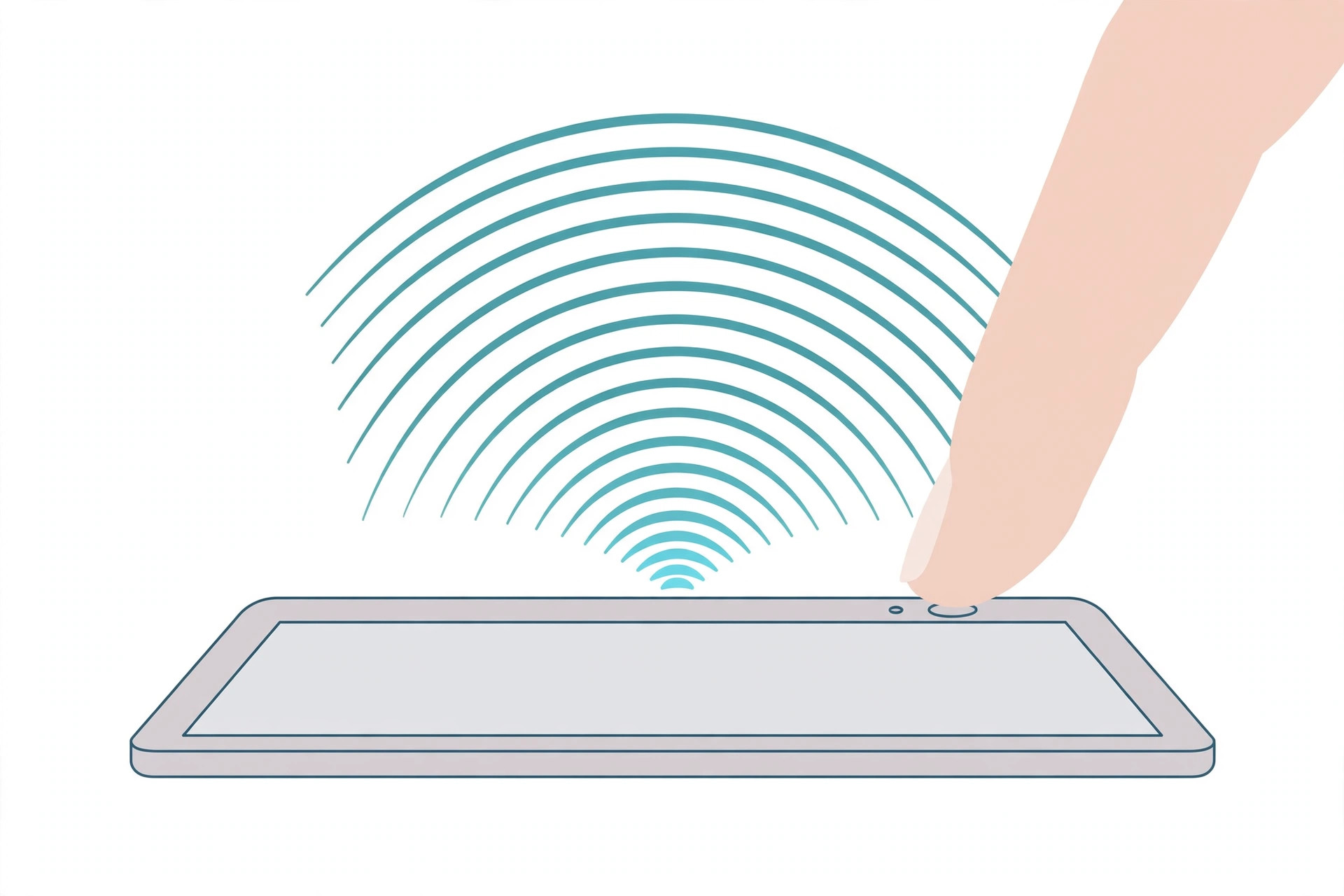
That is all there is to it. A quick single press of the top button keeps doing what it always did — locking and waking the display — while only a deliberate press-and-hold calls Siri, so you will not trigger the assistant by accident. If you also use an iPhone, the gesture will feel familiar: it mirrors “Press Side Button for Siri” on Apple’s phones. Apple Support’s guide to using Siri on iPad documents the same press-and-hold gesture, and 9to5Mac regularly covers these button shortcuts in its iPadOS how-tos.
If it still doesn’t work
First, double-check that the toggle in Settings really stayed on, and make sure you are holding the button rather than tapping it — a tap only locks the screen. If Siri never appears, confirm that Siri itself is enabled and that your iPad is a Face ID Pro model from 2018 or later; older iPads with a Home button use the “Press Home for Siri” option instead. Restarting the iPad once can also unstick a settings toggle that refuses to take effect.
Frequently asked questions
Can I still use “Hey Siri” instead of the button?
Yes. The top-button shortcut and hands-free “Hey Siri” work side by side. Enable Listen for “Hey Siri” on the same Siri & Search screen and you can summon the assistant with your voice whenever the iPad can hear you.
Does holding the top button still turn the iPad off?
No. The long press now belongs to Siri, so the shut-down and Emergency SOS controls moved elsewhere: press and hold the top button together with either volume button to reach the power-off slider, just like on recent iPhones. And if you enjoy remapping your devices’ physical buttons, see our guide on disabling the quick camera launch from the iPhone lock screen — plus our walkthrough for turning off all SharePlay features on iPhone, which covers more Settings toggles worth knowing.
Conclusion
Losing the Home button felt strange for about a day — after that, pressing and holding the top button to talk to Siri becomes pure muscle memory. Enable the toggle once, and your iPad Pro is ready to listen whenever you are.






[…] useful. Your iPad just got one step closer to a laptop. Two more upgrades worth your time: activating Siri with the iPad Pro lock button for hands-free control, and setting up automatic hotspot connection from iPhone so your iPad is […]