
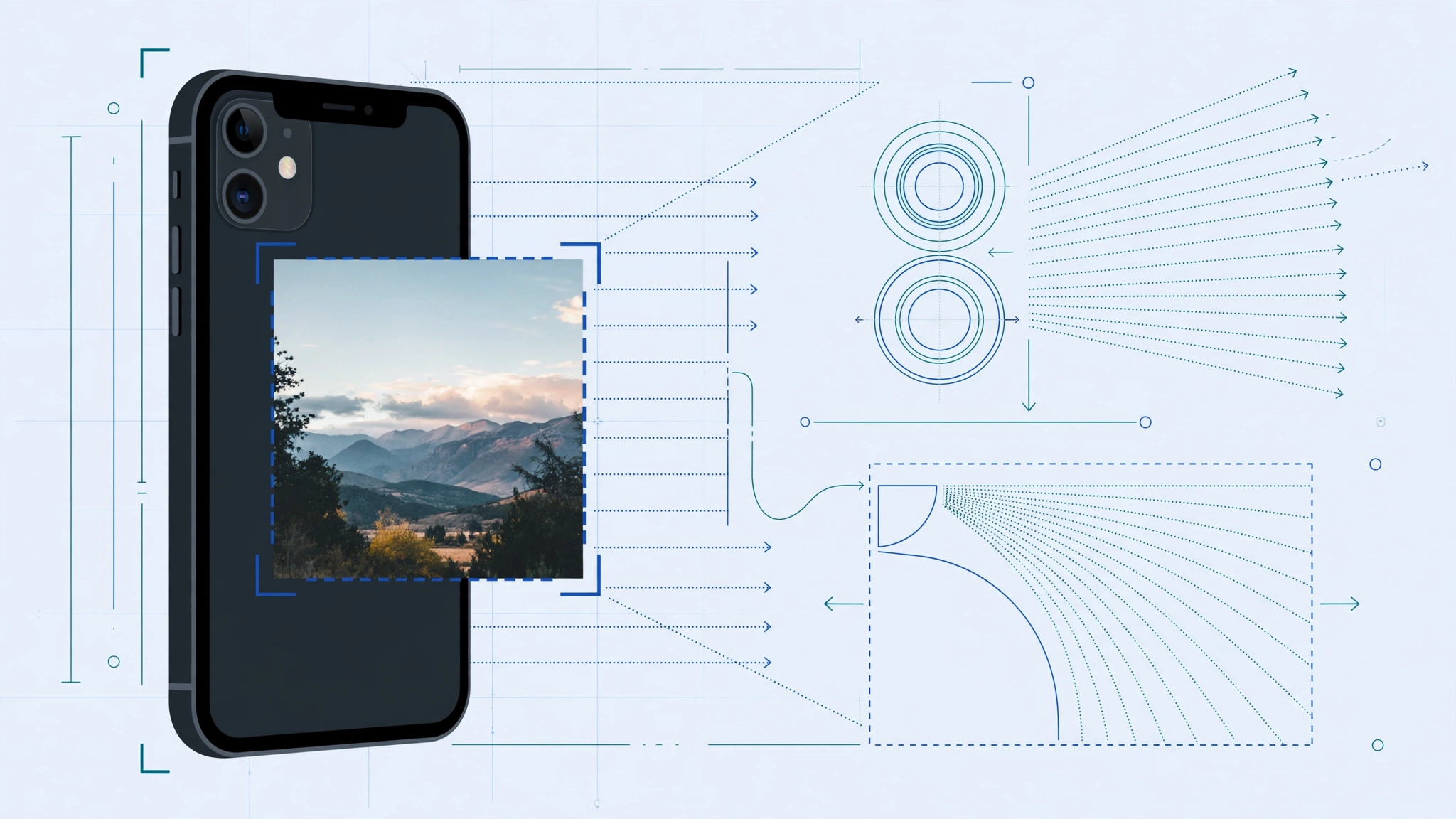
You are in the middle of editing a photo on your iPhone 11. You want to zoom in to check whether a blemish is really gone or whether the horizon is straight, so you pinch the screen — and nothing happens. The photo stubbornly stays the same size. This is normal: the iPhone Photos app simply does not let you pinch-to-zoom on most of its editing screens.
In this guide, I will explain why zoom is disabled while editing, show you the one editing tool where pinch-to-zoom does work, and share workarounds that get you the close-up view you need. If you edit photos often, you may also like our guide on removing objects from iPhone photos without AI.
Why you cannot zoom while editing on iPhone 11
When you tap Edit in the Photos app, iOS reserves touch gestures for the editing tools themselves. Horizontal swipes drive the adjustment sliders for exposure, brilliance, and highlights, so Apple disables pinch-to-zoom on the Adjust and Filters screens to keep those gestures from conflicting. The result: pinching does nothing while you tweak light, color, or filters.
The single exception is the Crop tool. Inside Crop — which also houses straightening and perspective correction — pinch-to-zoom works, magnifying the crop frame so you can position it precisely. This is identical on every iPhone, so it is not an iPhone 11 defect. Apple documents the Photos editing tools in the iPhone User Guide, and communities like MacRumors have discussed this limitation for years.
How to zoom in while editing a photo
You cannot switch on pinch-to-zoom for the Adjust screen, but these workarounds cover every situation:
- Zoom inside the Crop tool. Tap Edit, then the Crop icon at the bottom. Now pinch with two fingers to zoom into the image and drag to reposition the crop area. Tap Done when you are happy. This is the only built-in way to magnify during editing.
- Inspect the photo before tapping Edit. Open the photo in your library and pinch to zoom freely. Check the details you care about, then tap Edit and make your adjustments with that inspection fresh in mind.
- Duplicate the photo first. Tap the Share button and choose Duplicate. Keep the original open for pinch-zoom reference while you edit the copy. If you move edited shots between devices, read our guide on transferring iPhone photos with edit history and metadata.
- Use the Markup magnifier. In Edit mode, open Markup (via the … menu on some iOS versions), tap +, and choose Magnifier. A movable loupe appears that zooms into any part of the photo.
- Try a third-party editor. Apps like Snapseed or Lightroom Mobile allow pinch-to-zoom at every stage of editing. Video walkthroughs on YouTube demonstrate the difference side by side.
If it still does not work
If pinch-to-zoom fails even inside the Crop tool, something else is going on. First, update iOS under Settings → General → Software Update, since Apple occasionally refines gesture handling. Second, force-close the Photos app and reopen it, or restart your iPhone. Third, test pinch-to-zoom on a web page in Safari — if it fails there too, the issue is your touchscreen, not the Photos app. On the newest iOS releases, unrelated camera quirks sometimes appear as well; see our fix for spatial photo mode not working in iOS 26.
Frequently asked questions
Can I zoom while applying filters or light adjustments?
No. Pinch-to-zoom is disabled on the Adjust and Filters screens by design. Zoom into the photo first — outside Edit mode or inside the Crop tool — note what needs fixing, then apply your adjustments.
Is this a defect specific to the iPhone 11?
No. Every iPhone behaves the same way in the Photos app; the limitation comes from iOS, not your hardware. If zoom works in other apps but not on Photos edit screens, your phone is fine.
Conclusion
Not being able to pinch-to-zoom while editing on iPhone 11 feels like a bug, but it is a deliberate design choice: editing gestures take priority. Remember the golden rule — Crop is the one tool where zoom works — and use duplication or the Markup magnifier when you need a closer look.





