

Your iPhone keeps warning that storage is almost full, yet you do not want to delete apps and lose your data, progress, or logins. Offloading is the perfect middle ground: it removes the app itself while keeping your documents and settings safe on the device. In this guide, I will show you how to manually offload unused apps on iPhone, step by step, so you can reclaim gigabytes in minutes.
What offloading an app actually does
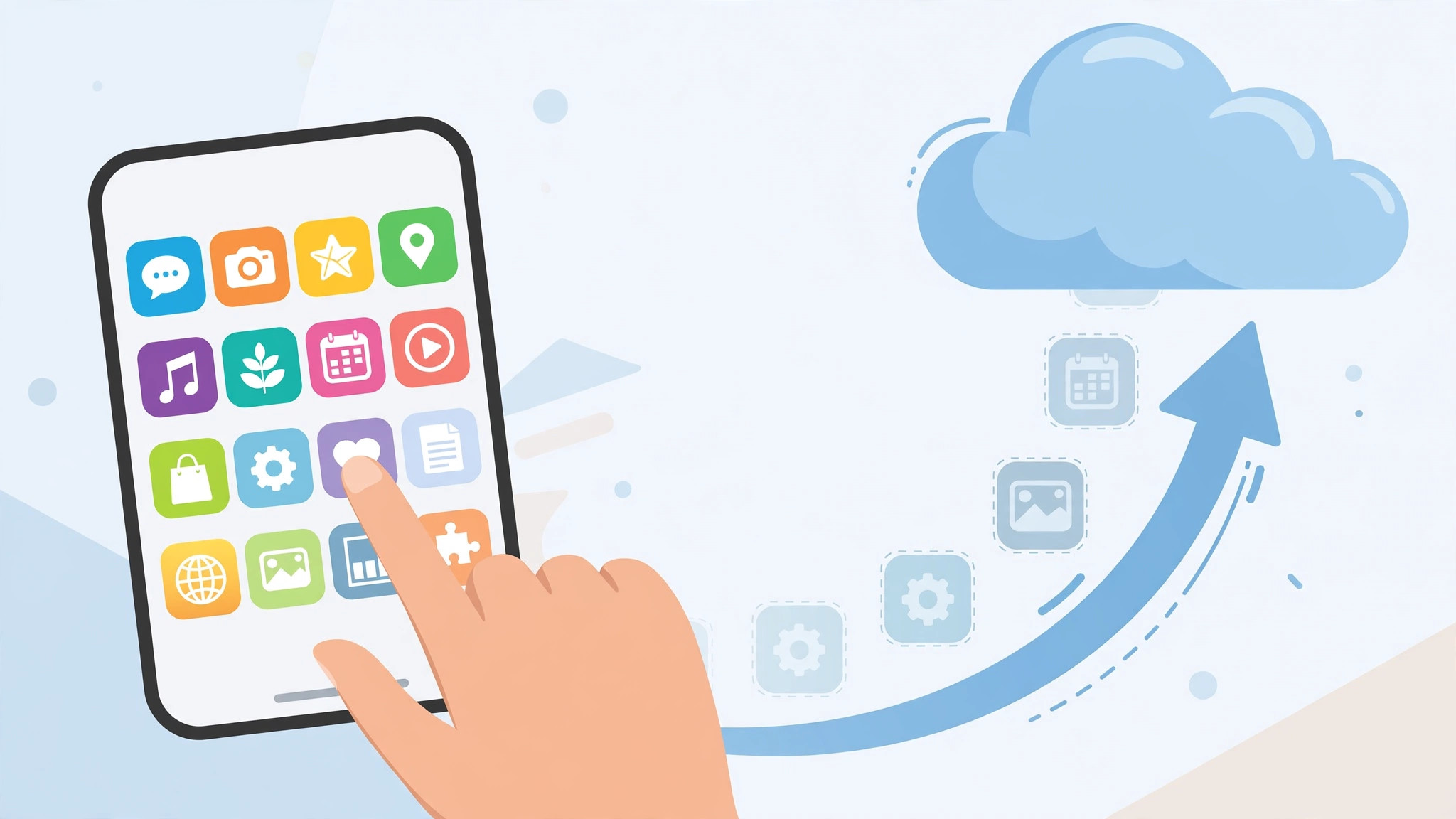
When you offload an app, iOS deletes the app binary — the part that takes up the most space — but preserves your personal data, documents, and settings. The app icon stays on your Home Screen with a small cloud badge. Tap it any time to redownload the app, and everything returns exactly as you left it. Apple explains the difference between offloading and deleting in the iPhone User Guide, and MacRumors regularly covers iOS storage tips after major software updates.
How to manually offload unused apps on iPhone
- Open Settings and go to General > iPhone Storage. Wait a moment while iOS calculates the breakdown. You will see a color-coded bar and a list of apps sorted by size, largest first. For related storage headaches, see our guide on why deleted apps still show cellular data usage on iPhone.
- Tap the app you want to offload. Pick something you rarely open but do not want to lose data from — a travel app, a finished game, or a work tool you need only occasionally. The detail screen shows exactly how much space offloading will free versus deleting.
- Tap “Offload App,” then confirm. iOS removes the app within seconds while your data stays behind. The icon remains on the Home Screen with a cloud symbol so you know it is offloaded, not gone.
- Repeat for the other space hogs. Work down the list. Games, streaming apps, and social media apps are usually the biggest offenders. If you are unsure what can go, check which built-in iPhone apps you can delete for extra savings beyond offloading.
- Reinstall any time with one tap. Tap the cloud-badged icon to redownload the app. Your login, files, and settings come back automatically, as long as the app is still available on the App Store.
- Optional: let iOS do it automatically. In Settings > App Store, enable “Offload Unused Apps” and iOS will offload apps on its own when storage runs low. Prefer manual control? Leave it off and repeat the steps above whenever space gets tight. You can also disable automatic app updates on iPhone and Mac to keep tighter control over downloads and storage.
If it still does not work
If offloading does not free enough space, the culprit may be System Data, cached files, or large message attachments. Clear Safari’s cache in Settings > Safari, review big attachments in Settings > General > iPhone Storage > Messages, or back up photos to iCloud. Video walkthroughs on YouTube demonstrate the process on different iOS versions if you want a visual guide.
Frequently asked questions
Will I lose my data if I offload an app?
No. Offloading keeps your documents, settings, and login data on the device — only the app binary is removed. Deleting is the destructive option; offloading is the safe one.
Why can I not offload some apps?
Built-in Apple apps such as Photos, Messages, and Settings cannot be offloaded. Nearly all third-party apps can, provided they are still available on the App Store when you want them back.
Conclusion
Manually offloading unused apps is the fastest safe way to reclaim iPhone storage without losing anything that matters. Open iPhone Storage, offload the biggest apps you rarely use, and reinstall with a single tap whenever you need them again.





