
You pick up your iPhone after an hour and find messages, calls, and app alerts that never made a sound — even though the phone was right beside you. Before you blame the apps, know that iOS has several settings that silently suppress notifications on the Lock Screen. Here is why notifications don’t arrive when your iPhone is locked, and how to fix it.
Why notifications stay silent on the Lock Screen
Apple designed the Lock Screen to balance awareness and privacy, and features like Focus modes, notification summaries, and per-app alert styles can all keep banners quiet. A similar sync confusion can also make notifications fail to sync between iPhone and iPad, so it pays to check each layer.
How to fix notifications on a locked iPhone
- Turn off Do Not Disturb and Focus modes. Swipe down from the top-right corner to open Control Center and make sure no Focus (Do Not Disturb, Sleep, Work) is active. Focus modes are the most common reason alerts go missing.
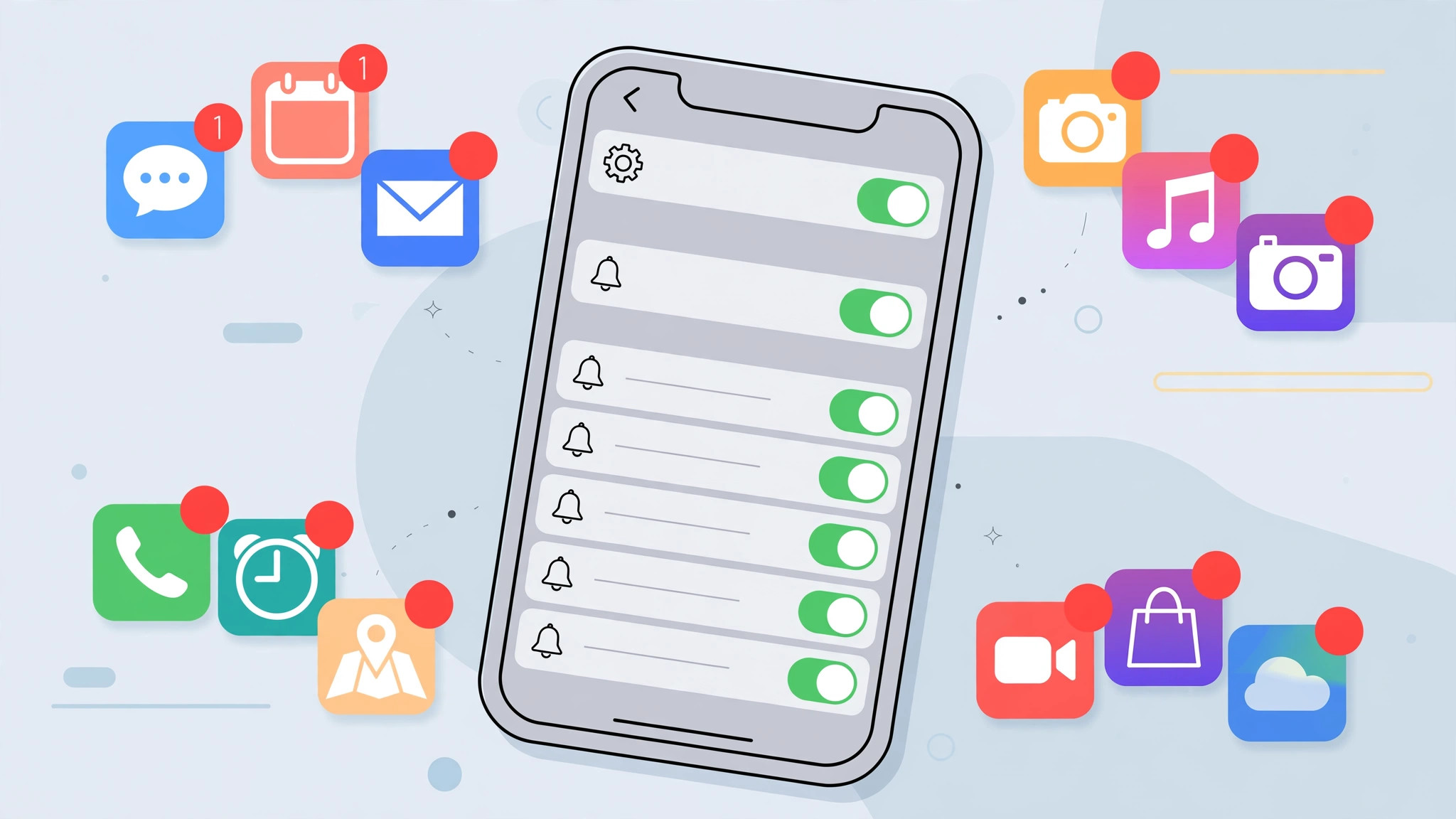
- Check the app’s notification settings. Go to Settings > Notifications, tap the app, and confirm that “Allow Notifications” is on with Lock Screen, Notification Center, and Banners all enabled. Apple explains each toggle in the iPhone User Guide.
- Enable sounds and badges per app. In the same screen, make sure Sounds is on. Some apps arrive silently because only banners are enabled. MacRumors regularly covers these notification quirks after iOS updates.
- Turn off Scheduled Summary. If notifications arrive in batches, go to Settings > Notifications > Scheduled Summary and disable it — summaries deliberately hold alerts until set times.
- Check Show Previews. Set Settings > Notifications > Show Previews to “Always” so content is not hidden. You can also hide notification previews in StandBy mode on iPhone separately if privacy matters at night.
- Restart and update iOS. A simple restart clears stuck notification daemons, and installing the latest iOS fixes known alert bugs. If you mirror alerts to a Mac, also check how to turn off iPhone notification mirroring on Mac.
If it still does not work
If only one app is affected, delete and reinstall it to reset its notification registration. Also check that the Ring/Silent switch is not set to silent and that volume is up — banners appear but make no sound in silent mode. Video guides on YouTube demonstrate these settings on different iOS versions.
Frequently asked questions
Why do notifications appear only when I unlock my iPhone?
This usually means Lock Screen alerts are disabled for that app, or a Focus mode is filtering them. Enable Lock Screen alerts in Settings > Notifications and turn off any active Focus.
Can Low Power Mode block notifications?
Low Power Mode can delay background activity like mail fetch and some push updates, but it does not block notifications outright. If alerts are delayed rather than missing, check your fetch settings and battery mode.
Conclusion
Missing Lock Screen notifications are almost always a settings issue — a Focus mode, a disabled alert style, or a summary holding them back. Work through the steps above and your iPhone will announce every alert the moment it arrives again.





