
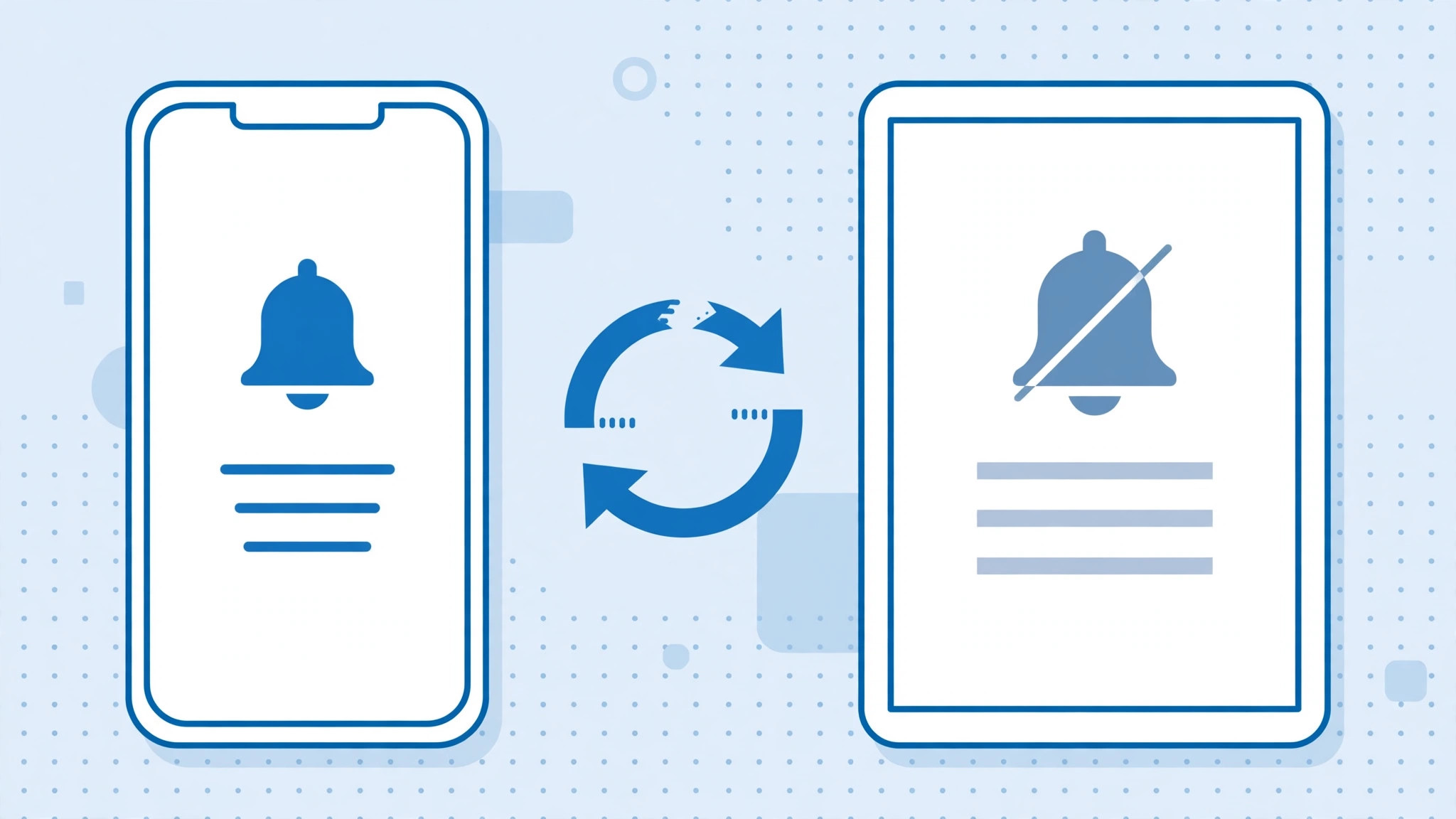
You get a message on your iPhone, but your iPad stays silent — or the other way around. Notifications are supposed to arrive on all your Apple devices, yet they often don’t. The culprit is rarely a bug: it is usually mismatched settings, a Focus mode quietly silencing one device, or Scheduled Summary batching your alerts. Work through this checklist and your notifications will show up on both devices again.
1. Make sure both devices use the same Apple ID
On each device, open Settings and check the name at the top. If the iPhone and iPad are signed in to different Apple IDs, notifications will never sync — this is the first thing to rule out.
2. Match per-app notification settings
On both devices, go to Settings → Notifications, tap the affected app, and compare: Allow Notifications must be on in both places, and the alert styles (Lock Screen, Notification Center, Banners) should match. A mismatch here means one device simply stays quiet for that app.
3. Check Focus modes — the number-one gotcha
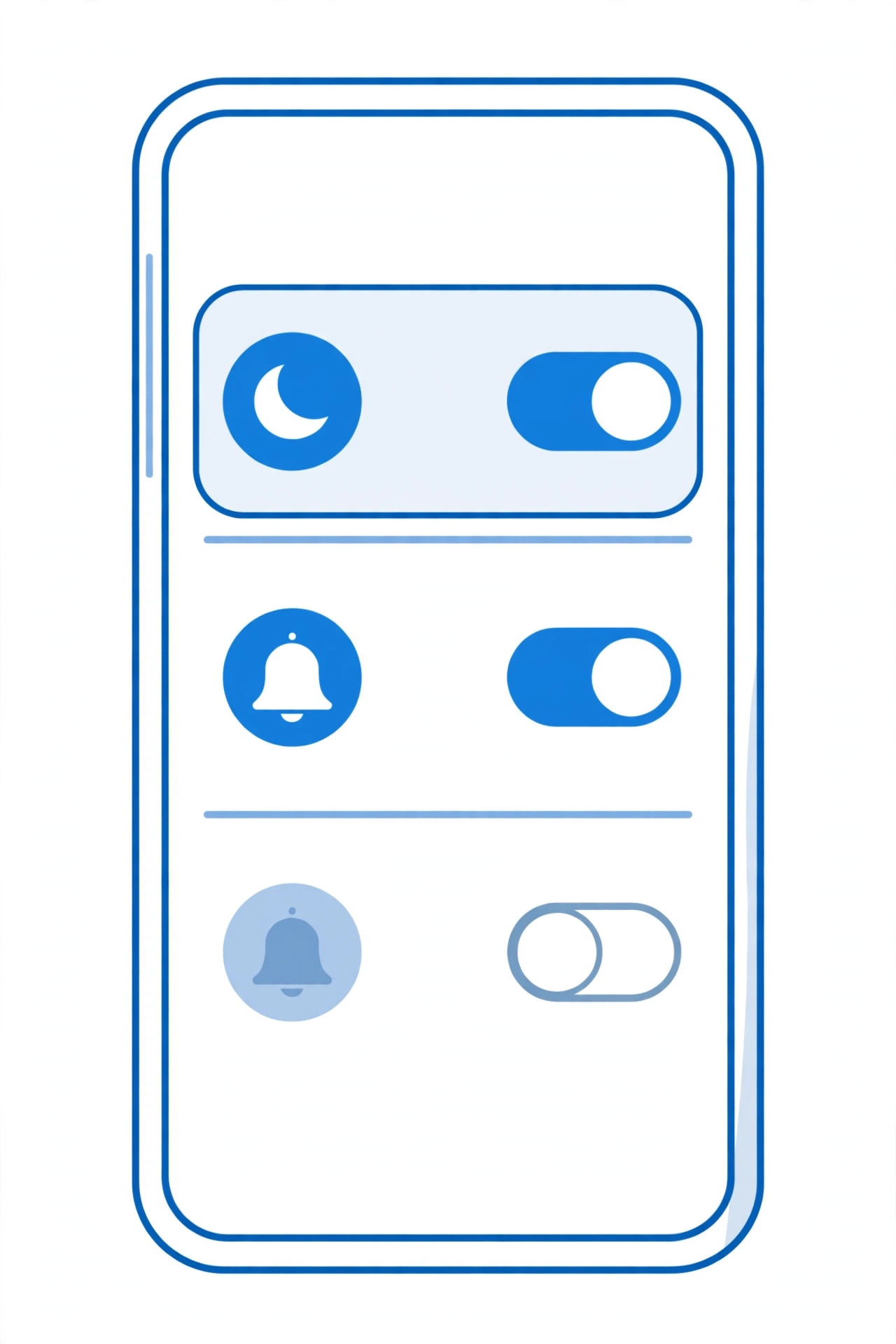
A Focus mode active on one device can silence the other through “Share Across Devices”. On both devices, go to Settings → Focus: either turn off Share Across Devices, or review scheduled and automatic Focus modes (Do Not Disturb, Sleep, Work) that might be engaging on their own. This single setting is the most common cause of “missing” notifications, so check it first. If you use Focus with multiple SIMs, you may also want to allow calls only from a specific SIM card in Focus mode.
4. Check Scheduled Summary
In Settings → Notifications → Scheduled Summary, iOS can batch notifications into summaries delivered a few times a day — which makes alerts feel missing when they are merely delayed. Turn Scheduled Summary off, or at least align its schedule on both devices.
5. Turn off Low Power Mode, enable Background App Refresh
Low Power Mode can delay background activity: make sure it is off on both devices. Then check Settings → General → Background App Refresh and confirm it is enabled for the affected apps.
6. Restart and update both devices
Restart the iPhone and the iPad, then update both to the latest iOS/iPadOS in Settings → General → Software Update. Mismatched OS versions are a known sync-breaker.
7. Still stuck? Re-sign in to iCloud
On the problem device, sign out of iCloud and sign back in — this refreshes the push-notification registration. As a lighter alternative, reset notification settings for the affected app (turn everything off, restart, turn back on).
Apple documents notification and Focus settings on Apple Support, and tricky cases are often dissected on the MacRumors Forums and 9to5Mac. For related fixes, see how to mute mail notifications for specific contacts in macOS and how to set up message sync between iPhone and Mac.
If it still doesn’t work
Only some apps are affected: the problem is per-app settings, not sync — re-check step 2 for those apps, including notification grouping. Nothing arrives on either device: check your network connection and date/time settings (automatic date/time matters for push services). It worked, then broke again: a newly scheduled Focus mode or a fresh iOS update often resets notification behavior — revisit steps 3 and 6.
Frequently asked questions
Should notifications arrive on both devices at the same time?
Generally yes, when both are awake and on the same Apple ID — though Apple may route an alert to the device you are actively using and stay quiet on the other. That is normal behavior, not a bug.
Does Do Not Disturb on my iPhone silence my iPad too?
Only if Share Across Devices is enabled in Settings → Focus. With it off, each device’s Focus modes act independently.
Conclusion
Notification sync problems are almost always settings, not hardware: same Apple ID, matching per-app alerts, and — above all — Focus modes that aren’t secretly silencing one of your devices. Run the checklist once and your iPhone and iPad will chime together again.





