
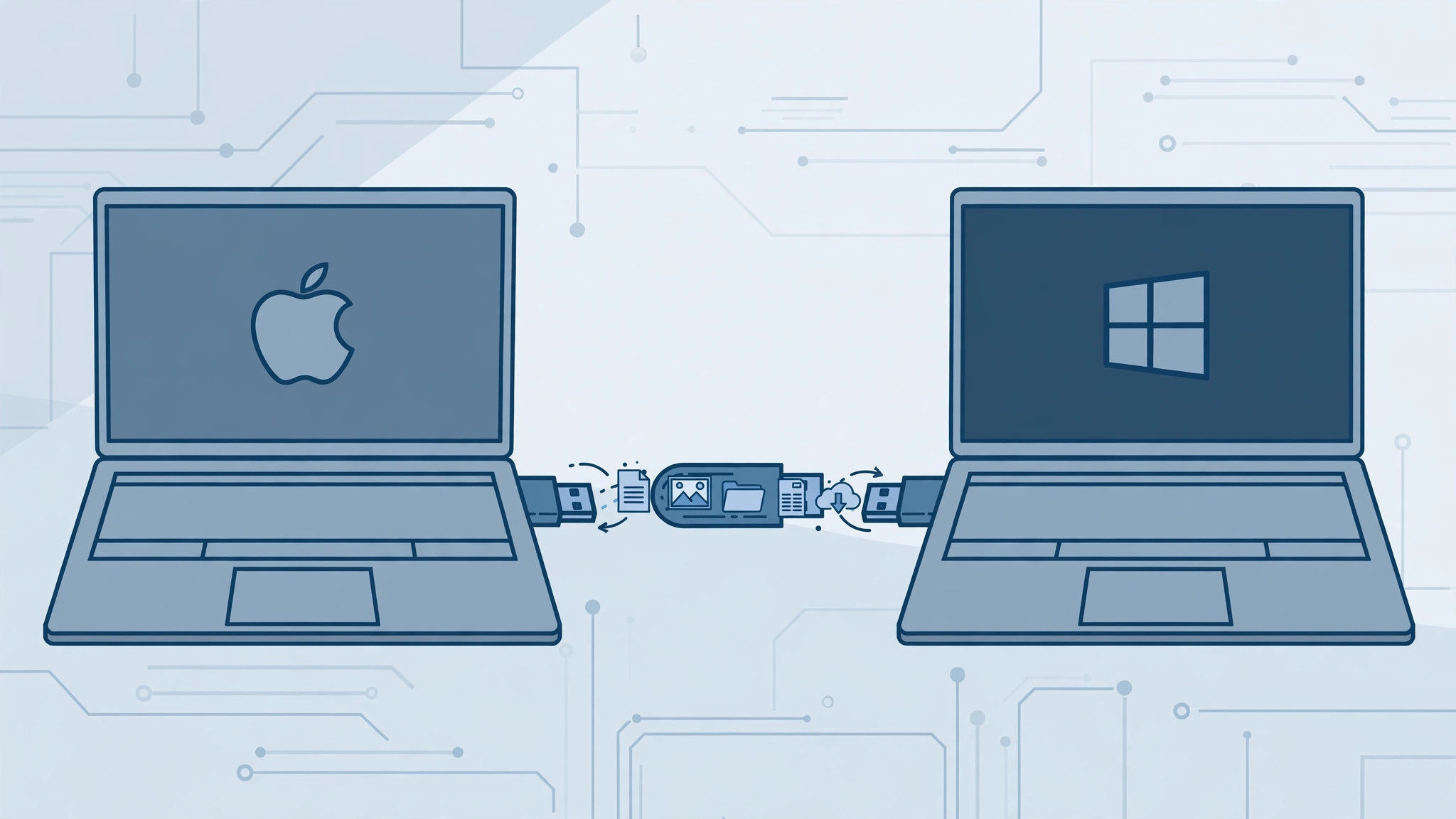
Carrying files between a Mac and a Windows PC on a single USB stick should be effortless — until you plug the drive in and one of the two computers refuses to write to it, or won’t open it at all. The culprit is almost never the drive itself: it’s the file system the drive was formatted with. Format it once the right way, and the same stick will read and write happily on both macOS and Windows, with no extra software required.
Choose the right file system first
Every drive speaks one “language” — its file system — and operating systems don’t all understand the same ones:
- FAT32 works on both Mac and Windows, but it can’t store a single file larger than 4 GB, which rules out most videos and disk images.
- NTFS is the Windows native format. Windows reads and writes it; macOS can only read it unless you install extra drivers.
- APFS and Mac OS Extended are Apple-only formats. Windows can’t use them without third-party tools.
- exFAT is the sweet spot: both macOS and Windows read and write it out of the box, and unlike FAT32 it handles files of virtually any size.
So exFAT is the practical answer for a shared drive. Apple’s own Disk Utility User Guide documents the format options available on a Mac.
Format the drive on a Mac
- Back up everything on the drive first. Formatting erases all data permanently — copy your files somewhere safe before you continue.
- Plug the USB drive into your Mac and open Disk Utility. You’ll find it in Applications → Utilities, or just type “Disk Utility” into Spotlight.
- In the sidebar, select the top-level drive device — the manufacturer’s name at the top of the tree — not the indented volume underneath it. This makes sure the whole drive gets the new format.
- Click Erase in the toolbar. In the Format dropdown, choose exFAT.
- Set the Scheme to GUID Partition Map, give the drive a short name, then click Erase and Done when it finishes.
- Eject the drive and plug it into a Windows PC — it will open for reading and writing immediately.
If you spend a lot of time hopping between Apple devices, you may also like our guide on setting up message sync between iPhone and Mac, plus these macOS 26 folder tricks for keeping shared files organized.
Format the drive on Windows instead
No Mac handy? You can do the same job from a Windows PC:
- Plug in the drive and open File Explorer.
- Right-click the drive and choose Format.
- In the File system dropdown, pick exFAT, leave the other settings alone, and click Start.
- Confirm the warning — again, this wipes the drive — and wait for the “Format Complete” message.
When you switch between machines a lot, it also helps to quickly open the installed apps list so the tools you need are always one click away.
If it still doesn’t work
Try a different USB port — front-panel ports on desktops are a classic source of flakiness — and test the drive on a second computer. If neither macOS nor Windows recognizes it at all, the drive itself may be failing rather than misformatted. Also note that very old operating systems (long before Windows 7 or OS X Snow Leopard) lack exFAT support; on any reasonably modern machine you’re fine.
FAQ
Will formatting delete my files?
Yes — formatting wipes the drive completely. Back up anything you want to keep before you start; there’s no undo.
Can I use the same drive with my phone too?
Often, yes. Many Android phones and tablets, plus smart TVs and game consoles, read exFAT drives, so one stick can serve your whole desk.
Conclusion
exFAT is the closest thing to a universal USB format: one quick erase in Disk Utility (or Windows’ Format dialog) and your drive moves freely between Mac and PC, with no 4 GB ceiling and no paid drivers. Back up, erase, and you’re done.





