
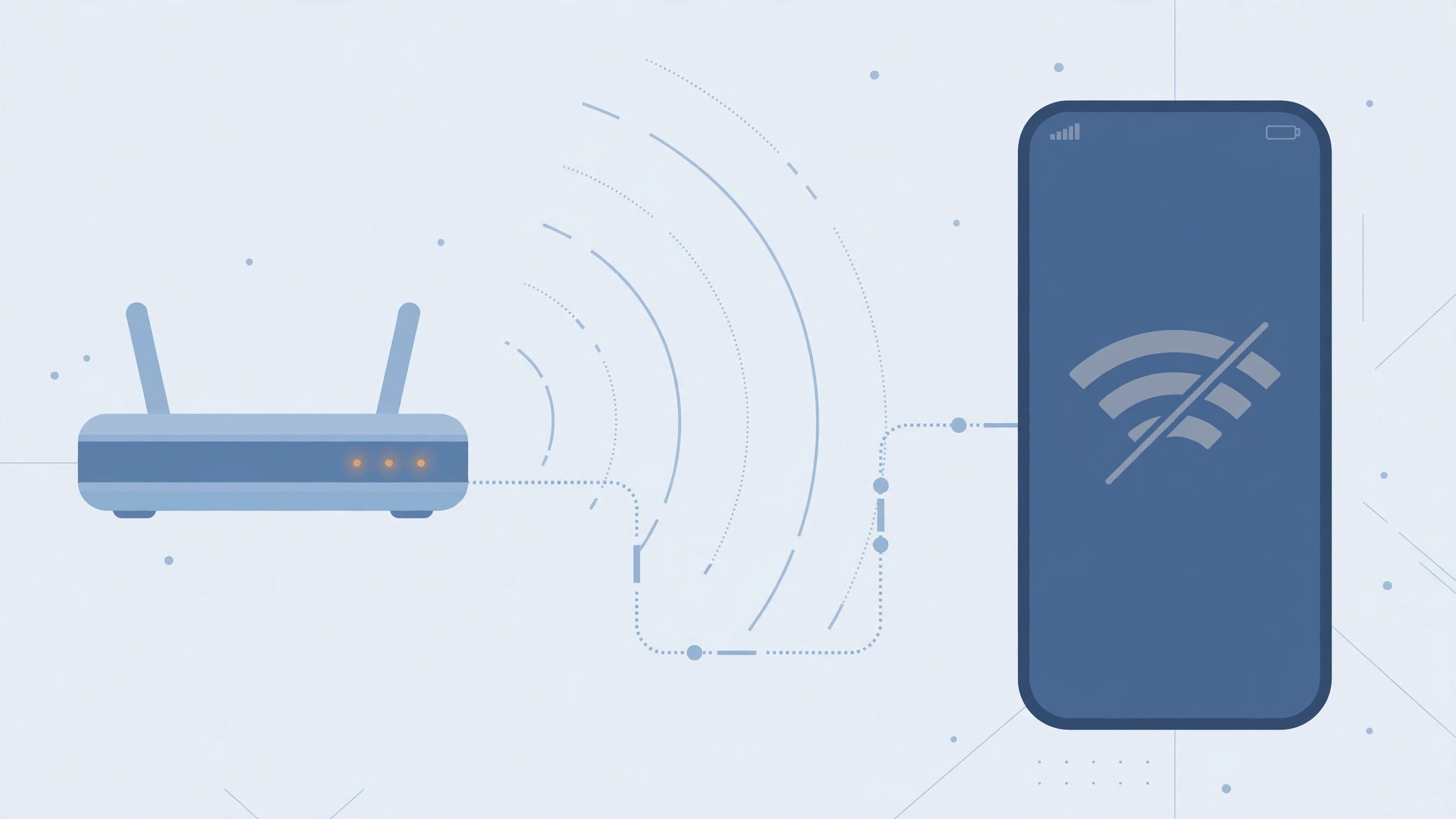
Your iPhone drops the home Wi-Fi and then refuses to join it again — while everyone else’s devices stay connected. Before touching any router settings, run a quick diagnosis: can other devices reach the network? If yes, the problem is in your iPhone; if nothing connects, the problem is the router or your internet provider. That one question cuts the troubleshooting in half.
Step 1: Toggle Wi-Fi and move closer
Sometimes the connection just needs a nudge. Switch Wi-Fi off and back on — in Settings > Wi-Fi or Control Center — and walk closer to the router. Thick walls weaken the signal, and an iPhone with one bar may drop the network entirely. If the phone joins when you’re in the same room, you were dealing with a coverage issue.
Step 2: Forget the network and rejoin
A saved network profile can become corrupted. To clear it:
- Open Settings > Wi-Fi and tap the info icon next to your network name.
- Tap “Forget This Network” and confirm. This erases the stored password and settings.
- Rejoin the network from the list and re-enter the password carefully — Wi-Fi passwords are case-sensitive.
Step 3: Restart both the iPhone and the router
Power-cycle both ends of the connection:
- Reboot your iPhone the normal way.
- Turn the router off for 15–20 seconds — unplug it or use its power button — then switch it back on and wait for its lights to settle.
One warning: never press the small recessed Reset hole on the router, which wipes all of its settings back to factory defaults. A simple power cycle is what you want here.
Step 4: Check the network’s basic settings
If the phone can’t even see the network, check two router-side details. First, the network may be hidden — join it manually by entering the exact SSID under Settings > Wi-Fi > Other. Second, check which frequency band the router broadcasts: older iPhones only see the 2.4 GHz band, so a router set to 5 GHz only won’t show up at all. Apple’s recommended Wi-Fi settings and Wi-Fi troubleshooting guide cover these checks in more detail.
Step 5: Reset the iPhone’s network settings
When nothing above helps, clear all network configuration: Settings > General > Transfer or Reset iPhone > Reset > Reset Network Settings. This wipes saved Wi-Fi passwords, cellular settings, and VPN profiles, so have your home password ready. It fixes a surprising number of stubborn reconnection failures. If you’re setting up a shared connection afterward, see our guide on automatic hotspot connections from iPhone to Mac.
Step 6: Update everything
Finish with two updates: install any pending router firmware update from its admin page, and update iOS to the latest version — Wi-Fi bugs live on both sides. If you want to control when those iOS updates arrive, our guide on blocking iOS 26 updates on iPhone walks through the options.
If it still doesn’t work
Run the two-device test one more time. If other phones and laptops connect fine and only your iPhone refuses after a network-settings reset, the iPhone’s Wi-Fi radio may be faulty — an Apple Store or authorized service center can test it. If no device can connect, call your internet provider: the router, the line, or an outage on their end is the more likely culprit.
FAQ
Why does my iPhone keep disconnecting from Wi-Fi but my laptop doesn’t?
Each device handles weak signals differently. Your iPhone may cling to a fading 5 GHz signal while the laptop switches to 2.4 GHz gracefully. Forgetting the network, updating iOS, and checking the router’s band settings usually fix the mismatch.
Will resetting network settings delete my photos or contacts?
No. It only clears Wi-Fi passwords, Bluetooth pairings, cellular settings, and VPN configurations. Photos, contacts, apps, and files are untouched.
Conclusion
Most reconnection problems are solved by the simplest steps: toggling Wi-Fi, forgetting and rejoining the network, and power-cycling the router. Start with the two-device diagnosis, and only reach for the network-settings reset or a service appointment when the easy fixes are exhausted.





