
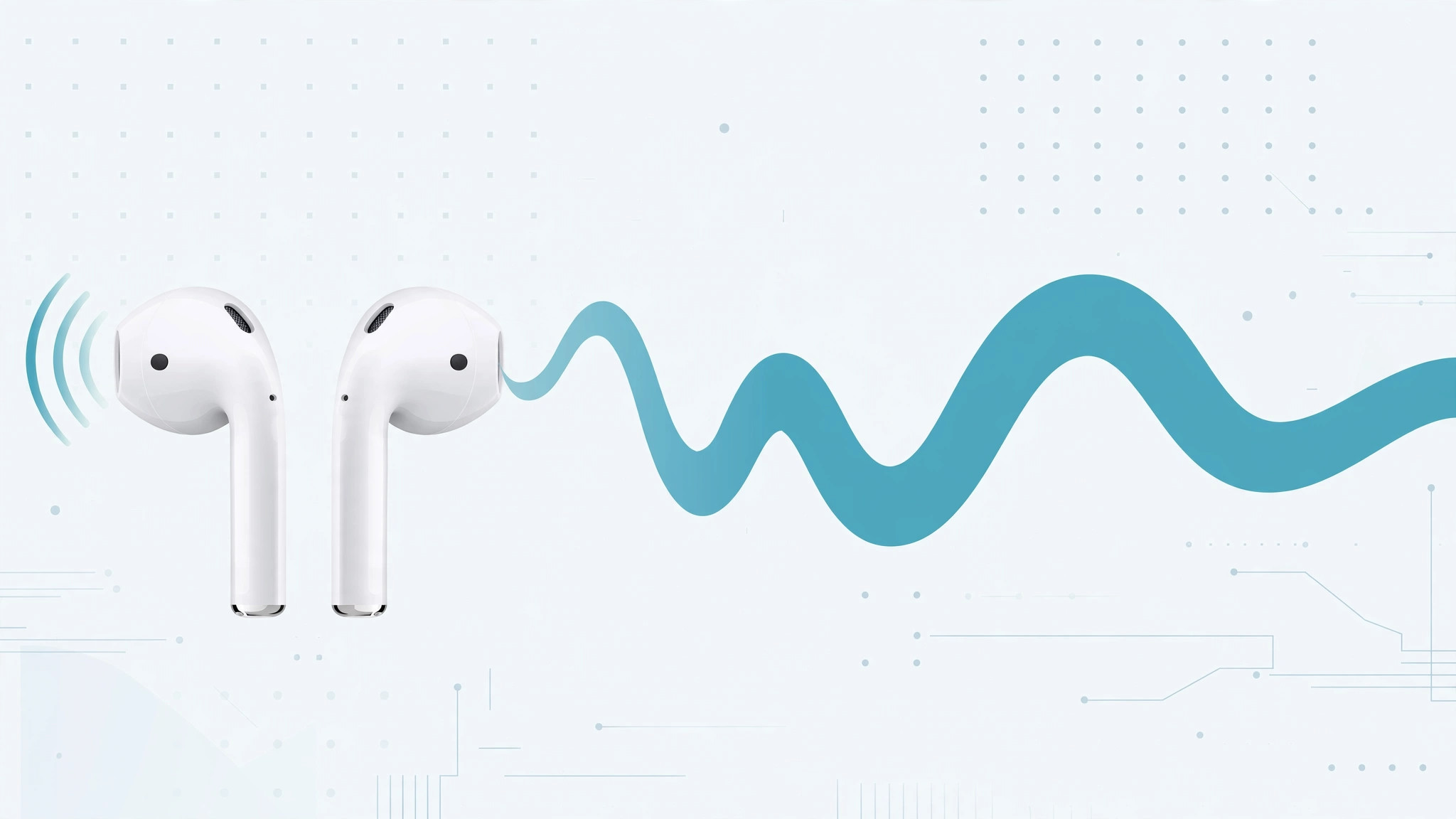
When you wear just one AirPod, you’d expect half the audio to go missing — the left channel in your ear, the right channel sitting in the charging case. Apple already thought of that: a lone AirPod automatically mixes both stereo channels together. And when you want that same combined sound with both earbuds in, the iPhone has a manual mono-audio toggle too. Here are both methods.
1. Use a single AirPod: mono happens automatically
Put one AirPod in your ear and leave the other one in the charging case. The iPhone detects that only one earbud is worn and switches playback to mono on its own — both stereo channels are merged into the single earbud, so nothing gets lost. This is the handiest approach when you want one ear free for your surroundings, or when one earbud’s battery has run dry. It works on calls too: the caller’s voice comes through your one AirPod just fine.
2. Turn on Mono Audio manually in Settings
Prefer mono even with both AirPods in — or need it for another set of headphones? The toggle lives in the iPhone’s accessibility settings:
- Make sure your AirPods are connected — check Control Center or Settings → Bluetooth.
- Go to Settings → General → Accessibility.
- Under the Hearing section, switch on Mono Audio. Your iPhone now combines the left and right channels on every audio output, not just AirPods.
- Play a stereo track to confirm both channels come through.
One important note: the manual toggle is system-wide, affecting the built-in speaker and any other headphones too — so remember to switch it back off when you return to two earbuds and want full stereo. If your iPhone tends to auto-switch audio away from your headphones, fixing that alongside Mono Audio gives you much more predictable listening.
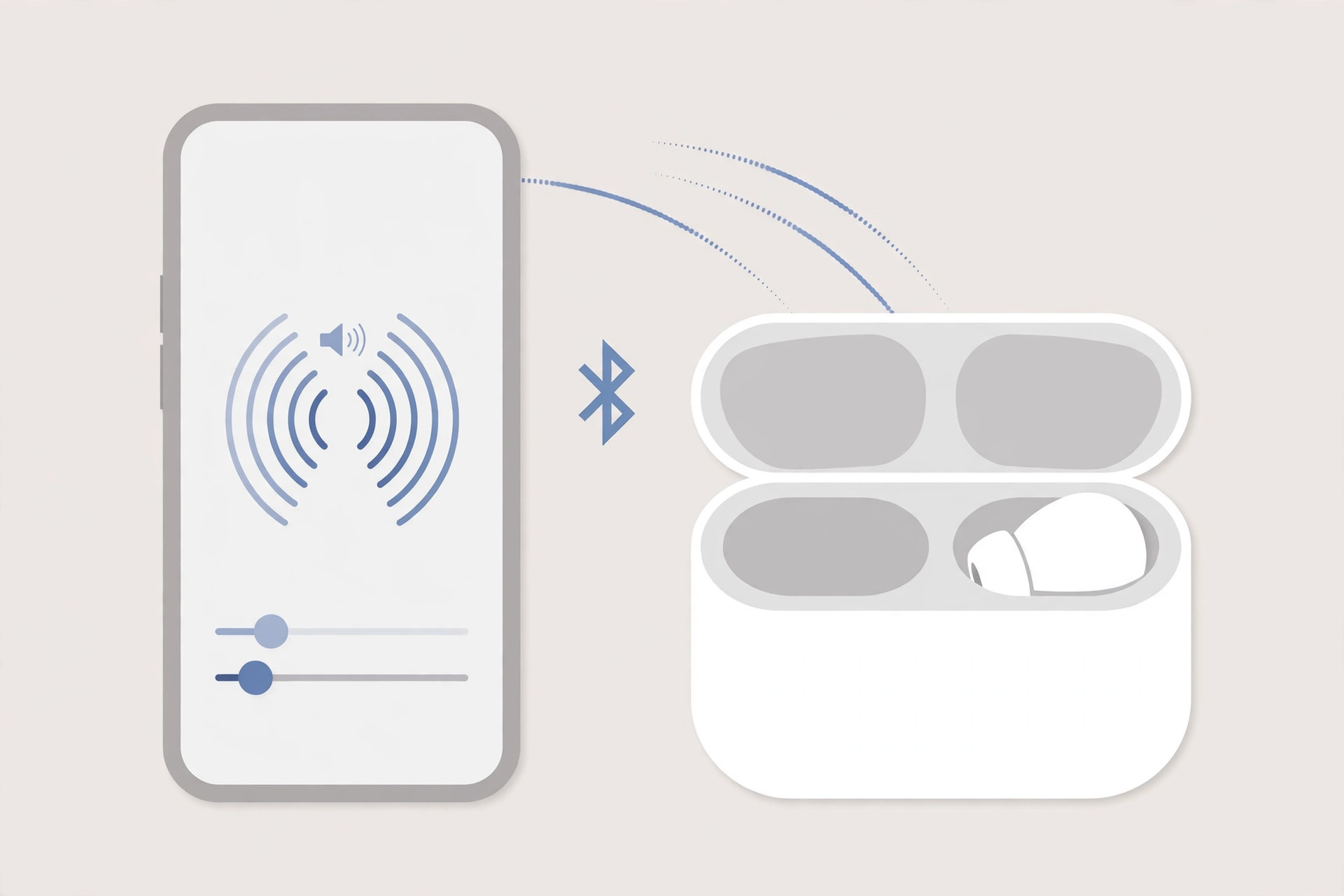
Apple’s official guide to playing the same sound in both AirPods documents the mono playback behavior, and 9to5Mac’s guide to enabling mono audio on AirPods walks through the same toggle. While you’re tuning AirPod behavior, you may also want to turn off the charging case sounds for quieter charging.
If it still doesn’t work
If Mono Audio won’t switch on or audio still sounds off-center, unpair and re-pair the AirPods (Settings → Bluetooth, tap the ⓘ icon, choose Forget This Device, then pair again), restart your iPhone, and make sure the AirPods’ firmware is current by leaving them in the case near your iPhone for a while. Also check the audio balance slider in accessibility settings isn’t pushed to one side.
Frequently asked questions
Does the manual Mono Audio toggle work with other headphones?
Yes — it’s a system-wide iOS setting, so it applies to wired and Bluetooth headphones alike, plus the built-in speaker. It stays on until you switch it back off.
Why would anyone listen in mono?
If you hear better in one ear, mono keeps you from missing sounds that only exist in the other channel. It’s also perfect for sharing one AirPod with a friend so you both hear the complete track.
Conclusion
Mono audio on AirPods is refreshingly simple: use a single earbud and the switch happens automatically, or flip the Mono Audio toggle in Settings for a system-wide fix. Just remember the manual toggle stays on — turn it off again when you want your stereo back.





