
Apple Music’s catalog is enormous, but it doesn’t have everything. Maybe it’s a live recording from a small venue, a remix a friend sent you, a track from a local band that never made it to streaming, or an old MP3 from your college days. Whatever it is, you don’t have to keep it locked on one device — you can add any track to your Apple Music library and have it sync across your iPhone, iPad, and Mac just like the rest of your music.
There are two ways to do it: the official route through Apple’s cloud library, which is free and built into the apps you already have, and a faster direct-transfer option for people who don’t want to wait on syncing. Here’s how both work.
Method 1: Add tracks through the Music app (official way)
This is Apple’s sanctioned method, and it costs nothing extra. You’ll need a Mac or Windows PC, because the iPhone itself can’t import loose audio files into the library.
Step 1: Open the Music app and sign in
On a Mac, open the Music app. On Windows, open iTunes or the newer Apple Music app. Go to the Account menu and sign in with the same Apple ID you use for Apple Music on your iPhone.
Step 2: Turn on Sync Library
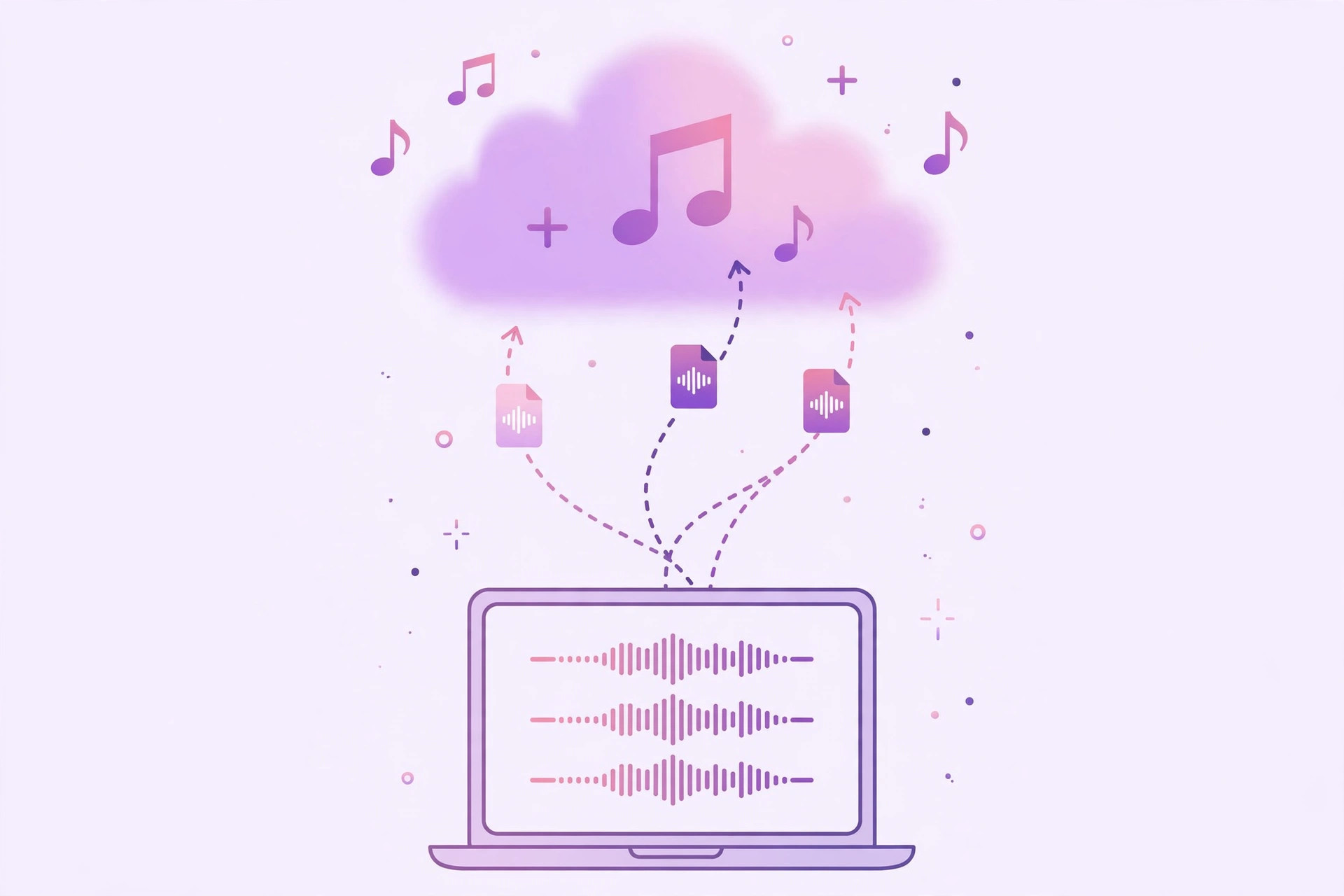
In the app’s settings, go to the General tab and turn on “Sync Library” (it used to be called iCloud Music Library). This is the switch that lets your personal tracks travel to all your devices. Apple’s guide to syncing your music library explains what this setting does and which devices it covers.
Step 3: Add your audio files to the library
Go to File → Add to Library… (or Import…) and choose the audio files on your computer — MP3, AAC, WAV, and most common formats work. They’ll land in your library, usually under Recently Added.
Step 4: Upload them to your cloud library
Find the newly added tracks, right-click (or Control-click on Mac), and choose “Add to iCloud Music Library.” This uploads your files — or matches them against Apple’s catalog when possible — so they become part of your synced collection.
Step 5: Wait for the sync, then enjoy everywhere
Give it a few minutes (longer for big batches or lossless files). Then open the Music app on your iPhone — your tracks should be there, ready to play, add to playlists, and mix with the rest of your library. You can edit titles, add artwork, and attach lyrics on the computer, and those changes sync too.
Method 2: Transfer tracks directly with WALTR
The official method works, but it’s slow and it puts your tracks on every device signed into your Apple ID — which you may not want. If you’d rather just drop files straight onto your iPhone, the third-party app WALTR does exactly that: connect your iPhone to your computer, drag audio files into WALTR, and they appear in the Music app within seconds. No cloud library, no waiting, no syncing to devices you didn’t intend.
The trade-off is that WALTR is paid software (it does offer a free trial), and because the tracks bypass iCloud Music Library, they won’t automatically appear on your other devices. Think of it as the quick-and-local option versus Apple’s slow-and-everywhere one. MacRumors’ Apple Music guides cover both approaches and the differences between them.
One more note: if the song you’re after is actually in Apple’s catalog, you don’t need any of this — Apple Music subscribers can just search for it and tap the + button to add it directly. The methods above are for tracks that genuinely aren’t on the service.
Building a great music library goes hand in hand with discovering new music — here’s how to automatically identify songs playing nearby on iPhone, and if your listening sessions get interrupted by stray sounds, learn how to turn off AirPods charging case sounds.
If it still doesn’t work
If your tracks won’t upload, check the basics first: Sync Library must be on, in the Music app settings on the computer and on your iPhone (Settings → Music → Sync Library). Make sure both devices use the same Apple ID. Very large files or unusual formats (like FLAC in older iTunes versions) may need converting to AAC or MP3 first. And if songs appear on the Mac but not the iPhone, toggle Sync Library off and back on — it forces a fresh sync.
Frequently asked questions
Do I need an Apple Music subscription to add my own tracks?
Sync Library — the feature that moves your personal tracks between devices — requires either an Apple Music subscription or iTunes Match. Without one of those, you can still add files to the Music app on your computer, but they won’t sync to your iPhone through the cloud. WALTR’s direct transfer works regardless of subscription.
Will my uploaded tracks count against iCloud storage?
No. Music uploaded or matched through Sync Library doesn’t use your iCloud storage quota — it’s covered by your Apple Music or iTunes Match subscription instead.
The bottom line
Adding any track to your Apple Music library is straightforward once you know the two paths: use the Music app’s Sync Library for a free, everywhere-synced solution, or grab WALTR when you want files on your iPhone in seconds without the cloud. Either way, that obscure remix or live recording finally gets a proper home next to the rest of your music.





