
You just bought a great app on your iPhone — and now you want it on the big screen too. Instead of hunting through the Apple TV App Store and installing it by hand, you can make your Apple TV install it for you automatically. One toggle does the whole job, and from then on every compatible app you download on your iPhone or iPad simply appears on your TV’s home screen.
Here’s how to turn it on, what it needs to work, and how to switch it off again.
Step 1: Open Settings on your Apple TV
Grab the Siri Remote and open the Settings app on your Apple TV — the grey icon with gears. Apple’s own guide to downloading apps on Apple TV documents this settings area if you want the official walkthrough alongside these steps.
Step 2: Go to Apps
In Settings, scroll to Apps and select it. This is where tvOS keeps everything related to app installation and updates — much like the automatic download settings on iOS that we’ve covered in guides such as setting up automatic hotspot connections between iPhone and Mac, where one toggle quietly handles the whole sync.
Step 3: Turn on “Automatically Install Apps”
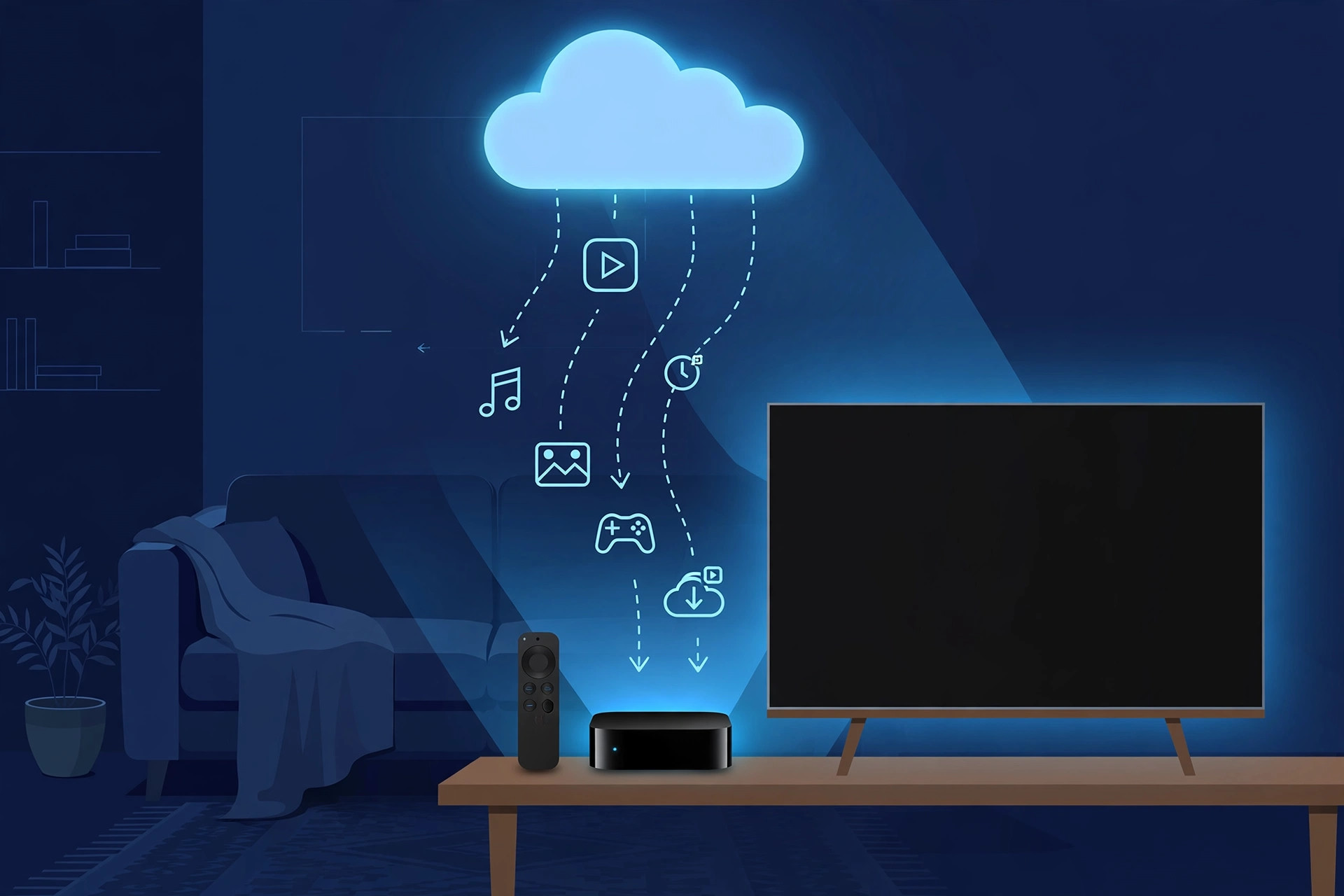
Inside Apps, you’ll find a switch labelled Automatically Install Apps. Turn it On. That’s the entire setup — guides like How-To Geek’s Apple TV walkthrough confirm this single toggle is all it takes.
From now on, whenever you download or purchase an app on your iPhone or iPad, your Apple TV will fetch its tvOS version and place it on the home screen by itself — no manual installing, no searching.
Step 4: Check the two requirements
Two things have to be true for an app to appear automatically:
The developer must ship a tvOS version. Automatic installation only works when the app’s developer bundles an Apple TV version with the iOS app. Plenty of popular apps do; some don’t. If an app never appears on your TV, this is almost always why.
All devices must use the same Apple ID. The Apple TV, iPhone, and iPad need to be signed into the same Apple account — otherwise the TV has no way to know what you purchased.
Step 5: Turn it off (if you change your mind)
Not every iPhone download deserves a spot on your TV. To stop automatic installs, go back to Settings → Apps on the Apple TV and switch Automatically Install Apps to Off. Nothing already installed gets removed — it just stops future auto-installs.
Missed an app you actually wanted? Open the App Store on your Apple TV, head to the Purchased tab, and install anything manually from there. And if your home screen is getting crowded, our guide on which built-in iPhone apps you can delete has the same decluttering spirit for your phone.
If it still doesn’t work
If apps you buy on your iPhone still don’t appear on the TV, first confirm the app actually has a tvOS version (check its App Store page on the Apple TV — if there’s no listing, there’s nothing to install). Then double-check that both devices are signed into the same Apple ID, and that the toggle is still On. A restart of the Apple TV (Settings → System → Restart) clears the occasional sync hiccup.
Frequently asked questions
Does this re-download apps I already own?
It installs the tvOS version of apps you download or purchase after turning the toggle on. Apps already on your Apple TV are untouched, and turning the feature on won’t suddenly flood your home screen with your entire purchase history.
Will turning it off delete apps from my Apple TV?
No. Switching “Automatically Install Apps” off only stops future automatic installs. Everything already on the TV stays exactly where it is until you delete it yourself.
The bottom line
One toggle — Settings → Apps → Automatically Install Apps — means every compatible app you grab on your iPhone or iPad lands on your Apple TV by itself. Just remember the two requirements (a tvOS version must exist, and the same Apple ID everywhere), and you’ll never manually install a TV app again.





