
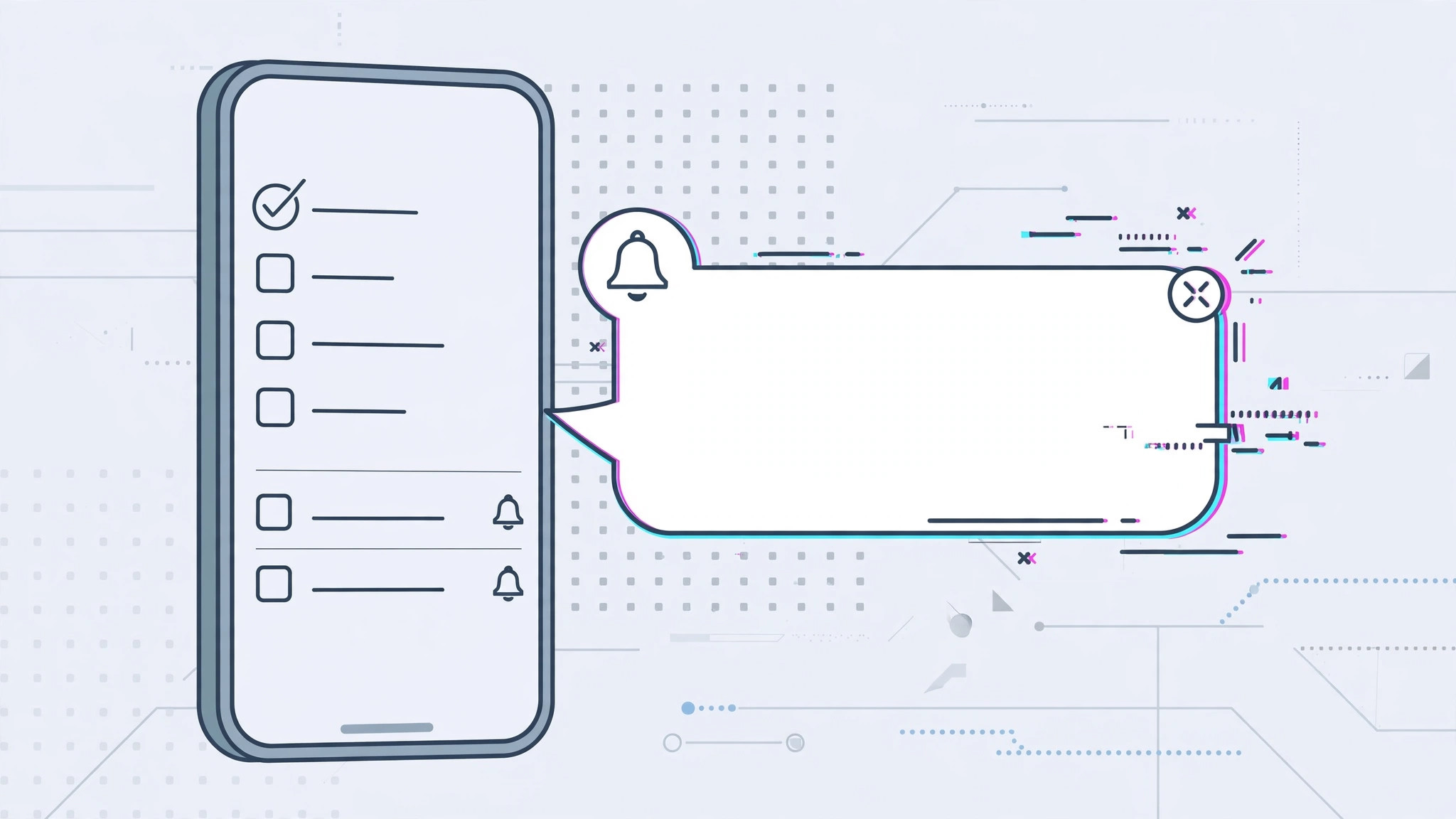
You did everything right: you long-pressed the Reminders icon, tapped Delete App, and watched it vanish from your Home Screen. And yet — ping! — another reminder notification slides in the next morning. It feels like your iPhone is haunted, but there is a perfectly logical explanation, and a straightforward fix.
Why deleting the app doesn’t stop the notifications
Since iOS 11, Apple has allowed users to delete most of its built-in apps — but removing the app is not the same as removing its data. Your reminders don’t live inside the app icon; they live in a system database on your iPhone and, if you use iCloud, in your synced iCloud data. Scheduled alerts are registered separately with the iOS notification system.
So when you delete Reminders, iOS removes the app itself while the scheduled notifications and the underlying reminder data survive untouched. That is exactly why the “phantom” alerts keep firing on schedule. Apple’s own guide to deleting built-in apps explains what is — and isn’t — removed when you delete one. If you’re unsure what else is safe to remove, check our rundown of which built-in iPhone apps you can delete and which ones must stay.
How to stop the phantom reminders for good
The fix is to clear the reminders at their source rather than fighting the notifications:
- Reinstall the Reminders app. Open the App Store, search for “Reminders,” and download Apple’s free app again. This gives you back the interface to your reminder data.
- Delete or complete the offending reminders. Open the reinstalled app and look through your lists — especially any with dates and times attached. Delete the reminders that keep notifying, or mark them complete. This cancels their scheduled alerts at the source, which is the step most people miss.
- Check your other devices. Go to Settings → [your name] → iCloud and review whether Reminders sync is on. If a Mac, iPad, or another iPhone signed into the same Apple ID still holds those reminders, the alerts — and the data — can be pushed back to your iPhone. Clean them up on every device.
- Clear leftover notification permissions, then remove the app cleanly. With Reminders reinstalled, open Settings → Notifications and review its entry. Once everything is deleted or completed and no alerts remain, delete the app again. This time there will be nothing left to notify you about.
- Update iOS. As a final sweep, install the latest iOS update in Settings → General → Software Update. Newer releases tidy up how notification permissions and deleted apps interact, and 9to5Mac regularly documents these under-the-hood changes in its iOS coverage.
Once the underlying reminders are gone, the notifications stop immediately — no restart required. And if you ever miss the app, you can shape its alerts to your needs, for example with urgent reminders in iOS 26 that ring like an alarm.
If it still doesn’t work
If an alert still fires after you’ve cleared every list, the reminder is almost certainly coming from another device on the same Apple ID — a family iPad or an old iPhone in a drawer counts. Check each one, then restart your iPhone once to flush the notification queue.
Frequently asked questions
Will deleting the Reminders app delete my reminders?
No. Deleting the app removes only the app itself; your reminders stay in the system database and in iCloud. Reinstall the free app from the App Store any time to see and manage them again.
Why do the notifications survive a restart?
Because scheduled alerts are registered with iOS itself, not with the app. Restarting the phone doesn’t cancel them — only deleting or completing the underlying reminder does.
Conclusion
Phantom Reminders notifications aren’t a bug so much as a misunderstanding: deleting the app never deleted the data. Reinstall Reminders, clear or complete the lingering items, check your other devices, and the ghost alerts will be gone for good.





