
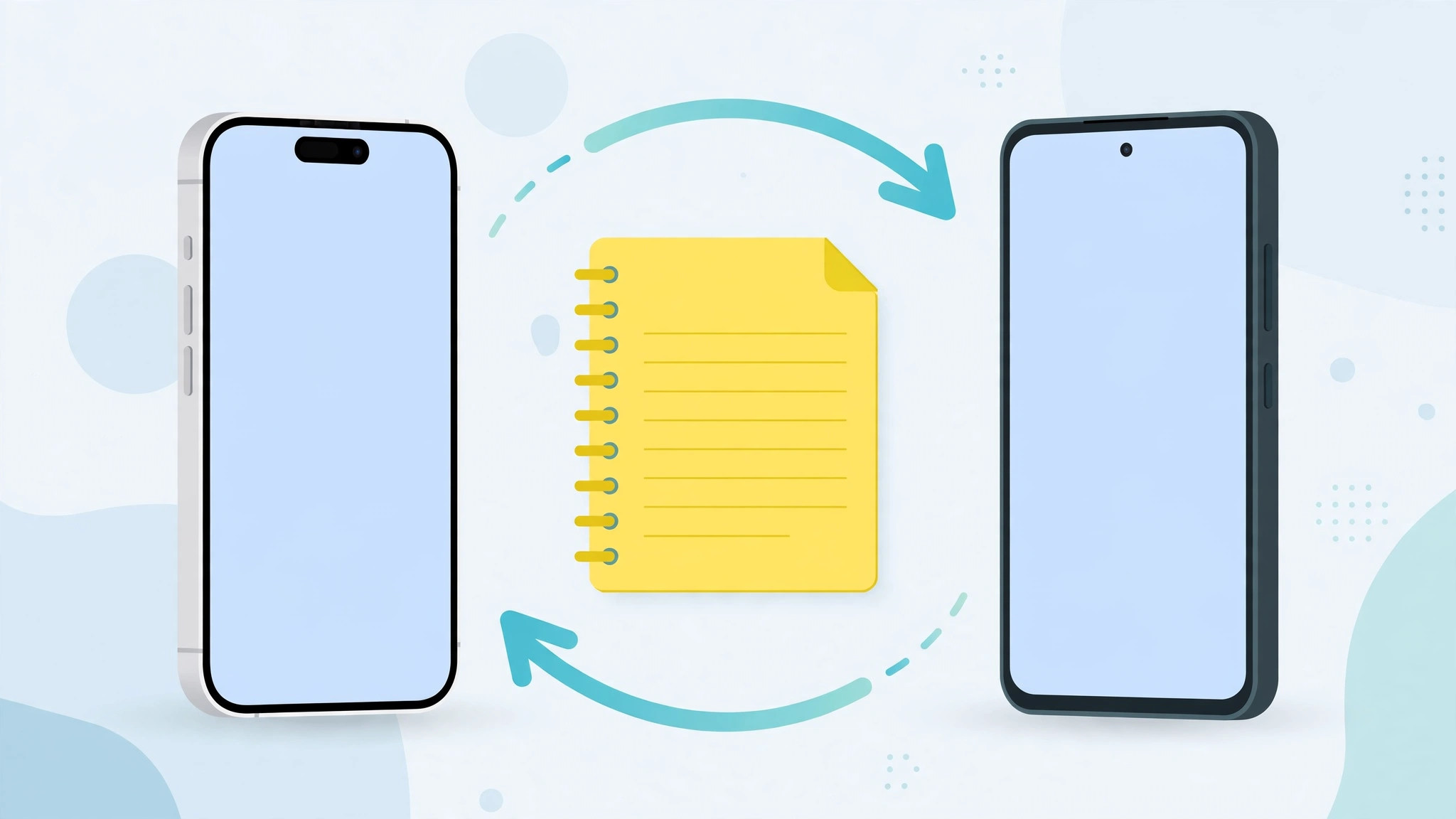
Switching from iPhone to Android feels liberating — until you realize your notes didn’t follow you. Years of lists, ideas, and reminders are sitting in Apple’s Notes app with no obvious way out. The good news: you don’t need a third-party app to bring them along. Since you’re already signed into your Google account on Android, you can route your iPhone notes through Gmail and have them appear in the Gmail app on your new phone.
Syncing iPhone Notes through Gmail
Step 1 — Enable Notes for your Gmail account
On your iPhone, open Settings → Passwords & Accounts (on some iOS versions this is under Settings → Notes → Accounts). If your Gmail account isn’t added yet, tap Add Account and sign in. Then tap the Gmail account and switch on the Notes toggle. Apple’s support documentation explains how syncing Notes with email accounts works.
Step 2 — Find the Gmail folder in Notes
Open the Notes app. You’ll now see a new Gmail folder alongside iCloud and other accounts. Any note you create inside this folder syncs with Google instead of iCloud.
Step 3 — Create new notes in the Gmail folder
From now on, create new notes inside the Gmail folder — those appear automatically in the Gmail app on your Android phone. Tap the folder, then the compose button, and write as usual.
Step 4 — Move your existing iCloud notes
Your old notes live in the iCloud folder and won’t sync on their own. To bring them over, open a note, use the share or folder option, and move it into the Gmail folder. Repeat for each note you want to keep. There’s no bulk move option, so set aside a few minutes if you have a large collection.
Step 5 — Read them on Android
On your Android phone, open the Gmail app, open the menu, and look for the Notes label. Every note in the Gmail folder shows up here, and edits you make stay in sync across both devices. Google’s Gmail support has more on using labels in the Gmail app.
An easier default for future notes
Instead of remembering to create every note in the right folder, go to Settings → Notes → Default Account and choose Gmail. From then on, every new note you create lands in the Gmail folder automatically — the sync simply happens without thinking about it.
Caveats worth knowing
Notes synced through Gmail are plain text only. Rich formatting, sketches, scanned documents, and locked notes don’t transfer — those features only work with iCloud. If you rely on locked notes, unlock them before moving. For the long term, Google Keep is the natural Android-side home for your notes: it’s Google’s dedicated notes app with checklists, reminders, and syncing built in, so consider moving there once your old notes are safe.
If it still doesn’t work
If notes aren’t appearing in Gmail, double-check that the Notes toggle is enabled for your Gmail account in Settings, and that you’re looking at the Gmail folder — not the iCloud one — in the Notes app. Also confirm both devices are online; sync needs an internet connection on both ends. For more syncing guides, see how to set up message sync between iPhone and Mac, how to turn off the sent mail sound in the iPhone Mail app, and how to mute mail notifications for specific contacts in macOS.
Frequently asked questions
Can I sync notes back from Android to iPhone?
Yes. Notes created or edited under the Gmail “Notes” label in the Gmail app appear in the Gmail folder of Apple’s Notes app. Syncing works both ways as long as the Notes toggle is enabled.
What about attachments and checklists?
Basic checklists survive as plain text with dashes, but photos, sketches, and tables don’t transfer through Gmail. Keep a copy in iCloud or Google Keep for notes with rich content.
Conclusion
Moving notes from iPhone to Android doesn’t require any special app: enable the Notes toggle on your Gmail account, create or move notes into the Gmail folder, and read them under the Notes label in the Gmail app. Set Gmail as your default Notes account and future notes will sync automatically. It’s the simplest bridge for switchers — no third-party app needed.





