
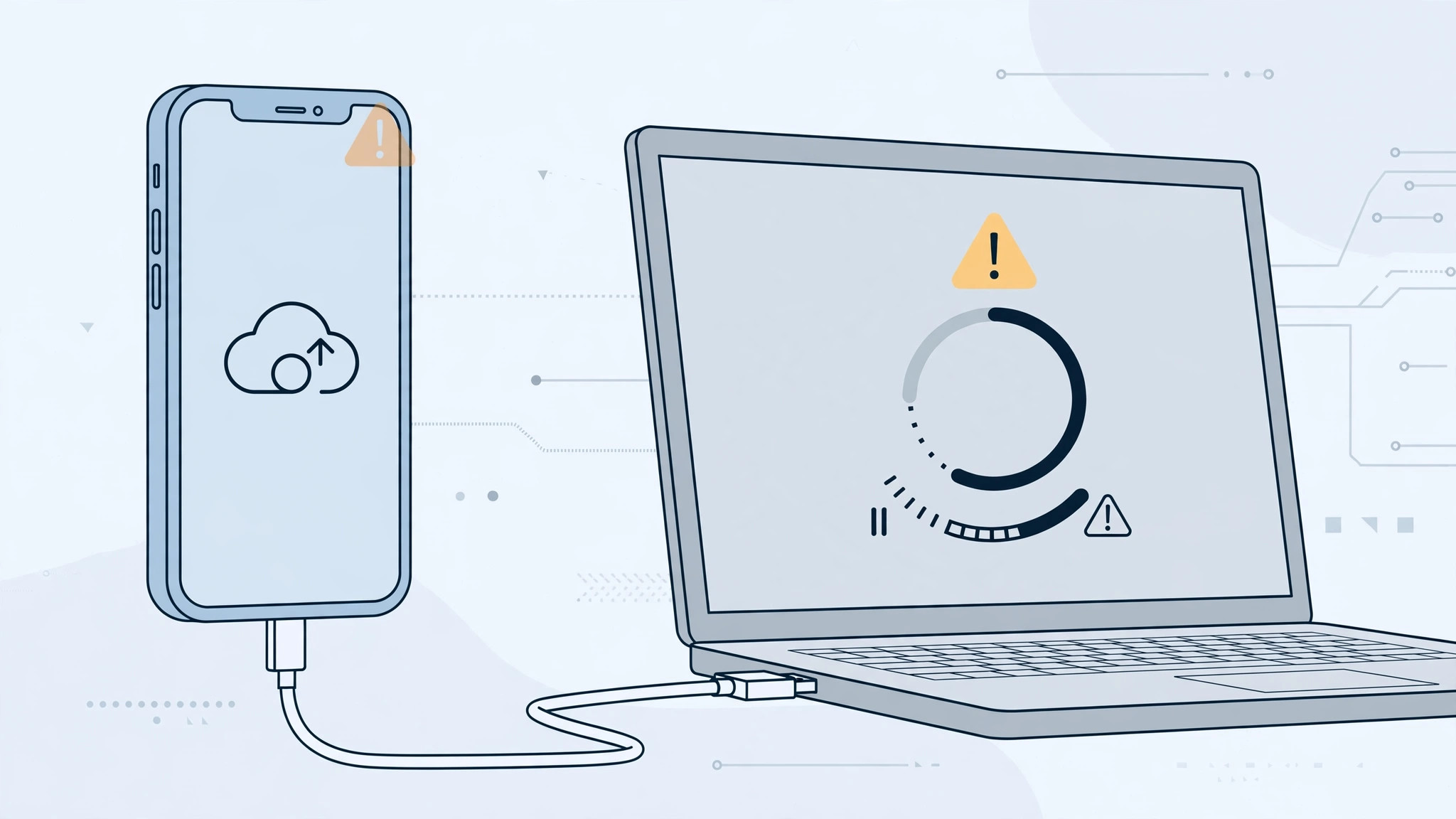
Backing up your iPhone to a computer should be simple — plug in the cable, click a button, done. But sometimes the backup stalls halfway, throws a cryptic error, or never starts at all. Before you give up and hope iCloud has you covered, work through these eight fixes. They address the most common reasons wired backups fail on Windows PCs and Macs, ordered from the quickest checks to the last-resort options.
8 fixes that work
- Restart both devices. A fresh boot clears stuck USB sessions and background glitches that silently break backups. Power the iPhone fully off and back on, restart the computer, then retry the backup before changing anything else.
- Swap the cable and USB port. Damaged or uncertified cables are the most common cause of failed backups. Use an Apple-certified (MFi) cable, plug into a different USB port directly on the computer instead of a hub, and inspect both connectors for lint or damage.
- Tap “Trust This Computer.” The iPhone must display the “Trust This Computer?” prompt — tap Trust and enter your passcode if asked. If you dismissed it earlier, unplug and reconnect. Without that handshake, the computer cannot access the phone at all.
- Update your backup software. On Windows 10 and 11, use the Apple Devices app (or the latest iTunes if you still rely on it); on macOS Catalina and later, iPhone backups live in the Finder. Outdated iTunes versions frequently fail against newer iOS releases, so install the latest version before retrying.
- Restart Apple Mobile Device Service (Windows). Press Win+R, type services.msc, find “Apple Mobile Device Service,” and restart it. This service manages the iPhone connection, and restarting it fixes many “device not recognized” errors. On a Mac, confirm the iPhone appears in the Finder sidebar — if it doesn’t, the cable or port is still the prime suspect.
- Free up disk space and delete old backups. A nearly full drive kills backups midway. Free up several gigabytes, then remove old or corrupted backups in the app’s preferences so a stale archive cannot stall the new one.
- Temporarily disable antivirus or firewall software. Third-party security tools sometimes block the iPhone’s connection to the computer. Switch protection off briefly, run the backup, then re-enable it — and add an exception for the Apple Devices app or iTunes if that was the culprit.
- Fall back to iCloud — or start fresh. Open Settings, tap your name, go to iCloud > iCloud Backup, and tap Back Up Now. As a true last resort, erase-and-restore the iPhone to clear deep system corruption. Apple’s iPhone support pages walk through both backup methods in detail.
If it still doesn’t work
If the backup fails on two different computers with two different cables, the iPhone itself is likely at fault — a worn Lightning or USB-C port, or deeper iOS corruption. Back up to iCloud immediately to protect your data, then contact Apple Support or visit a service center. As the teams at 9to5Mac and MacRumors often point out, failures that follow the phone across machines point to hardware, not software.
Frequently asked questions
Why does my iPhone backup keep failing halfway through?
Midway failures usually come down to three things: the cable lost connection for a split second, the computer ran out of disk space, or an old corrupted backup is interfering. Swap in a certified cable, free up several gigabytes, delete previous backups from the app’s preferences, and try again.
Is an iCloud backup as good as a computer backup?
For most people, yes. iCloud Backup saves your settings, app data, photos, and messages automatically over Wi-Fi. A computer backup restores faster and can be encrypted locally, which is why many people keep doing both. Our guide to setting up message sync between iPhone and Mac explains how your conversations stay consistent whichever method you rely on.
Conclusion
A failed iPhone backup is frustrating but rarely mysterious — cables, trust prompts, outdated software, and full disks cause most failures. Work through the eight fixes above in order and you should have a fresh backup within minutes. And once your data is safe, set up automatic hotspot connection from iPhone on Mac so your devices keep working together smoothly wherever you go.





