
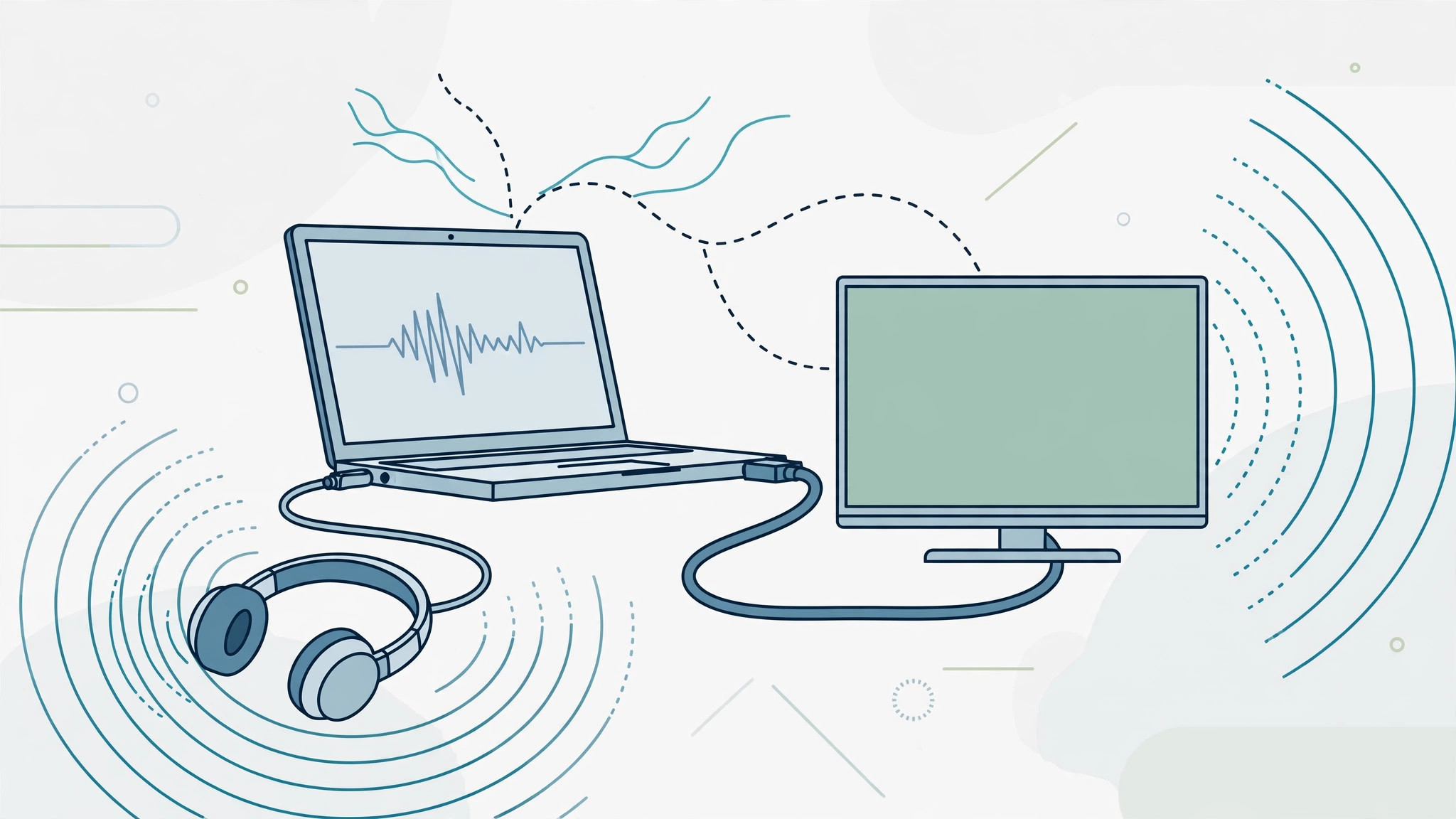
Picture this: your Mac is hooked up to the TV over HDMI, but you’d rather listen through your wired headphones — while the TV also keeps playing sound. By default, macOS lets you pick only one audio output at a time. The good news is that Apple ships a built-in tool that removes that limitation entirely: Audio MIDI Setup. With its Multi-Output Device feature, you can send the same audio to your headphone jack and your HDMI display simultaneously, with no third-party apps and no extra hardware.
What you need
Nothing beyond what you already own. The trick works on any Mac running a reasonably modern version of macOS, with any HDMI display or TV and a standard pair of wired headphones plugged into the 3.5 mm jack (or a USB-C-to-3.5 mm adapter on newer Macs). The same technique also works with Bluetooth headphones and USB audio devices — managing audio devices is one of those handy skills that pays off across the whole Apple ecosystem.
Step-by-step: create a Multi-Output Device
Follow these numbered steps and you’ll have dual audio output running in a couple of minutes:
- Open Audio MIDI Setup. Press Command + Space to open Spotlight, type “Audio MIDI Setup”, and press Enter. You’ll find the same app in the Utilities folder if you prefer Launchpad.
- Create a new Multi-Output Device. In the left sidebar, click the small + button at the bottom-left corner and choose Create Multi-Output Device from the pop-up menu.
- Tick the outputs you want to use. In the right-hand pane, check the boxes next to Built-in Output (this is your headphone jack) and your HDMI device. Both will now play the same audio at the same time. If one of them uses a different sample rate, set the top device’s format to match to avoid glitches.
- Select the Multi-Output Device as your output. Go to System Settings > Sound and choose your new Multi-Output Device in the Output list. Faster alternative: hold Option and click the sound icon in the menu bar (or the Control Center sound module) to pick it straight from the output list.
- Adjust the volume. Note that with a Multi-Output Device active, macOS’s master volume keys may be disabled — that’s normal. Adjust the volume on each device individually: the headphone level in the device list, and the TV volume with its own remote. Apple’s own Audio MIDI Setup documentation explains these quirks in detail.
Try it with other device combinations
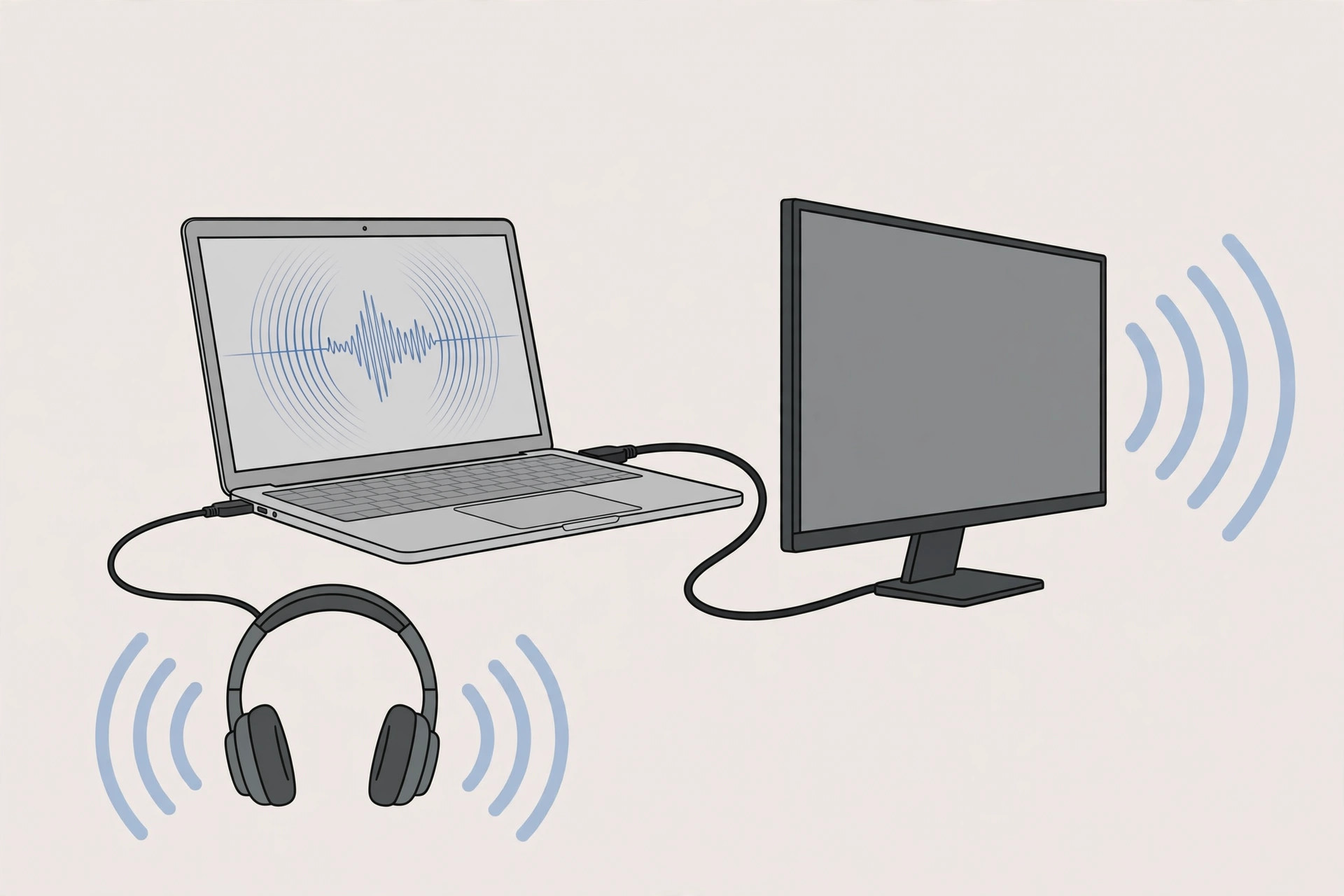
The same trick isn’t limited to headphones and HDMI. You can add USB headsets, external DACs, or even Bluetooth speakers to the same Multi-Output Device — handy when you’re screen-sharing during a video call and want to hear everything on two sets of ears. Speaking of calls, this guide to face lighting during video calls pairs nicely with a proper audio setup. Publications like 9to5Mac and MacRumors have long recommended this built-in method over paid audio-routing utilities for simple use cases.
If it still doesn’t work
If one output stays silent, open Audio MIDI Setup again and check that both checkboxes are still ticked — macOS sometimes drops a device after sleep or a cable re-plug. Make sure the HDMI display is powered on and set to the correct input, and verify the headphones work when selected as the sole output. If audio sounds distorted, set every device in the Multi-Output stack to the same sample rate (44.1 kHz or 48 kHz). Finally, delete the Multi-Output Device and recreate it; a fresh device usually clears up stubborn routing glitches.
Frequently asked questions
Can I control the volume of each output separately?
Yes — that’s actually the one thing you must do, since the Mac’s main volume keys often stop working with a Multi-Output Device. Change the headphone level in Sound settings and use your TV or speaker remote for the other output.
Does this work with Bluetooth headphones too?
Yes. Any output device macOS recognizes — built-in, HDMI, USB, or Bluetooth — can be added to a Multi-Output Device. Just keep in mind that Bluetooth adds a little latency, so wired headphones are better for video.
Conclusion
Multi-Output Device is one of macOS’s best-kept secrets: a free, built-in way to break the one-output limit and send audio to your headphone jack and HDMI display at the same time. Once you’ve set it up, switching between single and dual output is just an Option-click away — no extra software required.





