
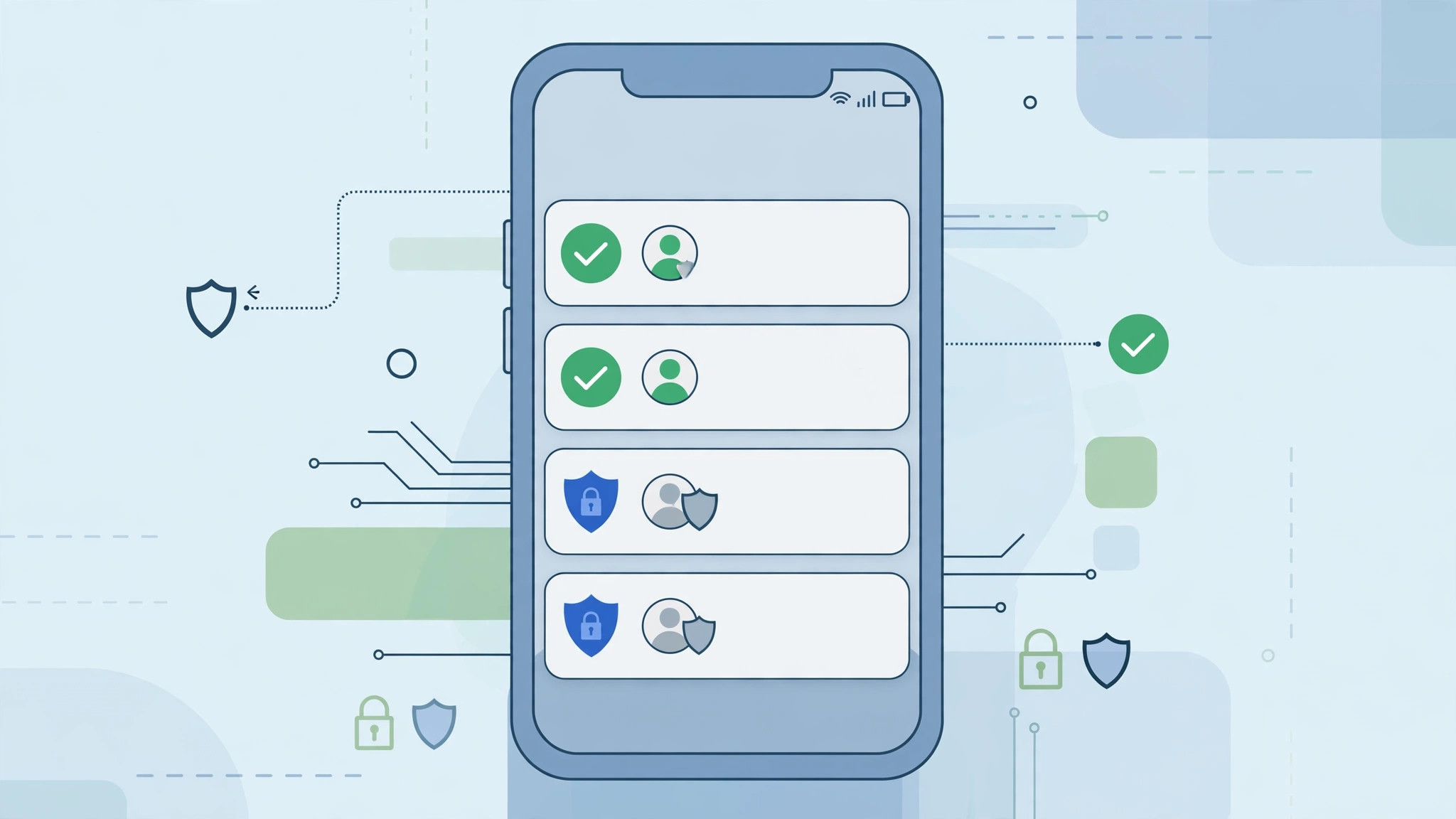
Spam and scam calls are relentless — and answering every unknown number is a losing game. The good news is that your iPhone has a built-in way to ring only for people you actually know, sending everyone else straight to voicemail. There are two ways to do it: the modern one-tap option Apple added in recent iOS versions, and the classic Focus trick that works on older iPhones too.
Method 1: Silence Unknown Callers (recommended)
This is the simplest, most reliable way to make your iPhone accept calls only from known contacts:
- Open Settings. Scroll down and tap Apps, then tap Phone. (On older iOS versions the Phone settings live directly under Settings.)
- Tap “Silence Unknown Callers.” Flip the toggle on.
- That’s it. From now on, calls from numbers that aren’t in your Contacts, recent outgoing calls, or Siri Suggestions are sent straight to voicemail without ringing. They still appear in your Recents list, so you can call back anyone who mattered. Apple’s Silence Unknown Callers documentation confirms you won’t miss text notifications or other alerts — only the call itself is silenced.
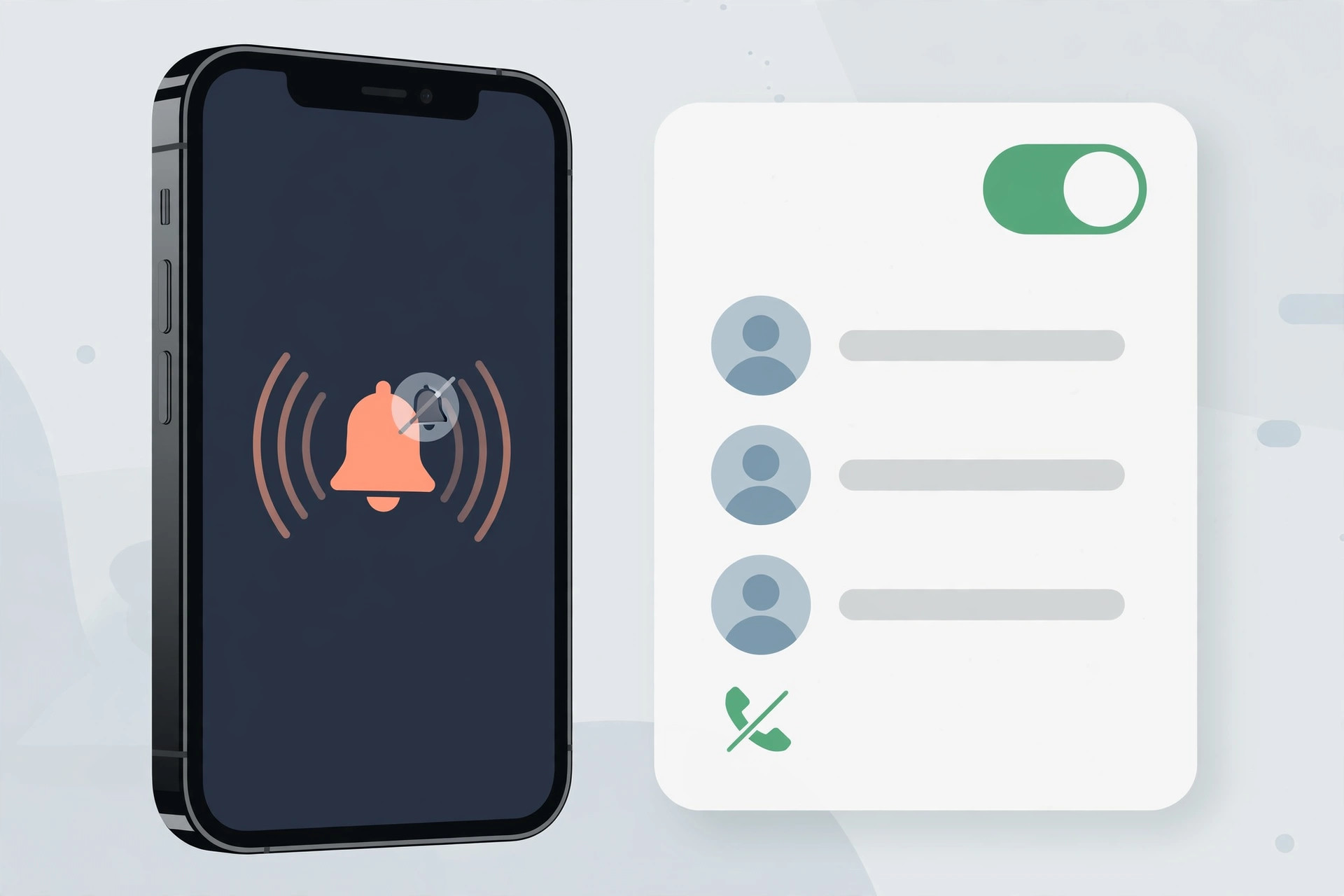
Method 2: The Focus / Do Not Disturb workaround
If your iPhone is too old for Silence Unknown Callers, or you want finer control (for example, allowing only Favorites, or different rules on a work SIM — see our guide to per-SIM Focus calling rules), use this classic trick:
- Open Settings > Focus (on older iOS: Settings > Do Not Disturb) and create a schedule that covers most of the day.
- Under Phone, set “Allow Calls From” to All Contacts — or choose Favorites only for an even stricter filter.
- Turn off “Repeated Calls.” This stops a second call from the same unknown number within three minutes from punching through your filter.
- Keep the Focus mode active. While it’s on, only your contacts ring through; unknown and hidden numbers stay silent. For a deeper dive into stopping nuisance calls entirely, read our guide on blocking calls from unknown numbers on iPhone.
If it still doesn’t work
First, check that the contacts you expect are actually saved — a number stored only in a message thread, not in Contacts, still counts as “unknown.” If you’re using the Focus method, make sure the schedule is active (the crescent icon in the status bar) and that no emergency-bypass contacts are missing from the allowed list. Carrier-level spam filters can also interfere: some carriers mark legitimate calls as spam before they ever reach your iPhone, so check with your provider if real callers can’t get through. Sites like 9to5Mac and MacRumors regularly cover new iOS call-screening features worth trying once you upgrade.
Frequently asked questions
Will I still see missed calls from unknown numbers?
Yes. With Silence Unknown Callers, blocked calls go to voicemail and appear in your Phone app’s Recents list, so you can review them and call back anyone legitimate.
Can I allow calls from Favorites only instead of all contacts?
Yes — use the Focus method and set “Allow Calls From” to Favorites. Silence Unknown Callers itself doesn’t offer a Favorites-only option; it uses your full contacts list.
Conclusion
Making your iPhone ring only for known contacts takes less than a minute: turn on Silence Unknown Callers for the set-and-forget approach, or build a Focus schedule for custom control. Either way, the days of sprinting across the room for a robocall are over.





