
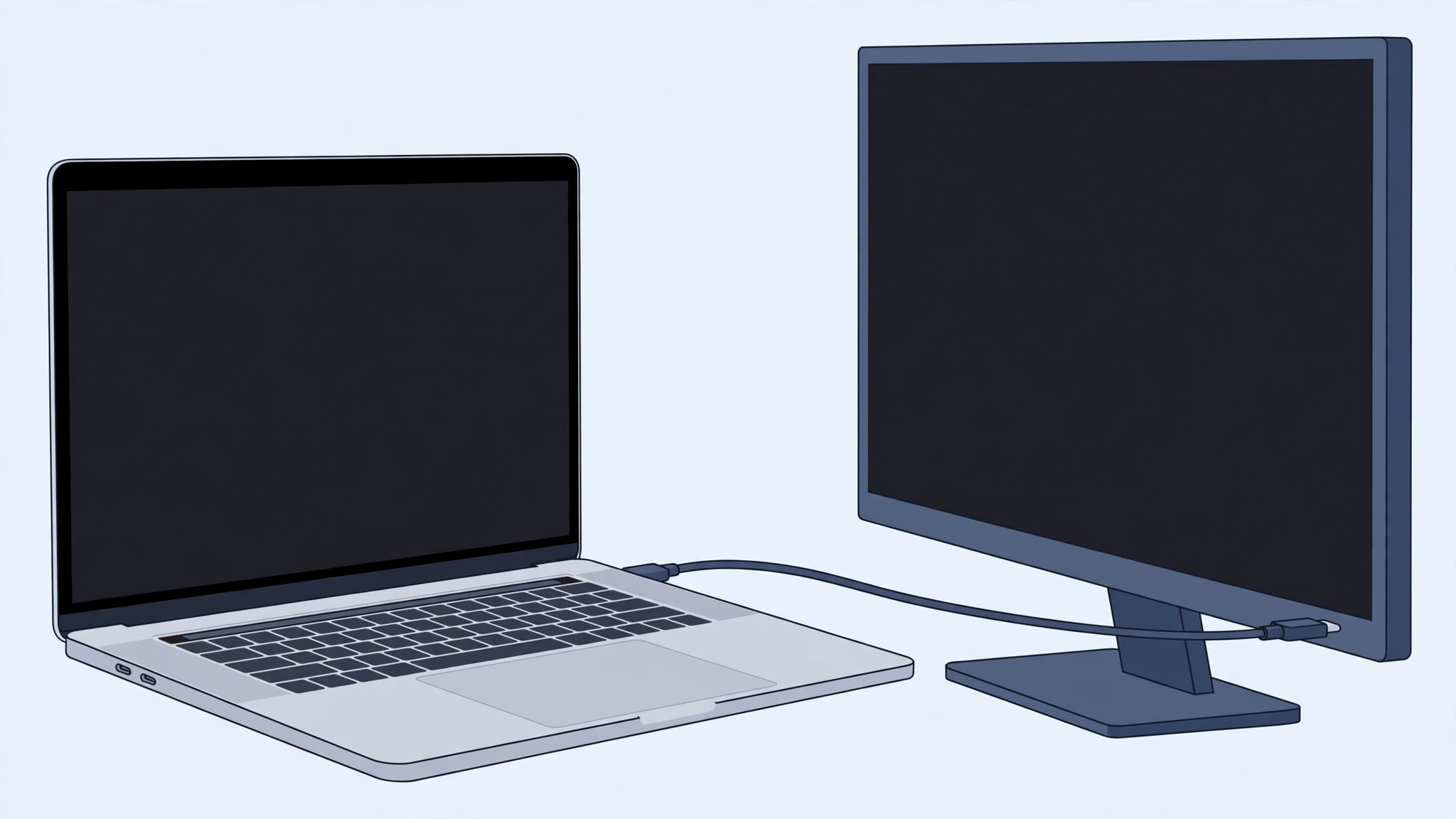
If you own a 2016 or 2017 MacBook Pro and a monitor that connects over Mini DisplayPort, you have probably stared at the laptop’s row of identical oval ports and wondered where the old connector went. Apple removed every legacy port — MagSafe, HDMI, the SD card slot, and Mini DisplayPort — when it redesigned the MacBook Pro in 2016, leaving only USB-C ports that double as Thunderbolt 3. The good news is that the video signal you need still travels through those ports, so connecting that older display is entirely possible — you just need the right adapter. Below are three working ways to do it, from the cheapest dongle to a full docking setup.
Why your MacBook Pro has no Mini DisplayPort port
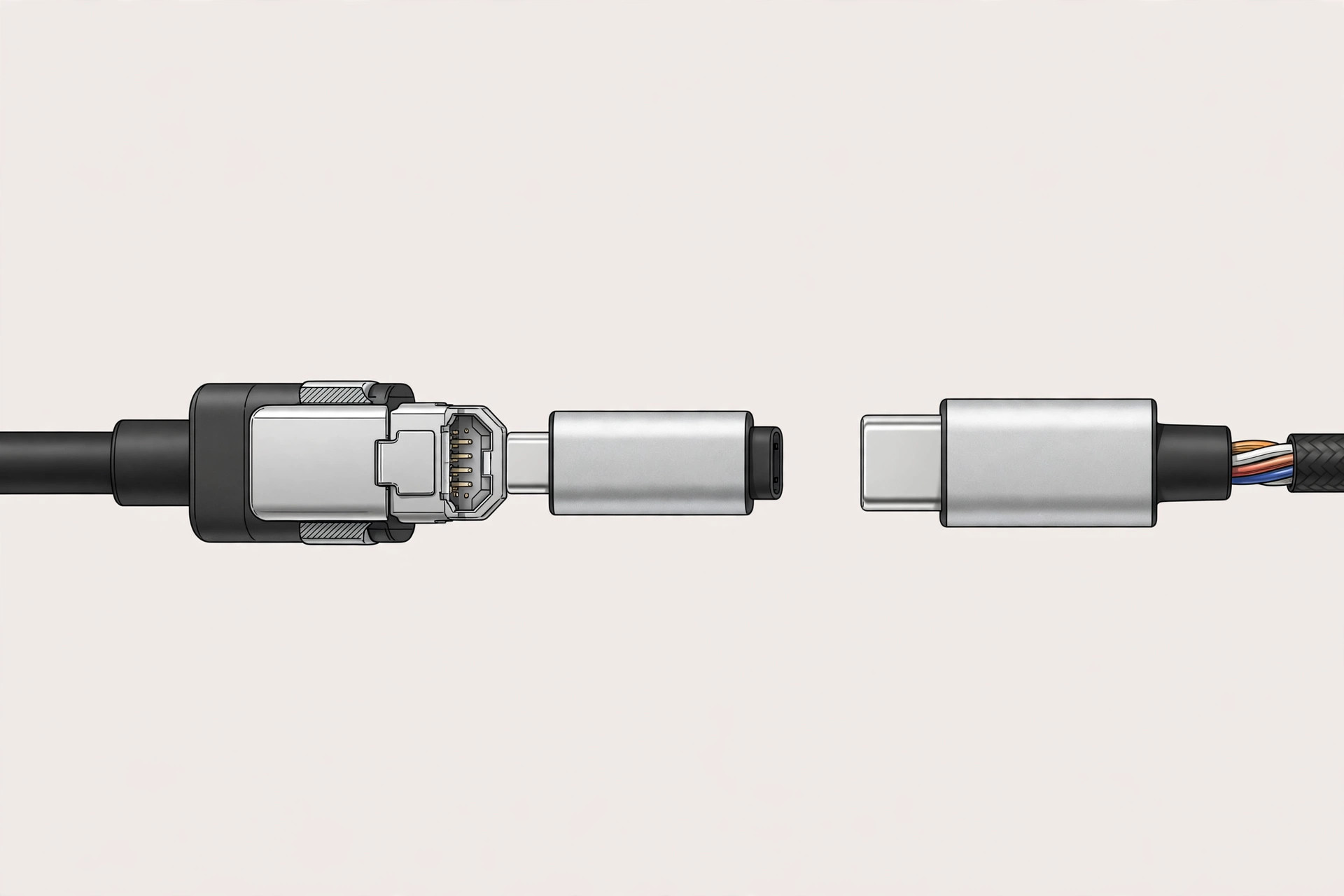
The 2016 and 2017 MacBook Pro models, in both 13-inch and 15-inch sizes, ship with two or four USB-C/Thunderbolt 3 ports and nothing else — Apple’s own tech-spec pages confirm there is no Mini DisplayPort, HDMI, or USB-A on these machines. Apple never made a first-party USB-C to Mini DisplayPort adapter, so a third-party accessory is unavoidable. The reason a simple passive adapter works is that USB-C carries DisplayPort video natively through DisplayPort Alt Mode — no expensive active converter box is required.
Option 1: USB-C to Mini DisplayPort adapter (cheapest)
This is the simplest fix if you already own a Mini DisplayPort cable and monitor.
- Buy a USB-C to Mini DisplayPort adapter from a reputable brand, rated for the resolution you need — 4K at 60 Hz requires a DisplayPort 1.2-compatible adapter.
- Plug the adapter directly into any USB-C/Thunderbolt 3 port on your MacBook Pro.
- Connect your existing Mini DisplayPort cable between the adapter and the monitor.
- Switch the monitor on, then wake the MacBook. macOS should detect the display automatically; open System Settings > Displays to arrange it or change the resolution.
While you are arranging your new desktop, you can also set up message sync between your iPhone and Mac so your texts follow you to the big screen.
Option 2: USB-C hub or dock with a Mini DisplayPort output
If you already use — or plan to buy — a USB-C hub for extra ports, pick one with a Mini DisplayPort output and skip the standalone dongle.
- Choose a hub or docking station that explicitly lists a Mini DisplayPort (or mDP) video output — MacRumors and owner reviews are good places to confirm it drives your monitor’s resolution.
- Connect the hub to your MacBook Pro with its attached USB-C cable; most hubs also pass power through, so one cable handles charging and the display.
- Run your Mini DisplayPort cable from the hub’s mDP port to the monitor, then select the right input on the monitor.
This is the tidiest desk option. It also helps if you sometimes work tethered to your phone — see how to set up an automatic hotspot connection from your iPhone on a Mac.
Option 3: Replace the cable entirely
Adapters add bulk and another potential point of failure, so the cleanest long-term solution is a single cable.
- Buy a cable with USB-C on one end and a connector matching your monitor on the other — USB-C to DisplayPort for most monitors, or USB-C to Mini DisplayPort if the display only has an mDP input.
- Plug the USB-C end into your MacBook Pro and the other end into the monitor. No adapter, no dongle.
- Confirm the cable’s rating supports your resolution and refresh rate before you buy — a cheap cable limited to 4K at 30 Hz will feel laggy.
If it still doesn’t work
- Try a different USB-C port. On the 15-inch model the left-side and right-side ports sit on different controllers, and occasionally one behaves better with video output.
- Check the monitor’s input source — make sure it is set to Mini DisplayPort/DisplayPort and not auto-selecting HDMI.
- Suspect the adapter itself: no-name dongles cause most “no signal” complaints. A certified adapter from a known brand — as shown in many YouTube setup walkthroughs — fixes most stubborn cases, and owners’ posts on X agree.
If you need to poke around system utilities while diagnosing the connection, here is how to quickly open the installed apps list in macOS 26.
Frequently asked questions
Can I use Apple’s old Mini DisplayPort to VGA or DVI adapters?
Yes, but only daisy-chained behind a USB-C to Mini DisplayPort adapter. It generally works, though the stack gets bulky — a direct USB-C cable is the cleaner choice.
Does this work on the 13-inch MacBook Pro without Touch Bar?
Yes. All 2016 and 2017 MacBook Pro models output DisplayPort video over USB-C, so the same three options apply regardless of screen size or Touch Bar.
Conclusion
Losing Mini DisplayPort was annoying, but it is a solved problem: a small USB-C to Mini DisplayPort adapter is the cheapest fix, a hub with an mDP output is the tidiest desk solution, and a direct USB-C cable is the most reliable. Pick the option that matches your setup, and your older monitor will be back in service in minutes.





