
There is little more frustrating than plugging in your iPhone and watching the battery percentage crawl upward — or worse, sit stubbornly still. If your iPhone charges very slowly, the cause is usually one of a handful of culprits: a worn-out battery, a weak or damaged charger, or a battery-protection feature doing its job a little too enthusiastically. Work through these checks in order and you will find the bottleneck.
Start with the battery’s history
Before blaming the charger, consider the phone’s past. Even an iPhone sold to you as “new” may be second-hand, grey-market, or refurbished — and its battery may already be heavily worn. A degraded battery charges abnormally slowly and drains quickly. Open Settings → Battery → Battery Health & Charging and look at Maximum Capacity. Anything under 80% means the battery is considered consumed, and even the low 80s will charge noticeably slower than a fresh cell. If the capacity is low, a battery replacement is the real fix — no charger can compensate. Apple’s battery guidance explains what the numbers mean.
7 fixes for slow iPhone charging
1. Use a proper adapter and cable
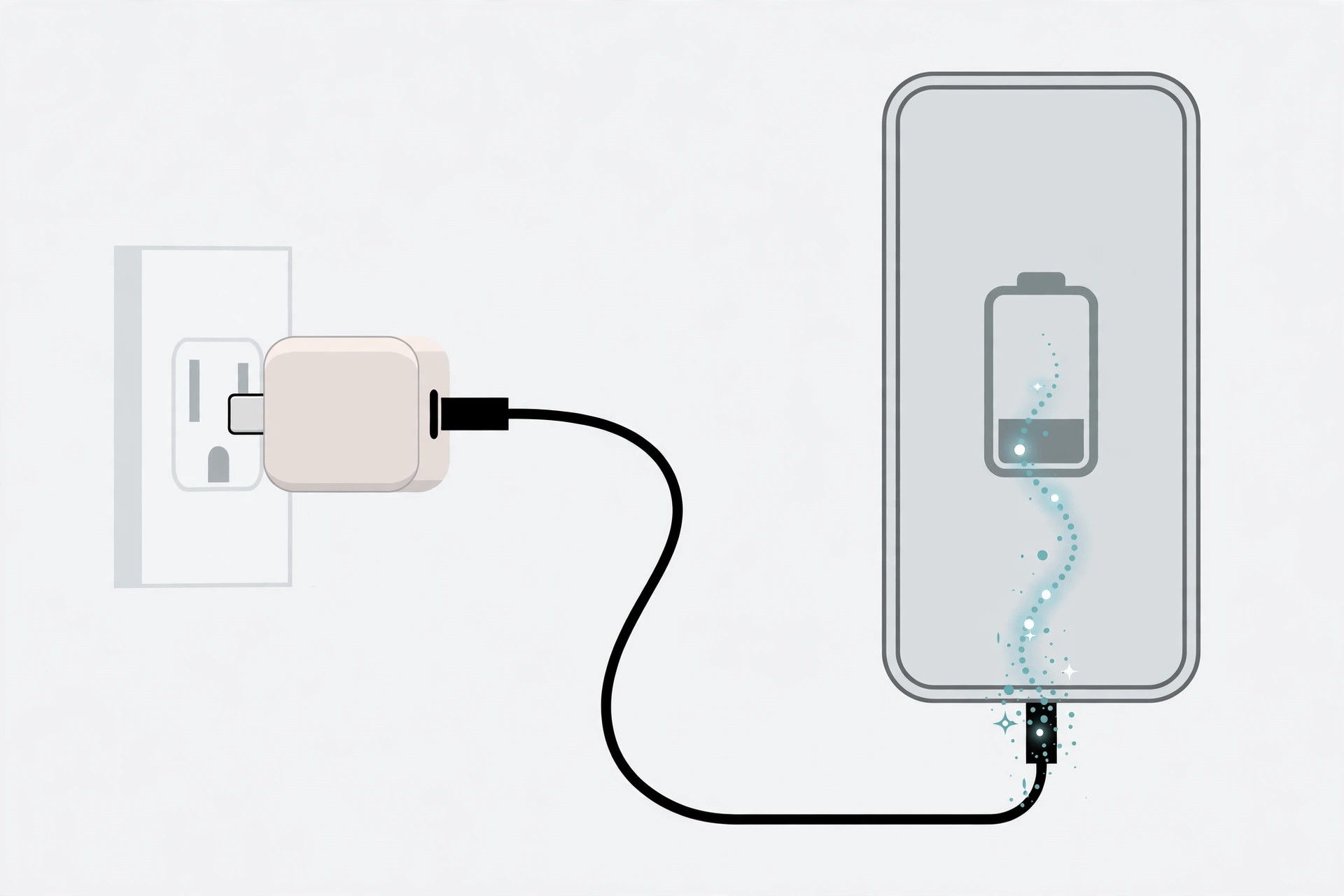
The most common cause of slow charging is the charger itself. Use Apple’s original adapter or a certified (MFi) one, paired with an undamaged cable. Cheap no-name cables and frayed cords can slash charging speed dramatically, so try a different, known-good adapter and cable — if charging suddenly speeds up, you have found the culprit. For fast charging on modern iPhones you need a USB-C adapter rated at 20W or more. 9to5Mac regularly covers iPhone charging speeds and which adapters actually deliver them.
2. Plug into the wall, not your computer
A computer’s USB port delivers far less power than a wall adapter, so charging from a laptop is always slow. For the fastest charge, plug into a wall outlet with a sufficiently powerful adapter.
3. Check Optimized Charging and the 80% limit
iOS protects long-term battery health with Optimized Charging and, on newer models, a charge limit that can hold the battery at 80%. Your phone may be deliberately pausing at 80% for hours. Go to Settings → Battery → Charging and see what is enabled — temporarily switching these features off tells you whether a setting, rather than a fault, is responsible. 9to5Mac’s explainers on optimized charging are worth a read if the behavior confuses you.
4. Let the phone rest while it charges
Gaming, navigation, or running a personal hotspot while plugged in consumes power almost as fast as the charger delivers it. Leave the phone alone for 20–30 minutes and watch the percentage climb. Charging quirks are not limited to the iPhone itself, either — if your AirPods case chimes every time you plug it in, here is how to turn off the AirPods charging case sounds.
5. Clean the charging port
Lint packed into the Lightning or USB-C port can stop the cable seating fully, which reduces charging speed or causes intermittent charging. Inspect the port with a flashlight and carefully tease debris out with a wooden toothpick — never anything metal.
6. Restart the iPhone
A runaway background process can burn CPU and slow charging to a crawl. A simple restart clears it. Restarting also replays the boot chime if you have one enabled — here is how to add and change the iPhone startup sound in iOS.
7. Update iOS
Occasionally a software bug affects power management. Make sure you are on the latest iOS before concluding the hardware is at fault.
If it still doesn’t work
If you have tried a known-good charger and cable, disabled charging limits, cleaned the port, and Battery Health reads fine — yet the phone still crawls or refuses to charge past a certain percentage — book a service appointment. A failing charging circuit or a swelling battery needs professional diagnosis, so back up your data first. Many owners have filmed their own troubleshooting journeys; a YouTube search for iPhone slow-charging fixes shows what worked for others with the same symptoms.
Frequently asked questions
Why does my iPhone stop charging at 80%?
That is Optimized Charging or the 80% charge limit holding the battery back to prolong its lifespan — it is working as designed, not broken. You can temporarily disable it in Settings → Battery → Charging to confirm.
Is it safe to use a higher-wattage charger?
Yes. The iPhone only draws as much power as it needs, so a 30W or 65W USB-C adapter will not harm it — it simply enables the fastest charging speed the phone supports.
Conclusion
Slow iPhone charging almost always comes down to a tired battery, a weak charger, or a protective setting holding things back. Check Battery Health first, switch to a good wall adapter and cable, and review your charging settings — one of those three steps resolves the vast majority of cases.





