
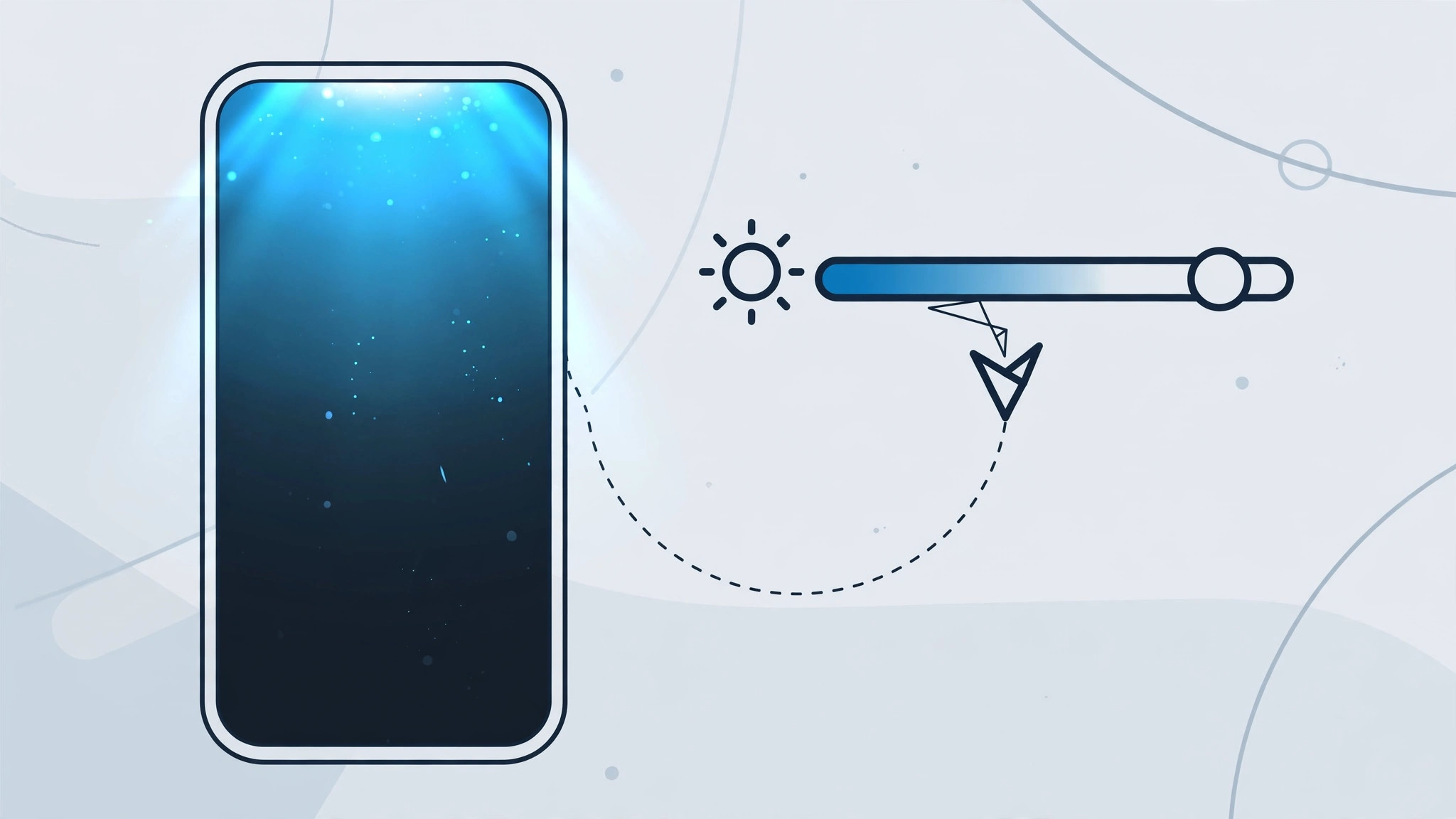
If your iPhone’s screen keeps dimming on its own — sinking to a barely readable glow even though you never touched the brightness slider — you are not imagining it. The cause is rarely a dying display. Far more often, the phone’s light sensors are reacting to something they should ignore. Work through the checks below in order and you will find the culprit.
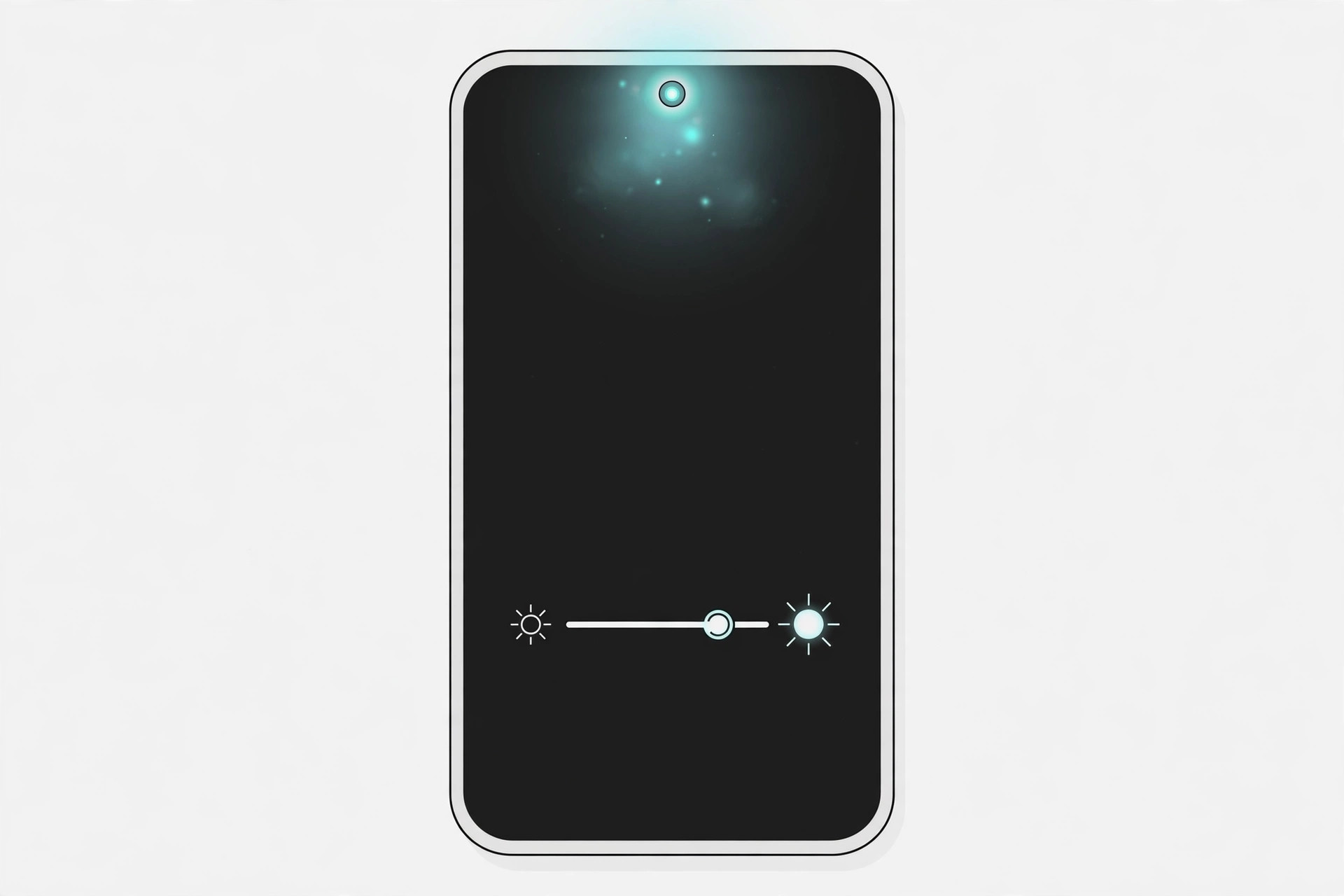
How the iPhone’s sensors control the screen
Hidden behind the glass just above the earpiece sit two tiny sensors. The ambient light sensor measures the light around you and tells iOS to raise or lower brightness to match it. The proximity sensor detects when the phone is pressed to your ear during a call and switches the display off so your cheek cannot tap anything. Both are normally invisible and trouble-free — but when they get confused, the screen starts dimming for no obvious reason.
7 fixes when your iPhone screen dims by itself
1. Clean the top of the display
Start with the simplest explanation: a film of grease, dust, or fingerprints over the top edge of the screen, right where the sensors hide, can fool the ambient light sensor into thinking the room is darker than it is. Wipe the area around the earpiece with a soft, lint-free cloth and watch whether the dimming stops.
2. Test the ambient light sensor
Check whether the sensor itself works. Leave the iPhone in a dark place for a few seconds, then move it quickly under a bright light. A healthy sensor will push the brightness up on its own within a moment. No reaction points to a sensor fault rather than a settings issue. Apple’s guidance on brightness and auto-brightness describes how this behavior is supposed to work.
3. Switch off auto-brightness to diagnose
Open Settings → Accessibility → Display & Text Size, scroll to the bottom, and turn off the Auto-Brightness toggle. Use the phone normally for a while. If the random dimming stops, you have confirmed the sensor — or something blocking it — is the cause. This is the diagnostic step MacRumors forum regulars recommend first.
4. Remove the screen protector
If the dimming stopped with auto-brightness off, inspect what covers the sensor. A protector applied slightly too high can shade the sensor window at the top of the display. Peel it off and retest — if the brightness now behaves, fit a new protector that leaves the sensor area fully exposed.
5. Take off the case
The same goes for a bulky case with a raised lip around the screen. Even a millimeter of overhang above the sensor can trick it in certain light. Test the phone caseless for a day; if the dimming is gone, the case was the culprit.
6. Think back to any recent repair
The ambient light sensor often misbehaves after the iPhone has been opened — a display replacement, a battery swap, or any other service. If the dimming started soon after a repair, the sensor may have been left misaligned or disconnected. Many owners on X describe exactly this pattern after third-party screen replacements. Take the phone back to the shop and describe the symptom.
7. Visit a service center
If the screen still dims on its own with auto-brightness switched off and nothing covering the sensor, the fault is almost certainly in the hardware — the sensor itself or the display assembly. Book an appointment at an Apple Store or authorized service provider for a proper diagnosis.
If it still doesn’t work
Mention to the technician that you already tested with auto-brightness disabled and with the protector and case removed — it saves diagnostic time. A YouTube search for iPhone dimming fixes shows what the sensor test looks like in practice if you want a visual walkthrough before your visit.
Frequently asked questions
Why does my iPhone screen go dark during phone calls?
That is the proximity sensor working as intended: with the phone against your ear, iOS switches the display off to prevent accidental touches. The screen should return the moment you move the phone away. Only worry if it stays dark.
Can I just leave auto-brightness off forever?
You can, but that hides the symptom instead of fixing the cause — and a fixed high brightness drains the battery faster. The better approach is to clear whatever is blocking the sensor and switch auto-brightness back on.
Conclusion
A self-dimming iPhone screen is almost always the ambient light sensor being blocked or confused, not a broken display. Clean the sensor area, test the sensor, and use the auto-brightness toggle to confirm the diagnosis. For other puzzling iPhone behavior, see why spatial photo mode isn’t working in iOS 26 — and once your display behaves, get back to customizing it, for example by learning how to move lock screen widgets down in iOS 26.





