
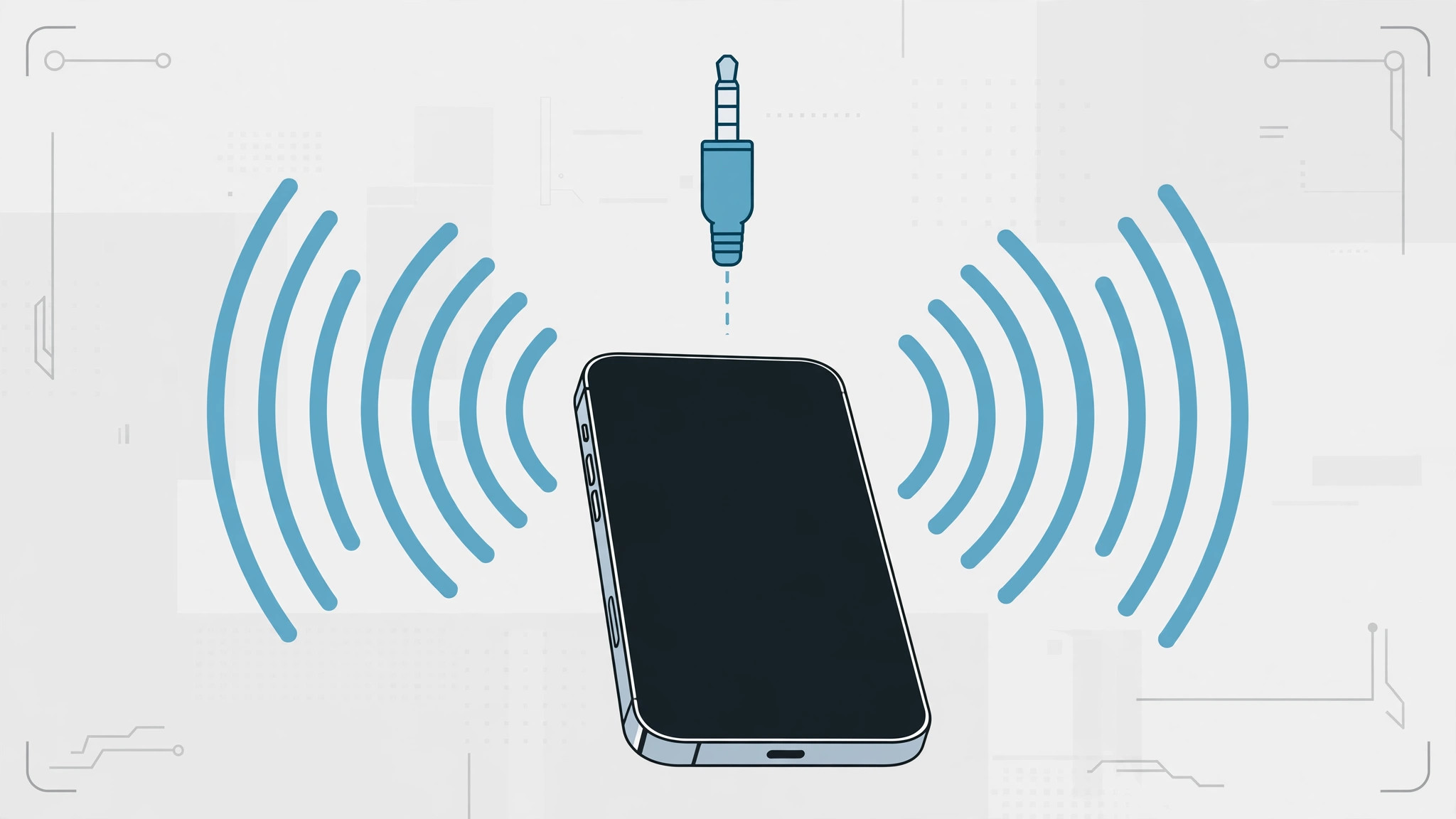
You unplug your headphones and press play — but the sound never comes. The volume bar shows a headphone icon, and the iPhone’s own speaker stays silent. Your iPhone is stuck in headphone mode: it believes headphones are still plugged in, even though nothing is connected.
This usually happens for one of two reasons. Either a software glitch has frozen the audio output state, or debris, lint, or moisture in the connector is tricking the sensor into thinking a plug is present. The good news is that the fix is almost always simple, and you can work through it in a few minutes.
How to fix an iPhone stuck in headphone mode
- Restart the iPhone first. A frozen audio state is the most common cause, and a simple restart clears it. Hold the side button (plus a volume button on Face ID models) until the power-off slider appears, switch the phone off, wait a few seconds, then power it back on. If the speaker works after the restart, the problem was purely software.
- Plug headphones in and out several times. Insert a pair of headphones fully into the connector, then pull them out firmly, and repeat a few times. The motion can free a stuck sensor contact inside the jack. Try a different, known-good pair too — a faulty cable can confuse the detection circuit. Apple’s iPhone audio troubleshooting guide covers the same hardware checks.
- Check where the audio is actually going. Sometimes the iPhone isn’t stuck at all — it is simply sending sound somewhere else. Open Control Center, tap the AirPlay icon in the Now Playing widget, and make sure the output is set to iPhone rather than a Bluetooth speaker, AirPods, or Apple TV. Turn Bluetooth off temporarily to rule out an automatic connection; if this keeps happening, see how to stop the iPhone from auto-switching audio to headphones.
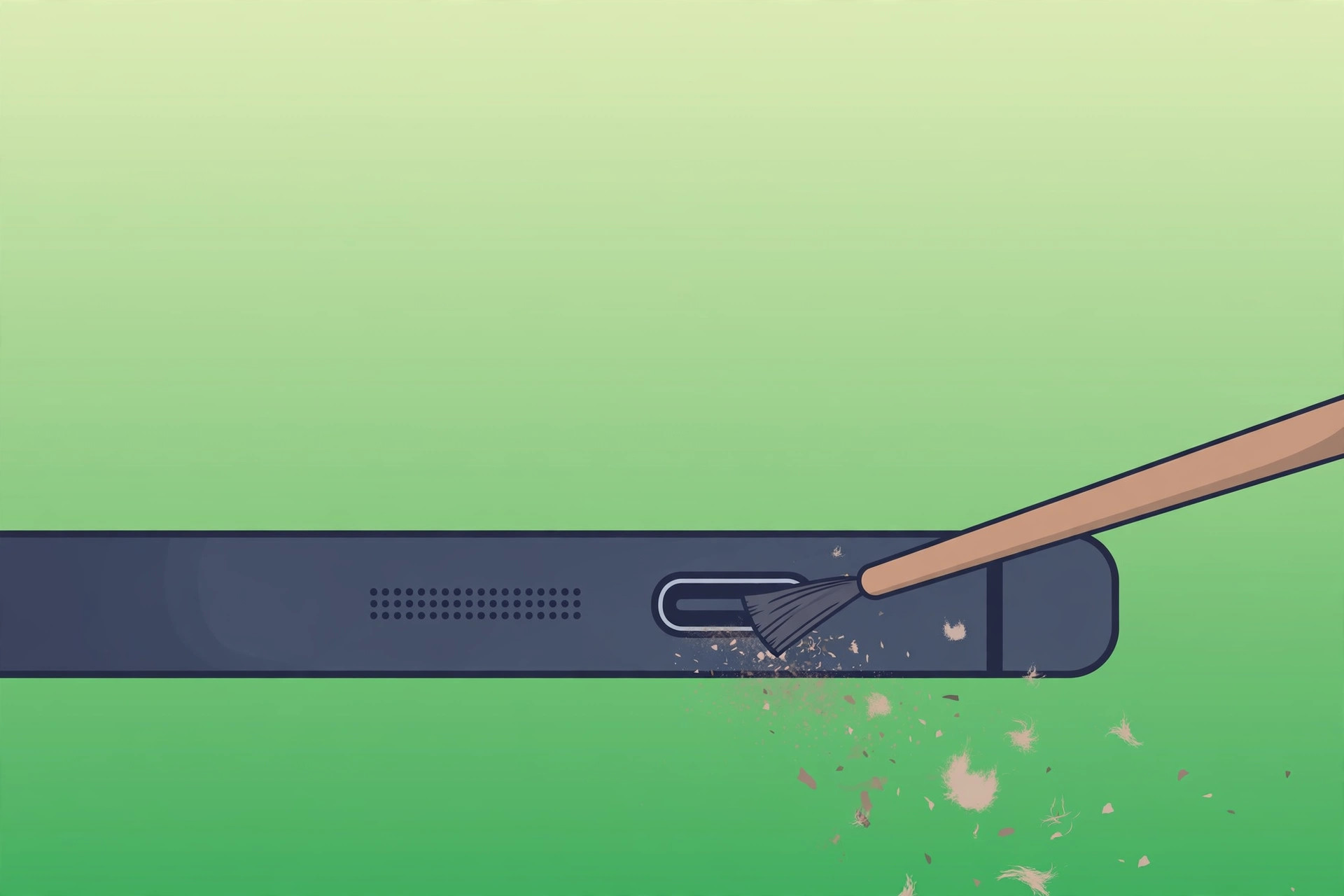
- Clean the connector gently. Shine a light into the headphone jack, Lightning port, or USB-C port — whichever your iPhone has — and look for lint, dust, or moisture. Gently tease debris out with a dry cotton swab or a wooden toothpick, never anything metal or wet. A surprising number of cases end the moment a ball of pocket lint comes out. Payette Forward’s headphone mode walkthrough shows the cleaning technique in detail. And if your AirPods charging case keeps chiming while you troubleshoot, that is a separate setting you can silence.
If it still doesn’t work
If the speaker is still silent after cleaning and restarting, back up the iPhone and try Reset All Settings (Settings > General > Transfer or Reset iPhone > Reset) — it clears misbehaving audio configuration without deleting your data. If even that fails, the connector sensor itself may be damaged, especially after water exposure; book a repair with Apple or an authorized service provider.
Frequently asked questions
Why does my iPhone show the headphone icon with nothing plugged in?
The iPhone detects headphones through a small sensor in the connector. A software glitch can freeze that sensor’s state, or debris and moisture can hold it in the “connected” position. Either way, the phone routes all audio to a headset that isn’t there.
Can water cause an iPhone to get stuck in headphone mode?
Yes. Moisture in the Lightning or USB-C port can short the detection pins and convince the iPhone that headphones are attached. Let the port dry completely — ideally overnight in a well-ventilated spot — before trying anything else, and never charge a wet iPhone.
Conclusion
Headphone mode is almost never a hardware death sentence: restart to clear the glitch, re-seat a headphone plug a few times, confirm the audio output, and clean out the port. One of those four steps resolves the vast majority of cases, and your speaker will be back in business.





