
After updating to iOS 11, some iPhone owners noticed something strange: their phone started answering incoming calls by itself, just a few seconds after ringing began. It turns out iOS 11 introduced a new Accessibility feature called Auto-Answer Calls — and on some devices it ended up switched on during the update. The feature is meant for people who cannot physically reach the answer button, but for everyone else it is a nuisance — calls pick up while the phone is still in your pocket. If your iPhone now answers before you even touch it, here is how to turn the feature off and get back control of your calls.
1. Open Settings → General → Accessibility
Open the Settings app, tap General, then Accessibility. This is where iOS 11 tucked away the new call-answering feature.
2. Open Call Audio Routing
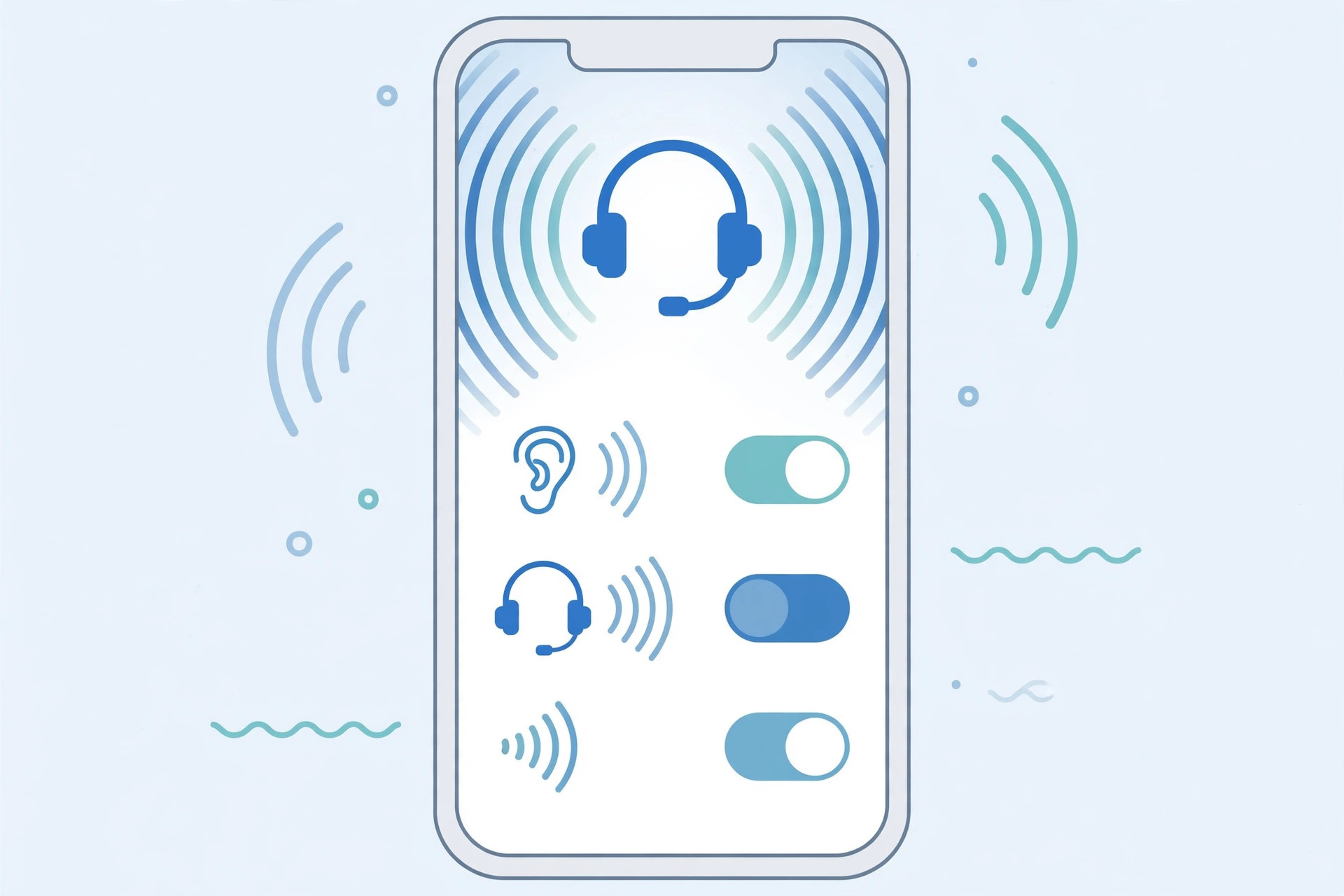
Inside Accessibility, tap Call Audio Routing. This screen decides where your call audio goes — Automatic, Bluetooth Headset, or Speaker.
3. Turn off Auto-Answer Calls
Tap Auto-Answer Calls. If the toggle is ON, switch it OFF. Calls will ring normally again, waiting for you to answer manually. If you route calls from a specific SIM, see how to allow calls only from a specific SIM card in Focus mode.
4. Or adjust the delay instead
If you actually like the feature but it answers too quickly, keep it on and set a longer delay: the default is 3 seconds, adjustable anywhere from 0 to 60 seconds. Note that the setting also applies to FaceTime audio and VoIP calls, and the audio follows your Call Audio Routing choice. For related audio-routing quirks, see stop iPhone auto-switching audio to headphones.
5. The current-iOS path
On recent iOS versions the setting moved: go to Settings → Accessibility → Touch → Call Audio Routing → Auto-Answer Calls. The toggle works exactly the same way — turn it off so calls ring normally until you answer them yourself.
If it still doesn’t work
If the setting was already off but calls still answer themselves, restart your iPhone and install the latest iOS update — early iOS 11 builds had bugs around call handling. Also check that your AirPods or Bluetooth headset are not answering via double-tap gestures, which can mimic the same behavior. Apple documents this accessibility feature in its support materials (Apple Support), and both MacRumors and 9to5Mac covered the feature when iOS 11 launched.
FAQ
Why did my iPhone start answering calls after updating?
iOS 11 added the Auto-Answer Calls accessibility feature, and on some devices it was enabled during the update — most likely an upgrade bug rather than an intentional default.
Does it apply to WhatsApp or FaceTime calls too?
Yes — the setting applies to phone calls, FaceTime audio, and third-party VoIP calls routed through iOS call audio, since they all follow the Call Audio Routing setting, and Apple’s routing logic hands the audio to the selected output automatically.
That one toggle is almost always the culprit. Switch it off, and your iPhone will go back to ringing politely until you choose to pick up — exactly how it should be.





