
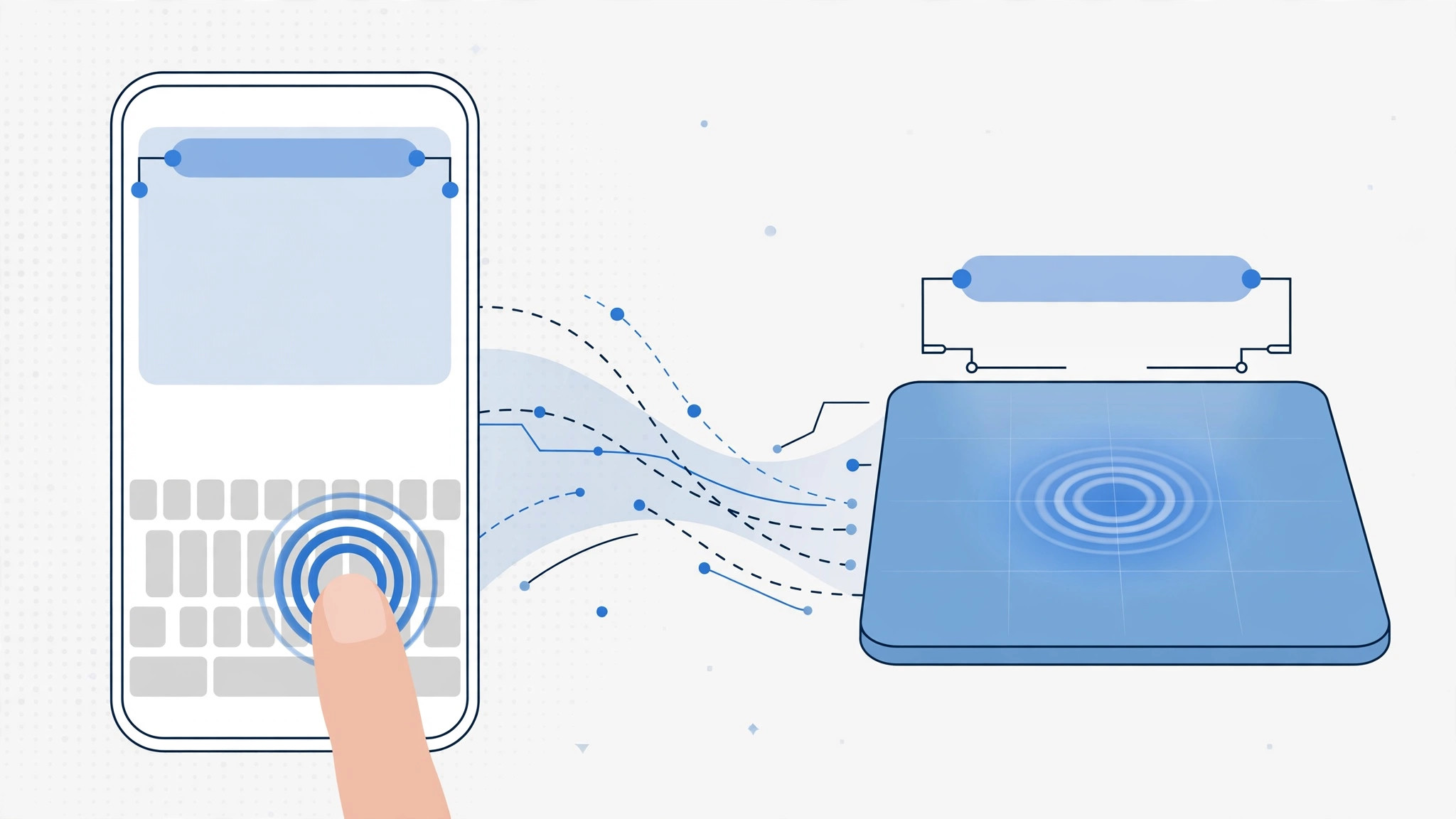
For a few golden years, iPhone owners had a secret superpower hidden in the keyboard: 3D Touch text selection. On the iPhone 6s through the iPhone XS, a firm press turned the on-screen keyboard into a precision trackpad — and with a few extra presses, you could select a word, a whole sentence, or an entire paragraph without ever lifting your finger. Apple removed 3D Touch hardware starting with the iPhone 11, but the trick was so good it deserves a proper retrospective — especially since a version of it still lives on in every modern iPhone.
What 3D Touch text selection was
Introduced with iOS 9 alongside the iPhone 6s, 3D Touch measured how hard you pressed the display. The system keyboard put that pressure sensor to clever use: press firmly on the keys and they would blank out, turning the entire keyboard into a trackpad. Sliding your finger moved the text cursor with pixel-level precision — far easier than jabbing at tiny letters with a fingertip. And the same pressure gestures extended to selecting text, which is where things got really good.
How to select text with 3D Touch
The golden rule for every gesture below: do not lift your finger until the selection is done. Each level of selection builds on the previous one.
- Enter trackpad mode. Open any app with a text field — Notes, Messages, Mail — and press firmly (not just tap) anywhere on the keyboard. The keys fade, the keyboard becomes a trackpad, and dragging your finger glides the cursor through your text.
- Select a word. With your finger still down, press a little harder for a fraction of a second. The word under the cursor becomes highlighted — selected, just like that.
- Select a sentence. Position the cursor on any word of the sentence, then — still without lifting your finger — do two quick hard presses. The whole sentence gets selected, from the capital letter to the final punctuation mark.
- Select a paragraph. Place the cursor anywhere in the paragraph and make three hard presses in a row. The entire paragraph is highlighted at once — perfect for grabbing a chunk of text to move, quote, or delete.
- Act on the selection. Once text is highlighted, iOS shows the familiar context menu: Copy, Cut, Paste, and formatting options. Tap what you need, or tap any empty area to clear the selection and keep typing.
The modern replacement: long-press the spacebar
When Apple dropped 3D Touch with the iPhone 11, it replaced the pressure gestures with something every current iPhone supports: press and hold the spacebar. The keyboard blanks into trackpad mode just like before, and dragging moves the cursor. To select text, keep holding with one finger and tap the keyboard with a second finger — the selection extends as you drag. It is not quite as fluid as the old pressure presses, but it works on every modern iPhone. Small interface tweaks like this one — or a fresh look from our guide on how to change the Safari design on iPhone — can make daily typing noticeably easier.
If it still doesn’t work
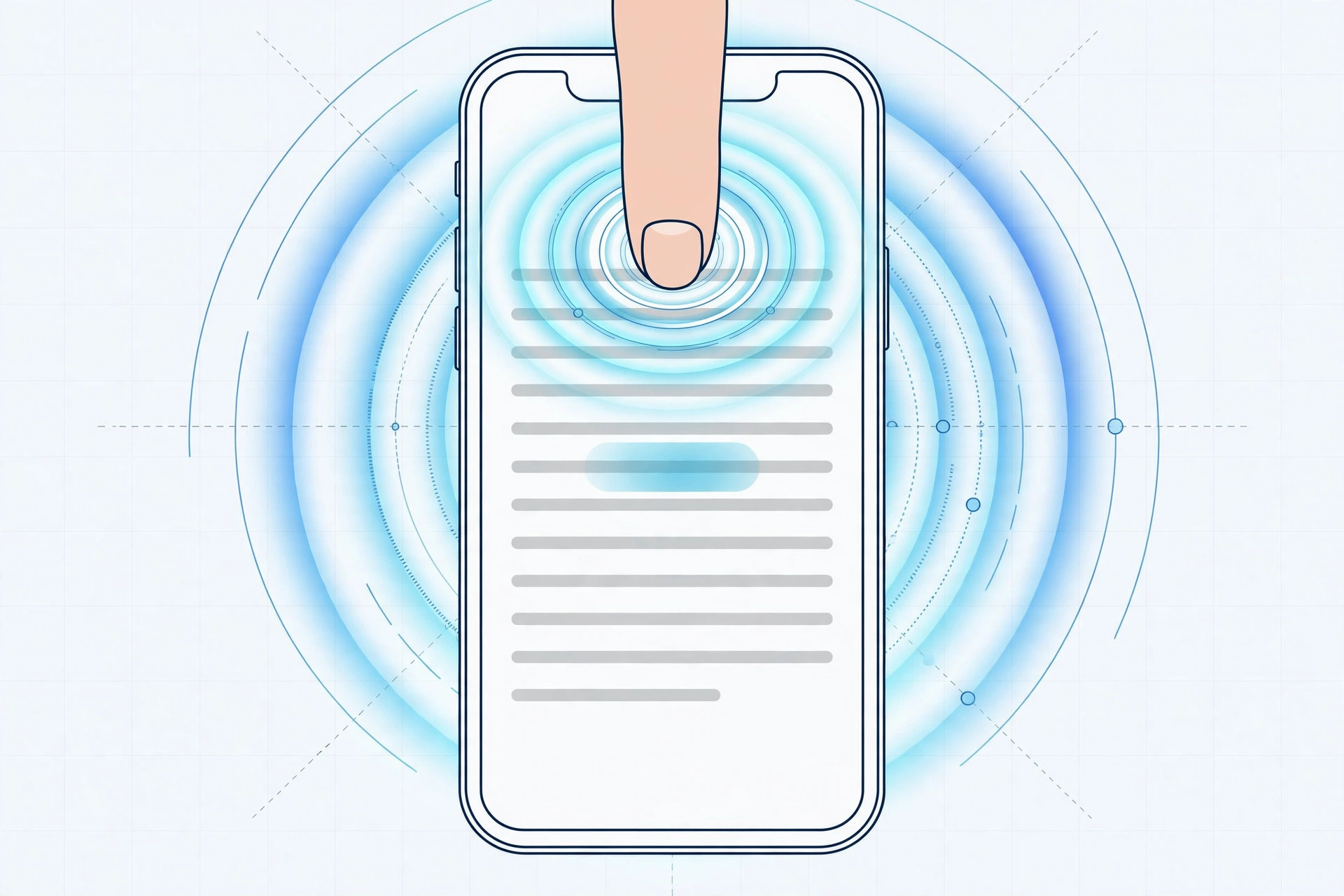
Trackpad mode via firm press only works on iPhones with 3D Touch hardware — the iPhone 6s through the iPhone XS and XS Max. On those models, check that 3D Touch is enabled under Settings > General > Accessibility > 3D Touch (on older iOS versions) and try adjusting the sensitivity. On the iPhone 11 and newer, pressing harder will never work — the sensor is simply not there — so use the spacebar long-press instead. And if neither gesture responds, make sure you are using Apple’s stock keyboard: many third-party keyboards do not support trackpad mode at all.
Frequently asked questions
Which iPhones had 3D Touch text selection?
The iPhone 6s and 6s Plus introduced it in 2015, and it survived through the iPhone 7, 8, X, and XS generations. Apple removed 3D Touch starting with the iPhone 11 in 2019, replacing it with Haptic Touch (long-press) across the lineup — a transition MacRumors and 9to5Mac covered in detail at the time.
Can I still select whole sentences quickly on a new iPhone?
Yes. Double-tap a word to select it, then drag the selection handles to expand — or use the spacebar trackpad: long-press the spacebar, tap with a second finger, and drag. Apple’s iPhone support pages document the current gestures. And if you like customizing your iPhone as much as your keyboard, check out the iOS 26 Liquid Glass lock screen clock for another neat interface trick.
Conclusion
3D Touch text selection was one of those features that felt like magic once it clicked: pressure-sensitive word, sentence, and paragraph selection without lifting a finger. The hardware is gone, but the idea lives on in the spacebar trackpad that every iPhone still carries. Give the modern version a try — your thumbs will thank you.





