
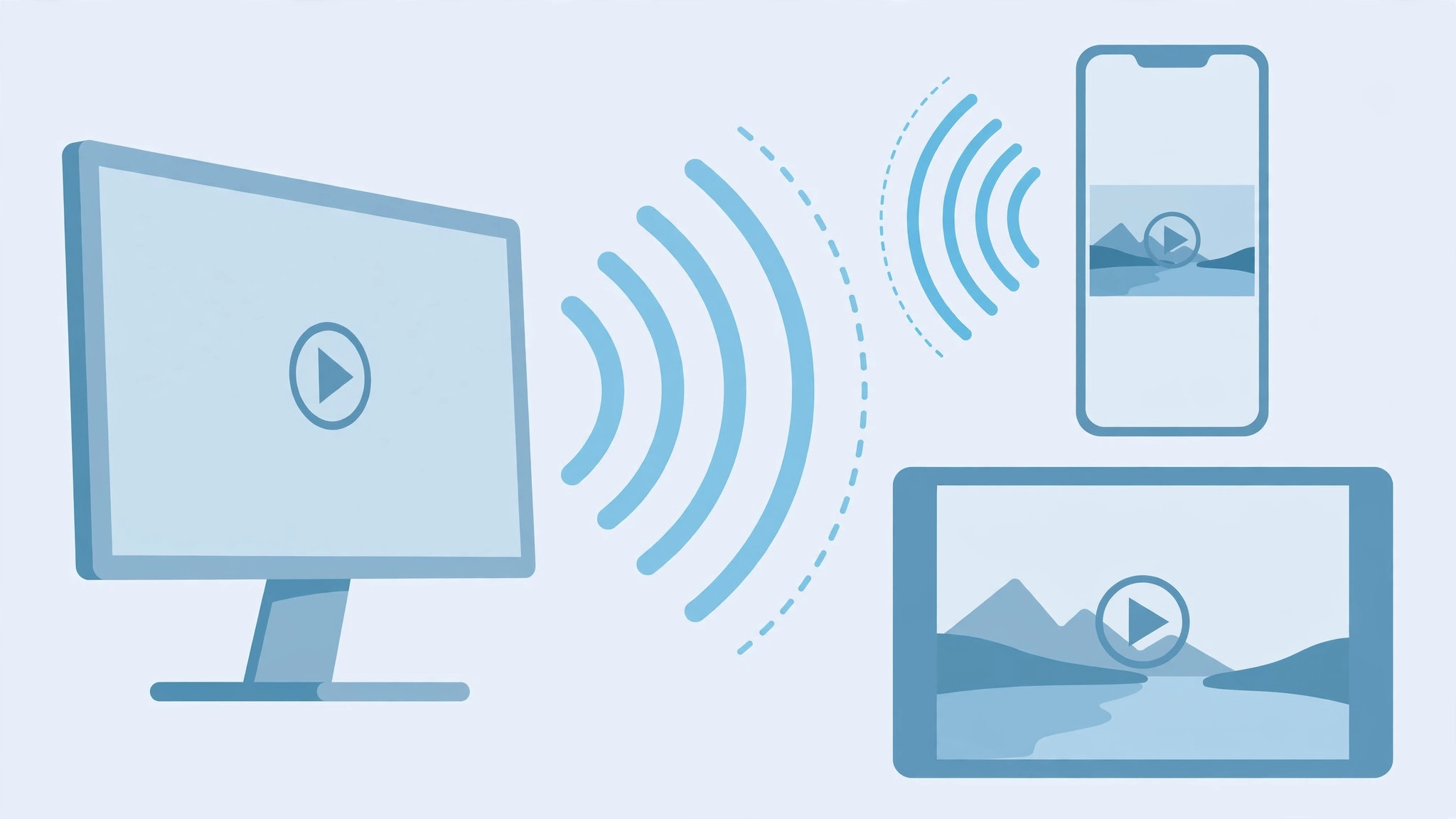
Your movie collection lives on your computer, but you want to watch it on the couch with your iPhone or iPad. Copying files back and forth is a hassle — and with a large video library, it simply is not practical. The better approach is to stream: turn your computer into a media server and play anything from its library right on your iOS screen. Here are the two methods that actually work.
Method 1: Home Sharing through the Apple TV app
Home Sharing lets you stream your computer’s media library to your iPhone or iPad, as long as both devices use the same Apple ID and sit on the same Wi-Fi network. On modern macOS this lives in the Apple TV app — iTunes is long gone on the Mac, though Windows users still get it in iTunes.
- Turn on Home Sharing on the computer. On a Mac, open the Apple TV app, go to Settings and enable Home Sharing with your Apple ID. On Windows, open iTunes, choose File > Home Sharing > Turn On Home Sharing, and sign in.
- Add your videos to the library. In the TV app or iTunes, use File > Add to Library (or Import) to add the video folders you want to stream.
- Open the library on your iPhone or iPad. Launch the TV app, tap Library, and sign in — your computer’s shared library appears there, ready to play.
One limitation: Home Sharing only plays formats Apple supports, such as H.264, MJPEG, and MPEG-4. Anything else has to be converted first. Apple’s Home Sharing support guide has the full details, and MacRumors tracks format support across iOS versions.
Method 2: Plex Media Server
If Home Sharing feels too limited, Plex is the enthusiast favorite. It handles almost any format, looks great doing it, and keeps your library organized with posters and metadata.
- Install Plex Media Server on the computer. Download it from Plex, run the installer, and complete the basic setup wizard — Plex’s own quick-start guide walks you through it.
- Add your video folders. Point Plex at the folders holding your movies and shows; it fetches posters and episode information automatically.
- Install the Plex app on your iPhone or iPad. Sign in with the same Plex account. Basic streaming is free; some advanced features need a Plex Pass.
- Or use a DLNA player. Prefer VLC or AVPlayer? They can connect to your Plex server manually — just enter the server’s connection parameters in the app.
Streaming over Wi-Fi is convenient, but if you ever need raw speed, you can measure your iPhone-to-Mac data transfer speed over cable to see what your connection is really capable of.
If it still doesn’t work
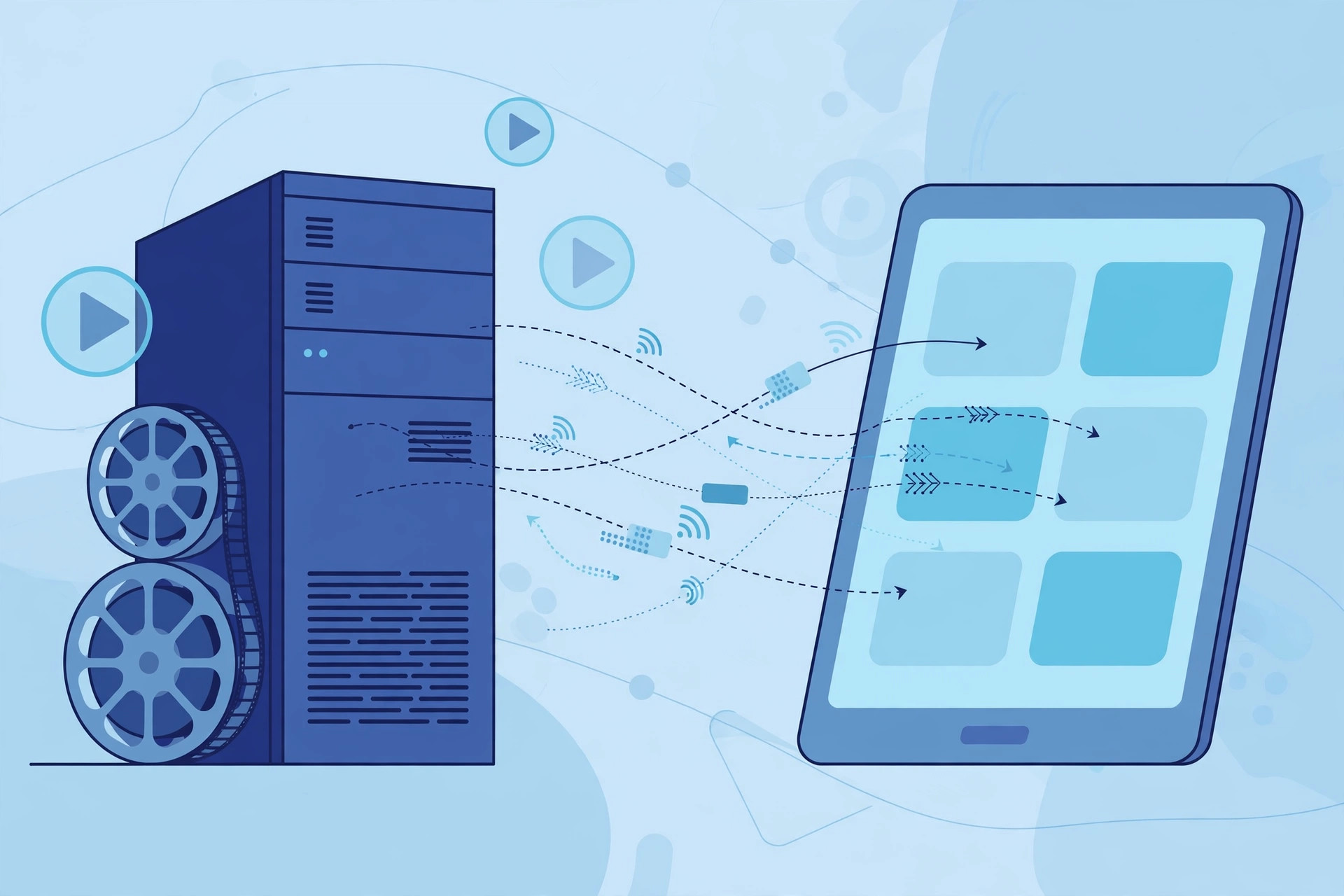
Most streaming failures come down to the network: make sure the computer and the iPhone are on the same Wi-Fi network, check that no firewall is blocking the media server, and restart both the server app and the iOS app. And keep in mind that a phone plugged into the computer can behave oddly — if your iPhone stops charging from the computer after an hour, unplug it and stream over Wi-Fi instead.
Frequently asked questions
Can I stream video formats Apple doesn’t support?
Yes — that is exactly what Plex is for. It transcodes almost any format on the fly, so MKV, AVI, and other files play fine on your iPhone without converting them first.
Does streaming work away from home?
Plex supports remote streaming over the internet once you enable Remote Access in the server settings. Home Sharing, by contrast, only works on your local network.
Conclusion
For casual watching, Home Sharing in the TV app is the simplest path. For a serious movie library in every format imaginable, set up Plex once and enjoy your entire collection on any iPhone or iPad in the house.





