
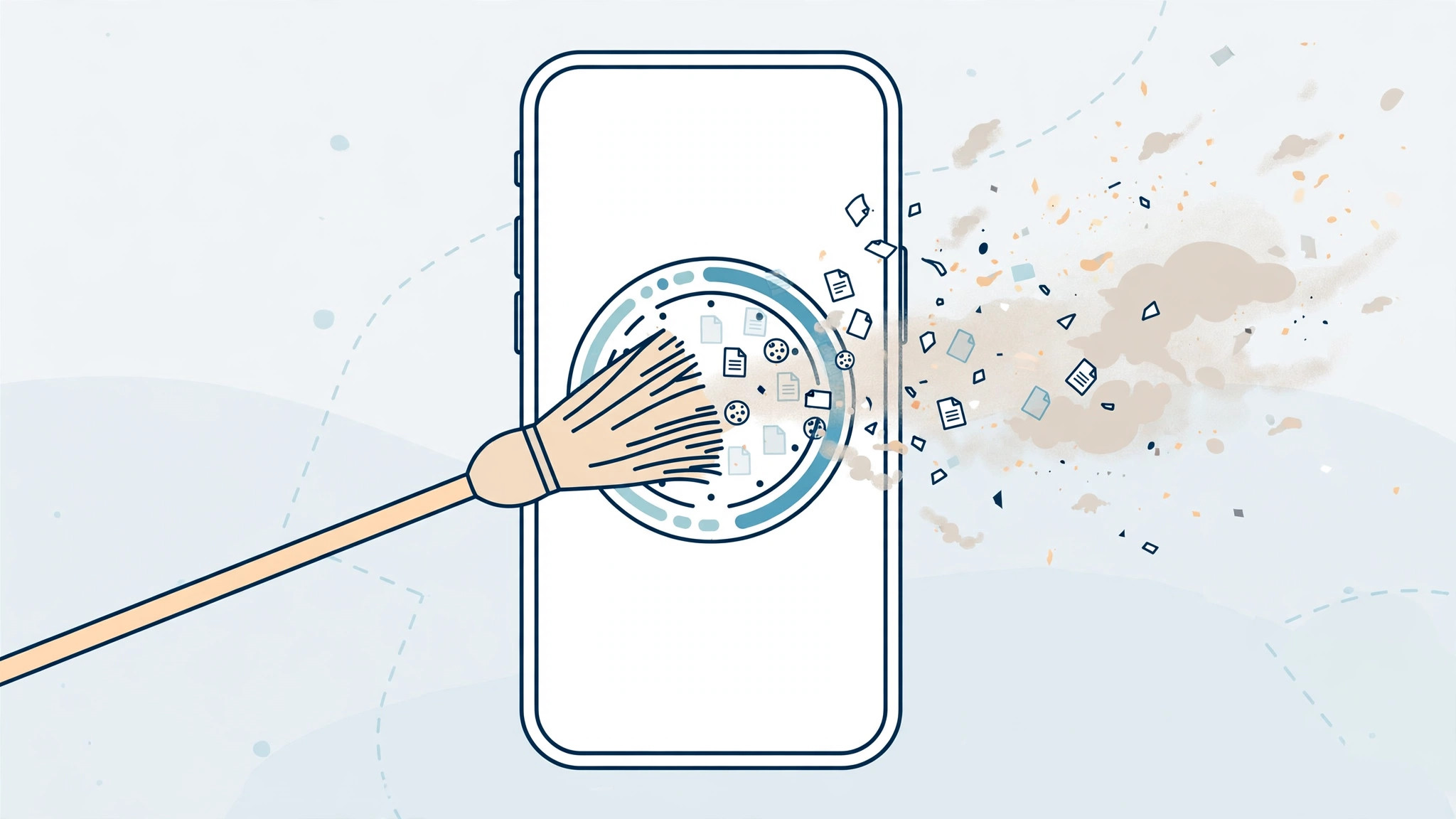
Every iPhone slowly fills up with junk: browser caches, forgotten downloads, message attachments, and apps whose stored data has ballooned far beyond the app itself. When iOS starts warning you that storage is almost full, you do not need a sketchy “cleaner” app from the App Store — the tools to reclaim gigabytes are already built into your iPhone. Here is how to clear the junk properly.
Clear out iPhone junk step by step
- Restart the iPhone. It sounds too simple, but a reboot lets iOS run its own cleanup routines and flush temporary caches. Hold the side button and a volume button, slide to power off, wait a few seconds, then power back on. Do this every week or two.
- Clear Safari’s accumulated data. Safari hoards website files, cookies, and history over time. Go to Settings > Safari (or Settings > Apps > Safari on newer iOS) and tap Clear History and Website Data. This wipes cached website files and cookies, which can easily free hundreds of megabytes. Note that it signs you out of websites, so have your passwords handy.
- Audit your storage. Open Settings > General > iPhone Storage and wait for the list to load — it shows exactly which apps hog space. If an app’s “Documents & Data” has ballooned, the fastest fix is to delete the app and reinstall it from the App Store, which wipes its cache completely. Your account data usually syncs back when you sign in again.
- Enable Offload Unused Apps. In the same iPhone Storage screen, turn on Offload Unused Apps. iOS will automatically remove apps you have not opened in a while while keeping their documents and data — so nothing important is lost, and the app reinstalls instantly when you tap its icon. If you want to go further, check our guide on which built-in iPhone apps you can safely delete.
- Prune the heavy hitters manually. Old message attachments are a classic space hog: in a conversation, tap the contact name, then see all photos, videos, and files to delete the big ones — or permanently delete old text messages you no longer need. Also clear downloaded podcasts and music you have already consumed, and empty the Recently Deleted albums in both Photos and Files — deleted items sit there for 30 days still occupying space.
Skip the “cleaner” apps
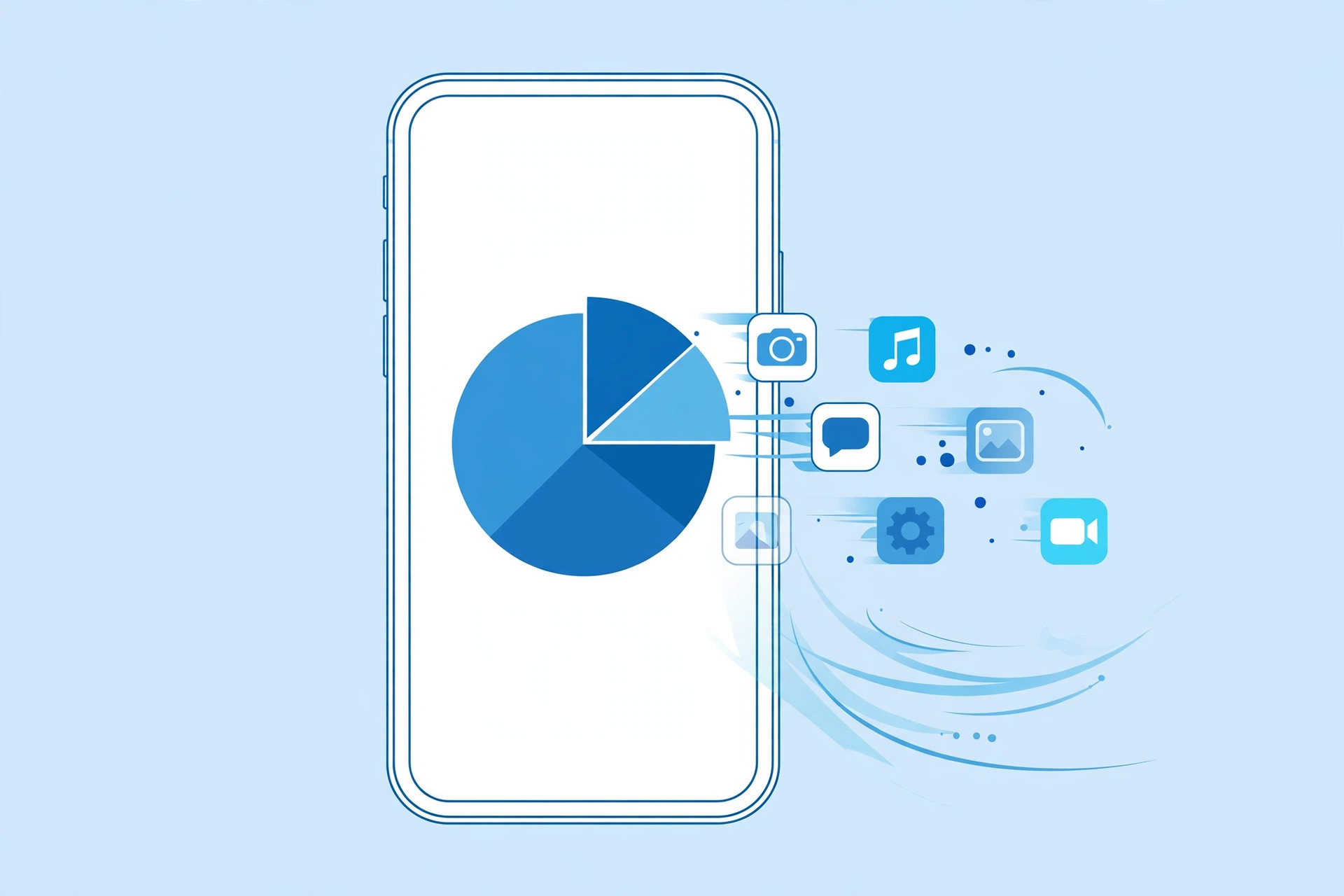
You will find plenty of apps promising to deep-clean your iPhone with one tap. Do not bother: iOS sandboxes every app, so no third-party cleaner can reach into the system or other apps’ data anyway. At best they delete a few duplicate photos; at worst they nag you with subscriptions and ads. The manual steps above do the real work. Also keep an eye on the mysterious System Data category in iPhone Storage — it holds caches and logs iOS manages itself, and it usually shrinks on its own after a restart and a day or two of normal use.
If it still doesn’t work
If storage is still critically low after the cleanup, connect the iPhone to a computer and make an encrypted backup, then consider a fresh restore — it is the most thorough way to clear years of accumulated system cruft. Before that, double-check the biggest categories in iPhone Storage: sometimes a single app (a video editor, a navigation app with offline maps) is responsible for half the problem. Apple’s iPhone storage support pages explain each category, and both MacRumors and 9to5Mac regularly publish updated storage-saving tips for new iOS versions.
Frequently asked questions
Does clearing Safari data delete my passwords?
Clear History and Website Data removes cookies and cached files, which signs you out of websites — but passwords saved in iCloud Keychain or Apple’s Passwords app are kept. You will just need to sign back in to your sites.
Will offloading apps delete my documents?
No. Offloading removes only the app itself; your documents, settings, and data stay on the iPhone. When you reinstall the app, everything is right where you left it.
Conclusion
Junk on an iPhone is not mysterious — it is caches, old attachments, and bloated app data, and iOS gives you everything you need to clear it. Restart regularly, wipe Safari’s data, audit your storage, and let iOS offload what you do not use. Your iPhone will feel faster, and that “Storage Almost Full” warning will finally leave you alone.





