
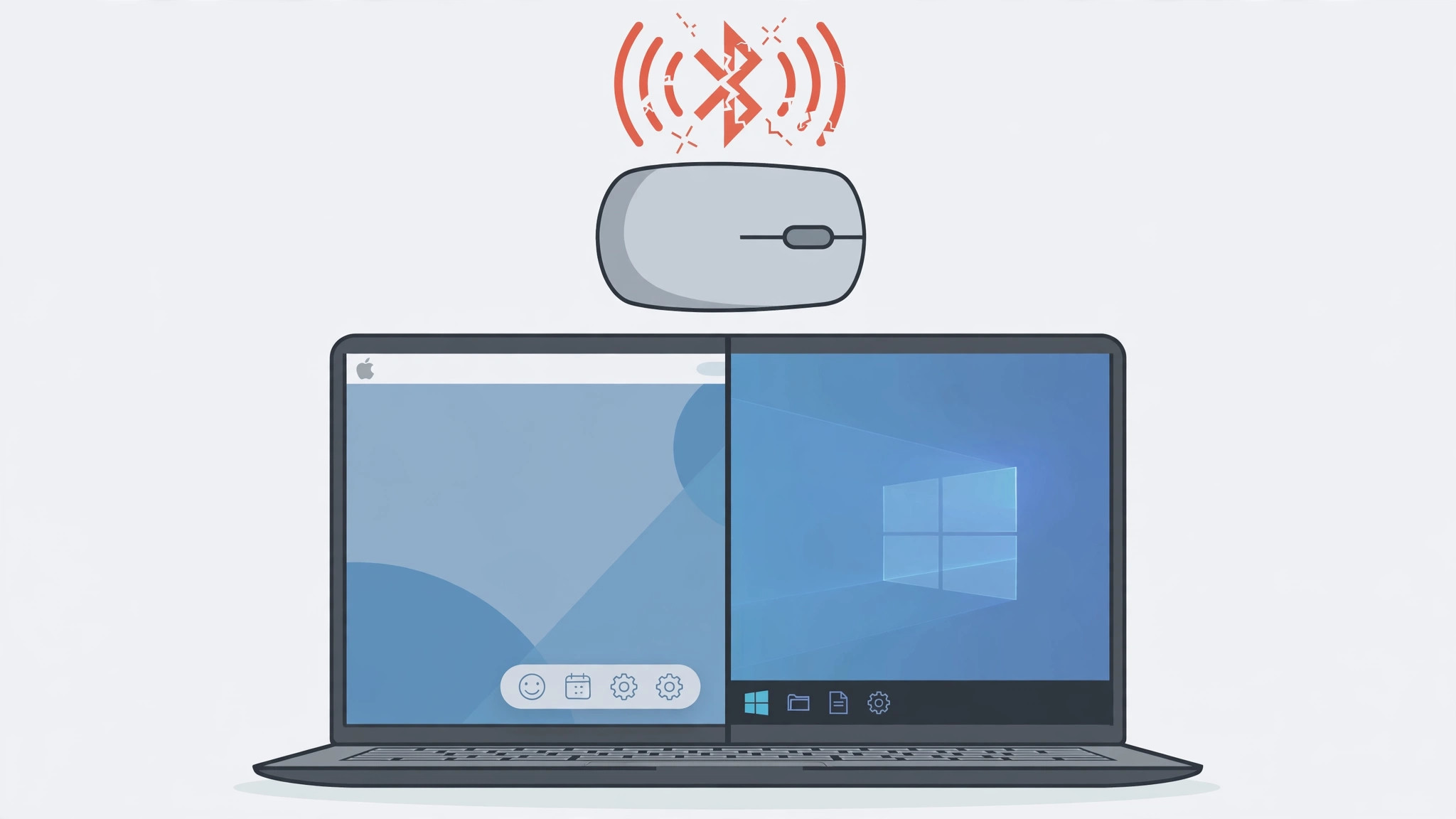
Your wireless mouse pairs perfectly in macOS, but the moment you boot into Windows it refuses to connect — or connects but barely moves. This is a classic Boot Camp headache. The good news is that it is almost always a driver issue, and there is a clear fix order that gets most mice working again.
Why the mouse works in macOS but not in Windows
“Mac under Windows” means Boot Camp — running Windows natively on an Intel Mac. When you boot into Windows, macOS drivers no longer apply; Windows uses the drivers Apple ships in the Boot Camp Support Software. Those Bluetooth drivers do not fully support every wireless mouse, especially Bluetooth Low Energy (BLE) models and mice that use proprietary wireless protocols instead of standard Bluetooth. The result: the mouse pairs in macOS without a problem, but Windows either cannot see it or cannot maintain a stable connection.
A quick note before we start: Boot Camp only exists on Intel Macs. On Apple Silicon Macs, Windows runs inside virtualization software like Parallels, where USB and Bluetooth passthrough behave differently — most of this guide still applies to the driver and dongle steps, but the Boot Camp-specific update steps do not.
Fix your wireless mouse in Windows on a Mac
- Use the mouse’s own USB receiver dongle first. This is the fastest, most reliable fix. If your mouse came with a USB receiver (for example, the Logitech Unifying receiver), plug it into the Mac’s USB port. Windows sees the mouse as a plain USB device and skips Bluetooth entirely — no pairing, no driver fuss. Keep the dongle plugged in whenever you boot into Windows.
- Update the Boot Camp drivers in Windows. Boot into Windows, open Apple Software Update (search for it in the Start menu), and install every pending Apple driver update — especially anything labeled Bluetooth or Boot Camp. Then reboot back into Windows. Outdated Boot Camp Support Software is the single most common cause of a mouse that used to work and suddenly does not. Apple’s Boot Camp support pages explain the update process in detail.
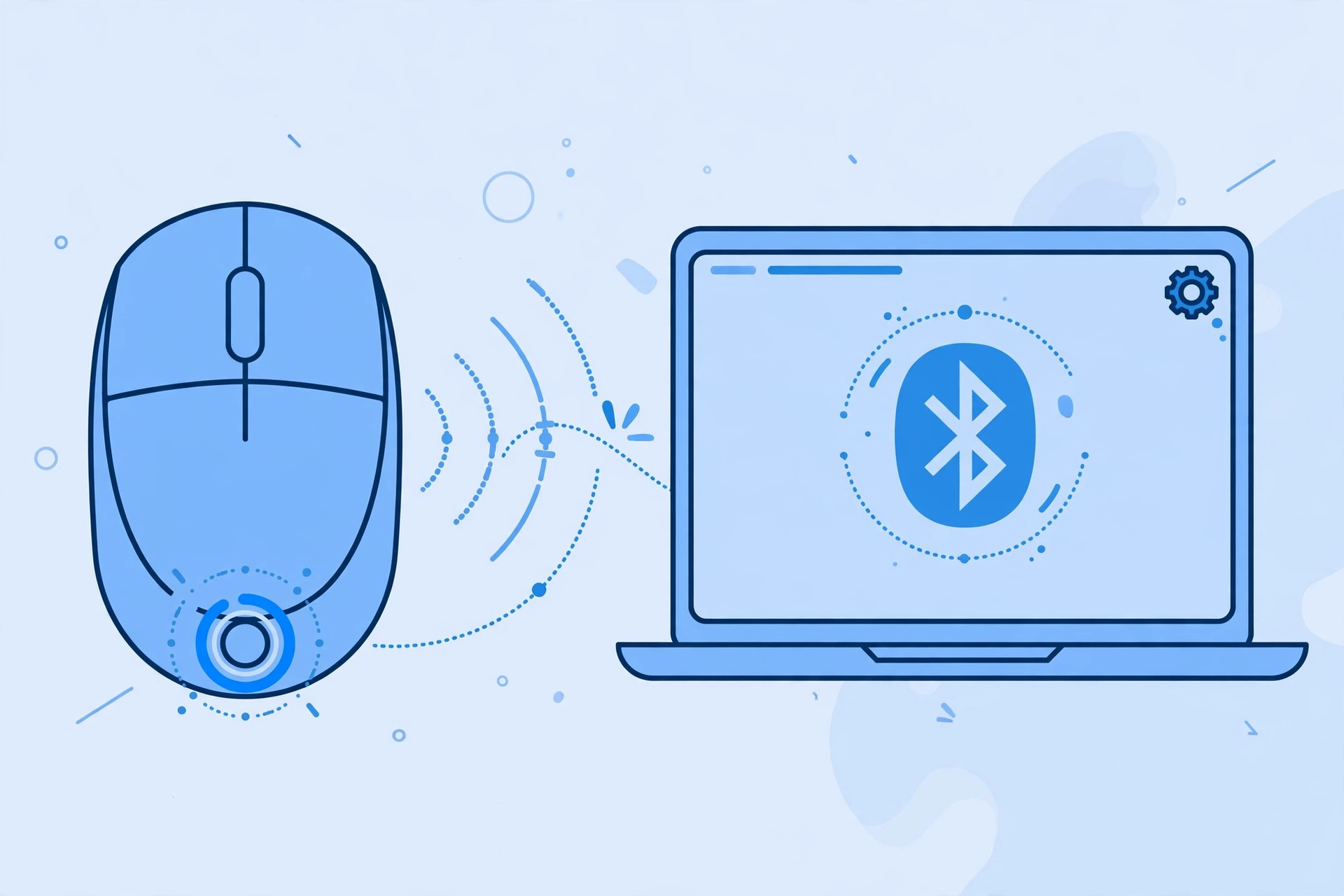
- Re-pair the mouse in Windows. Go to Settings > Bluetooth & devices, remove the mouse from the device list, then put the mouse back into pairing mode (usually a long press on the pairing button) and pair it fresh. This clears out any corrupted pairing record from an earlier attempt.
- Install the manufacturer’s Windows utility. Some mice need their vendor’s software for missing profiles and settings. Logitech mice benefit from Logitech Options/Options+, and Microsoft mice from the Microsoft Mouse and Keyboard Center. Install the utility in Windows, not in macOS.
- Fall back to a wired mouse. If nothing else works, a plain wired USB mouse always works under Boot Camp — Windows recognizes it instantly with no drivers to fight. It is also a handy diagnostic: if a wired mouse works fine, you know the problem is specifically the wireless connection, not your Windows installation. For more Mac tips, see our guide on face lighting during video calls on Mac or learn how to quickly open the installed apps list in macOS 26.
If it still doesn’t work
Some Bluetooth Low Energy mice simply lack workable Windows drivers under Boot Camp, and no amount of re-pairing will change that. In that case, your practical options are: keep using the USB dongle (it bypasses the problem completely), switch to a Bluetooth mouse model known to work under Boot Camp, or use a wired mouse. If the mouse also fails in macOS, the mouse itself is likely at fault — try fresh batteries or a different USB port for the dongle.
Frequently asked questions
Why does my mouse work in macOS but not in Windows?
Because the two operating systems use completely different Bluetooth stacks. In macOS the mouse uses Apple’s native Bluetooth drivers; in Windows under Boot Camp it relies on the drivers in Apple’s Boot Camp Support Software, which do not support every wireless mouse — especially BLE and proprietary-protocol models.
Does this apply to Apple Silicon Macs?
Not directly. Boot Camp does not exist on Apple Silicon Macs; Windows runs in a virtual machine such as Parallels, and Bluetooth passthrough works differently there. The dongle-first advice still applies, but skip the Boot Camp driver steps.
Conclusion
A wireless mouse that refuses to work under Windows on a Mac is frustrating, but it is rarely a hardware problem. Plug in the USB receiver dongle first, update your Boot Camp drivers second, and re-pair third — that sequence solves the problem for the vast majority of mice. And when in doubt, a wired mouse never argues with Windows.





