
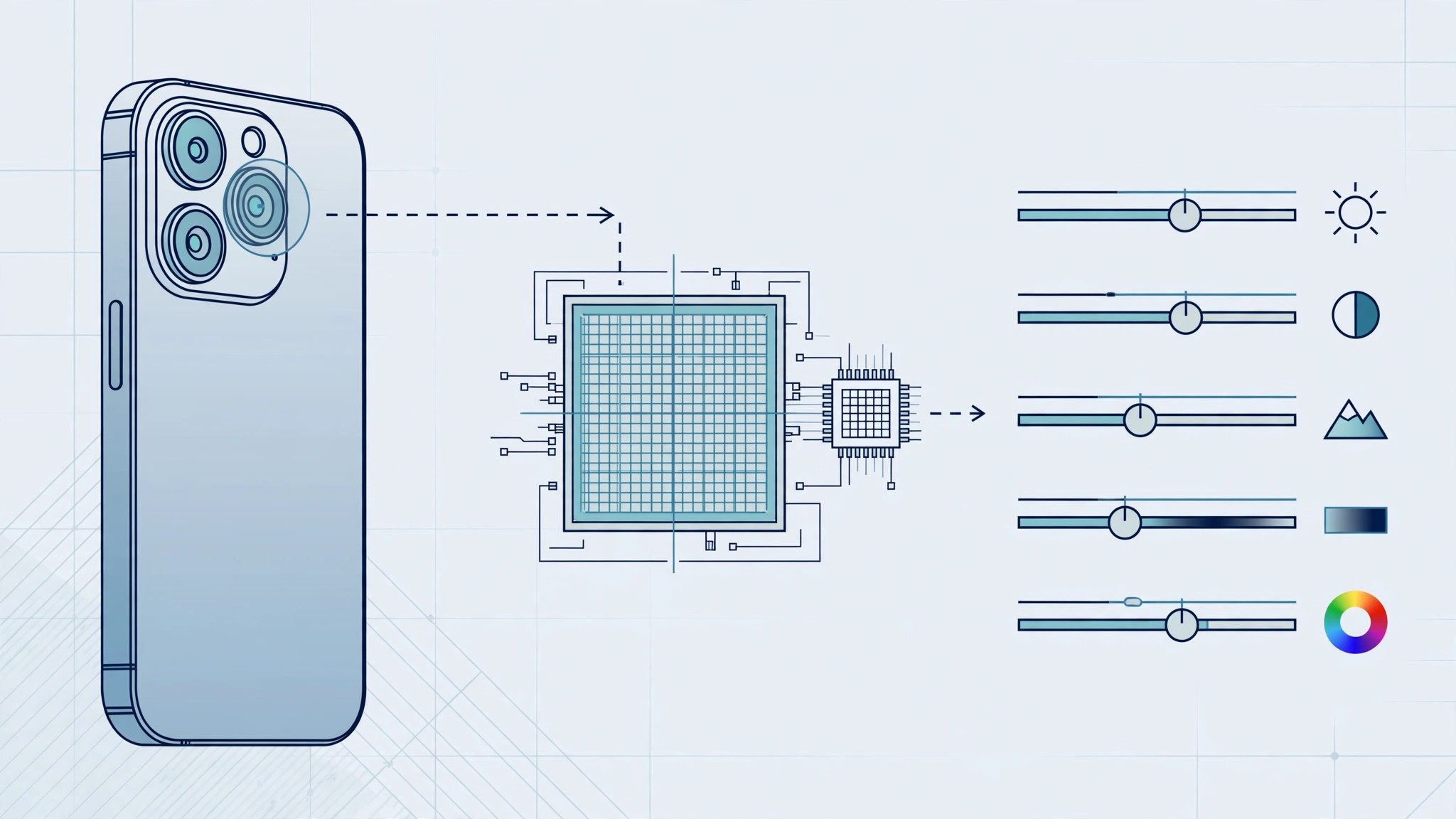
Your iPhone takes stunning photos out of the box, but every shot is processed and compressed by the time it reaches your library. If you want full control over editing — exposure, white balance, shadows — you need to shoot in RAW. A RAW file keeps all the data the camera sensor captured, giving you far more latitude in post-processing than a standard HEIF or JPEG ever will.
The good news: modern iPhones can shoot RAW natively, and older ones can too with the right app. Here is how to do both.
What is RAW, and why shoot it?
A regular iPhone photo is a processed, compressed image. A RAW file is the sensor’s raw data — bigger, unprocessed and completely uncompressed. You can recover blown-out highlights, pull detail from shadows and change the white balance after the fact without degrading the image. The trade-off is file size: a single RAW photo can be tens of megabytes, so it is a format to use deliberately, not leave on forever.
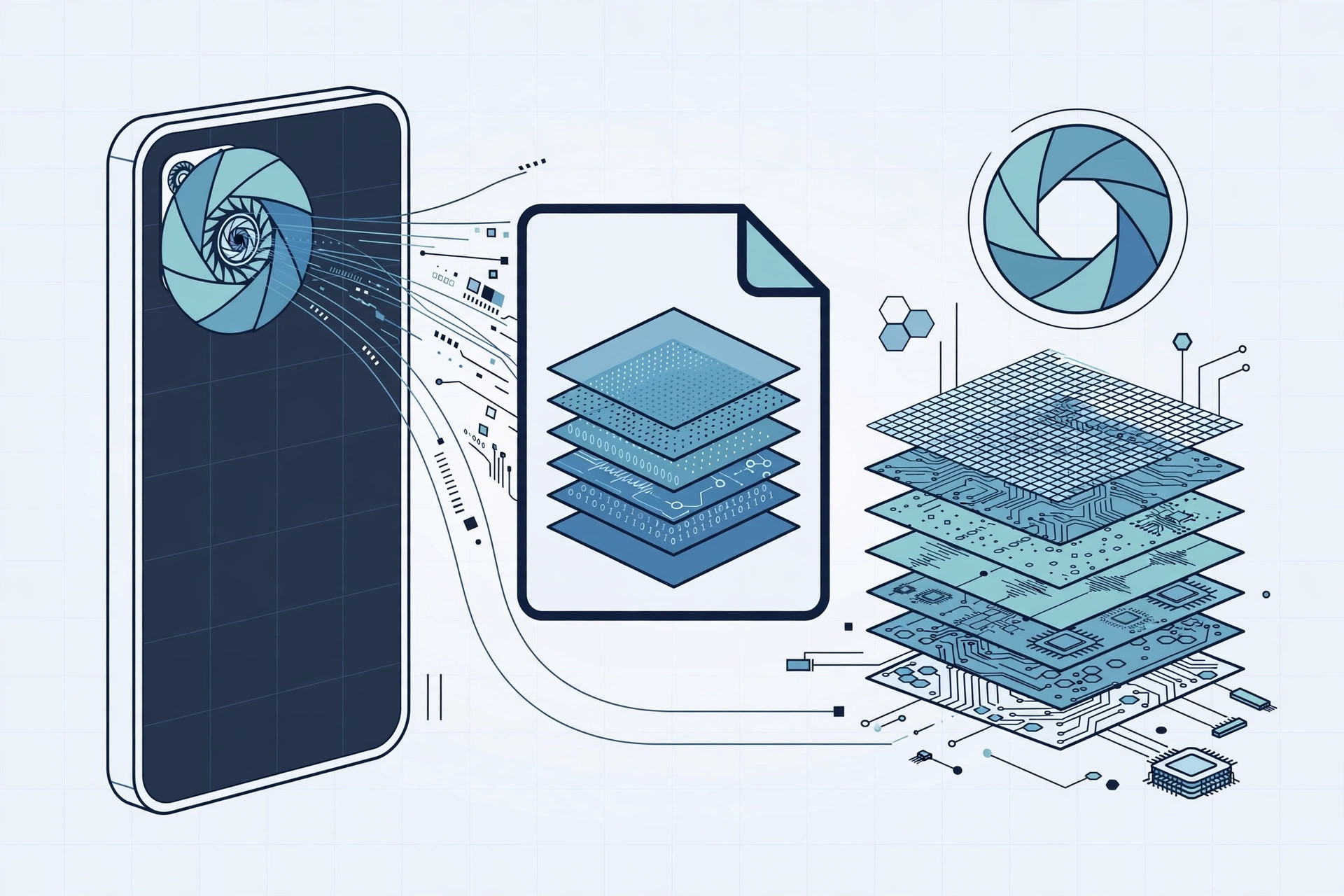
Option A: Apple ProRAW (iPhone 12 Pro and newer)
The easiest path is Apple’s own Apple ProRAW format, available on iPhone 12 Pro, 12 Pro Max and every Pro model since. ProRAW combines Apple’s computational photography with the flexibility of RAW. Set it up once:
- Open Settings and go to Camera → Formats.
- Under Photo Capture, turn on Apple ProRAW. On iPhone 14 Pro and later you can also choose ProRAW Max (48 MP) for the full-resolution sensor, or leave the default 12 MP for smaller files.
- Open the Camera app and switch to Photo mode.
- Tap the RAW badge in the top-right corner. The badge is active when it has no line through it.
- Shoot as normal. Edit the result in the Photos app, Lightroom or Pixelmator.
The RAW badge is a per-session toggle: tap it again to turn RAW off when you are done. Because ProRAW files are huge, get into the habit of disabling the badge after each RAW shoot — you will be surprised how fast 25–75 MB per photo fills your storage.
Option B: Third-party apps (older iPhones)
Non-Pro iPhones do not offer Apple ProRAW, but the camera hardware is still capable of RAW capture — you just need an app that exposes it. Trusted options include Halide, ProCam, Manual and Lightroom mobile, all reviewed favorably by outlets like DPReview:
- Install one of the apps from the App Store.
- Open the app and enable RAW or DNG capture in its settings.
- Shoot your photos inside the app — they are saved as DNG files, the open RAW standard.
- Export or transfer the DNG files to your computer for editing in Lightroom, Capture One or similar software.
These apps also give you manual controls over shutter speed, ISO and focus, which pair nicely with RAW editing.
Tips for working with RAW files
A few habits will keep your RAW workflow painless:
- Watch your storage. RAW files are ten to twenty times larger than regular photos. Offload them to a computer or cloud storage regularly.
- Edit on the iPhone or the Mac. The Photos app applies a decent baseline edit to ProRAW; for serious work, Lightroom or Pixelmator gives you full slider control.
- Use the RAW badge only when it matters. Landscapes, portraits you plan to print, tricky lighting — that is where RAW earns its keep. Everyday snaps are fine as HEIF.
If you are into iPhone photography, you may also like our guides on disabling quick camera launch from the iPhone lock screen and why Spatial photo mode isn’t working in iOS 26.
If it still doesn’t work
If the RAW badge does not appear in the Camera app, double-check that Apple ProRAW is enabled under Settings → Camera → Formats — the badge only shows in Photo mode, not in Portrait or Night mode. If a third-party app cannot save DNG files, grant it full access to your photo library in Settings → Privacy & Security → Photos, and make sure you are shooting inside that app rather than the stock Camera.
Frequently asked questions
Is ProRAW the same as regular RAW?
Almost. ProRAW is a DNG-based format that keeps the full sensor data while also applying Apple’s computational processing like Smart HDR and Deep Fusion. You get RAW flexibility with a better-looking starting image.
Do RAW photos work with iCloud Photos?
Yes — iCloud Photos syncs RAW and ProRAW files like any other photo. Just remember they count heavily against your iCloud storage, so a paid tier becomes almost mandatory if you shoot RAW regularly.
Conclusion
Shooting RAW on iPhone is a one-minute setup: enable Apple ProRAW in Settings on a Pro model, or grab a manual camera app on anything older. Use it selectively, edit in a real RAW editor, and your iPhone photos will gain a flexibility that regular shots simply cannot match.





