

Glance at the top of your iPhone and the clock, signal bars and battery icon are simply… gone. The status bar has vanished, and no amount of tapping brings it back. Before you panic, here is the good news: iOS has no setting that hides the status bar, and no App Store app is allowed to remove it either. That means something else is going on — and it is almost always the Zoom accessibility feature.
In this guide you will learn why the status bar disappears, how to restore it in under a minute, and what to check if the usual fix does not work.
Can iOS actually hide the status bar?
No. Unlike Android, iOS gives you no toggle, no gesture and no settings page that turns off the status bar. Apple reserves that strip of screen for system information — the time, cellular and Wi-Fi signal, battery level and any active call or hotspot indicators. As Apple explains in its guide to iPhone status icons, these icons are always meant to be visible.
There are only three ways the status bar can disappear:
- Zoom is on. The magnification accessibility feature enlarges everything on screen, pushing the status bar out of view. This is the culprit in the vast majority of cases.
- A jailbreak tweak. Only jailbroken iPhones can truly remove the status bar. If your iPhone has the Cydia app installed, a tweak is hiding it.
- A rendering glitch. Rare, but a crashed SpringBoard or a graphics hiccup can leave the status bar blank until a restart.
If you have never jailbroken your iPhone, skip straight to the Zoom fix below.
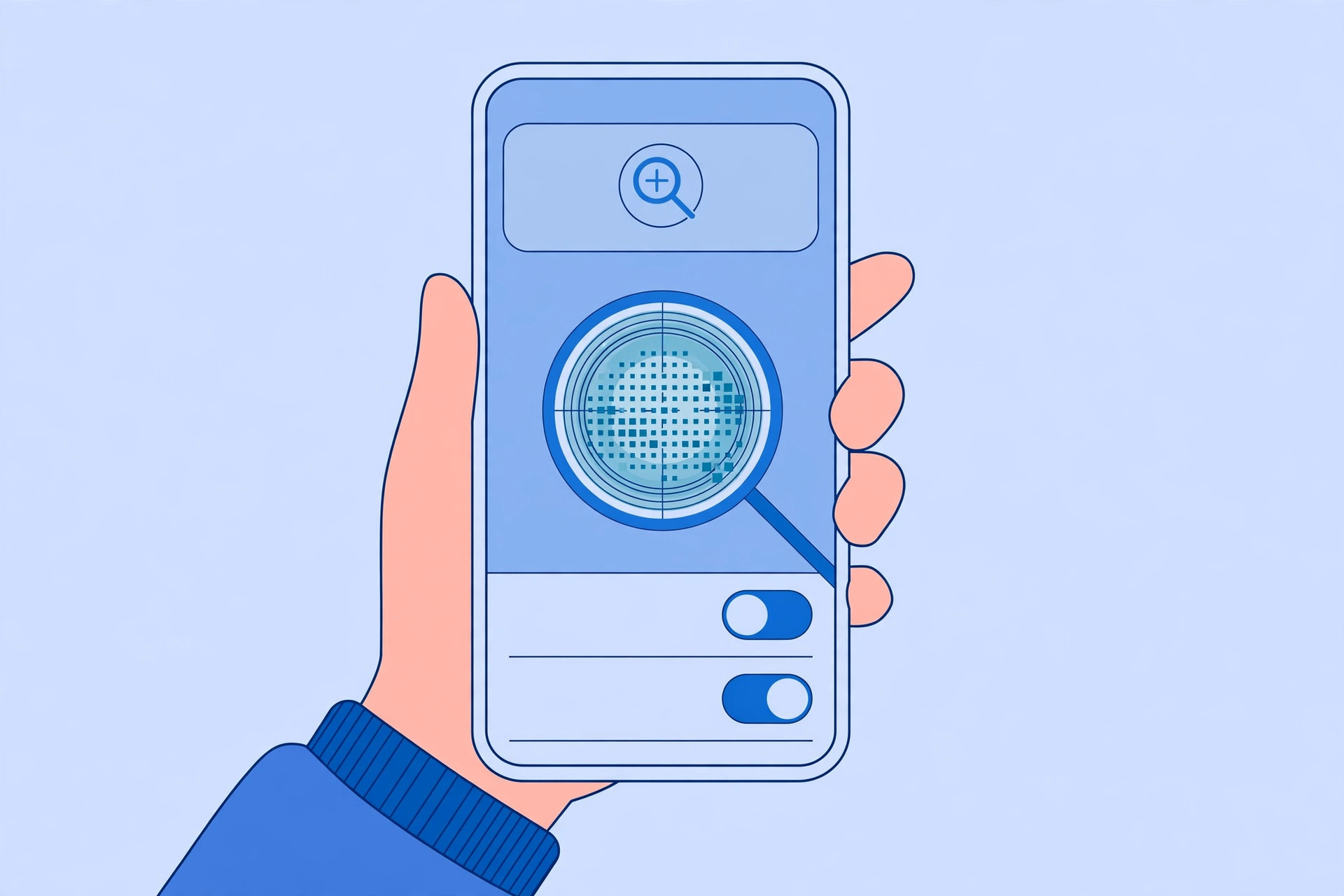
How to bring the status bar back
The Zoom accessibility feature is the number-one cause. When it is active, the screen is magnified and system elements like the status bar slide out of the visible area. Here is how to turn it off:
- Open Settings, then tap Accessibility.
- Tap Zoom. (On older iOS versions the path is Settings → General → Accessibility → Zoom.)
- Turn off the Zoom toggle at the top of the screen.
- The screen snaps back to normal size and the status bar reappears instantly.
While you are there, note two handy Zoom gestures in case the feature ever switches itself back on: a three-finger double-tap toggles zoom on and off, and a three-finger swipe moves the zoomed area around. Apple documents these gestures in its Zoom accessibility documentation, and outlets like 9to5Mac regularly cover accessibility quirks like this one.
Check Display Zoom and force-restart
If Zoom was already off, try two more checks:
- Display Zoom: Go to Settings → Display & Brightness → Display Zoom and make sure it is set to Default rather than Larger. An enlarged interface can crowd the status bar area on some models.
- Force-restart: A force restart clears temporary rendering glitches. Press and release Volume Up, press and release Volume Down, then press and hold the Side button until the Apple logo appears.
Owners who enjoy customizing the top of the screen may also like our guides to the Liquid Glass lock screen clock in iOS 26 and moving lock screen widgets down in iOS 26.
If it still doesn’t work
If the status bar is still missing after disabling Zoom and restarting, check whether your iPhone is jailbroken — look for the Cydia app on the Home Screen. A jailbreak tweak is the only software that can remove the status bar deliberately; removing the tweak or the jailbreak restores it. If the phone is not jailbroken and the bar never returns, back up your data and contact Apple Support, since persistent display issues can signal a hardware fault.
Frequently asked questions
Did an app hide my status bar?
No App Store app can do that. Apple’s review rules forbid apps from removing system UI, so if the status bar is gone it is a settings or system issue — in practice, Zoom magnification — not an app misbehaving.
Why does Zoom turn itself on?
Usually it does not — someone enabled it by accident, often through the Accessibility Shortcut (triple-clicking the Side button) or a three-finger double-tap. If it keeps reappearing, check Settings → Accessibility → Accessibility Shortcut and remove Zoom from the list.
Conclusion
A missing status bar looks alarming, but the fix is almost always one toggle: turn off Zoom under Settings → Accessibility. With magnification disabled, the clock, signal and battery icons return immediately — no reset, no restore, no repair shop required.





