
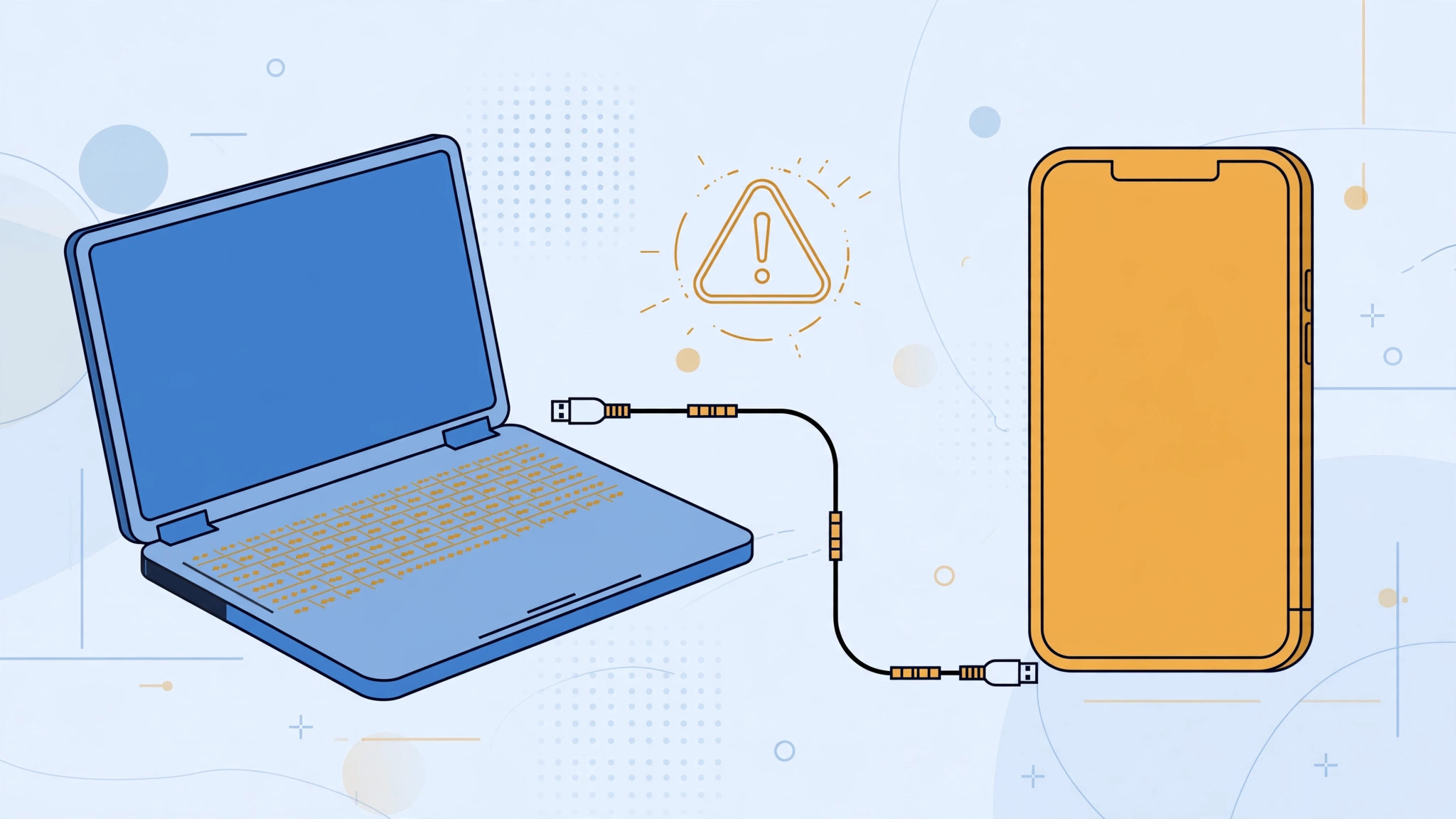
You plug your iPhone into your computer, iTunes tries to connect, and instead of syncing you get this: “iTunes could not connect to this iPhone. An invalid response was received from the device.” The phone itself looks perfectly fine. The error sounds cryptic, but it almost always means one thing: the trust handshake between the iPhone and the computer failed. Here is how to fix it, step by step.
Why this error happens
The first time you connect an iPhone to a computer, the two devices exchange security certificates. Both sides show a “Trust This Computer” prompt, and you must accept on both. If you tapped “Don’t Trust” on either side — or the exchange was interrupted halfway — the pairing is left in a broken state, and every future connection attempt fails with the “invalid response” error. Apple Support documents how the trust prompt is supposed to behave, and 9to5Mac has covered the pairing-cache fix for years: the cure is to delete the stale pairing certificates so the two devices can start the handshake over.
1. Delete the pairing-certificate (lockdown) cache
This is the fix that works in most cases. On a Mac, the certificates live in /var/db/lockdown. In Finder choose Go > Go to Folder, paste /var/db/lockdown, and delete the files inside — you will need an administrator password, which is normal. On Windows, the folder is C:\ProgramData\Apple\Lockdown. Note that ProgramData is hidden by default: in File Explorer open the View tab and tick “Hidden items” first, then delete the contents of the Lockdown folder and restart the computer. Now reconnect the iPhone. Both devices will show the trust prompt again — this time tap “Trust” on the iPhone and accept on the computer. The handshake completes cleanly and the error is gone.
2. Rule out the cable and the port
If the error persists, the next suspects are hardware. Try a different Lightning or USB cable — preferably an Apple original or MFi-certified one, since cheap cables can fail the data handshake even while they charge fine. Switch to a different USB port and avoid hubs, and if you can, try a different computer entirely. Our guide to measuring iPhone-to-Mac transfer speed over cable doubles as a cable-quality check, and our iPhone USB troubleshooting guide covers port and power issues in depth.
3. Update iTunes
A classic cause: a brand-new iOS version paired with an old iTunes. Update iTunes to the latest version via the Microsoft Store or Apple’s site on Windows, or update macOS on a Mac, where iTunes duties now live in Finder and the Apple Devices app. Mismatched versions speak slightly different “dialects” during the handshake, which is exactly what produces an “invalid response.”
If it still doesn’t work
Restart both the iPhone and the computer, then retry the trust prompt from step 1. If the iPhone never shows the trust prompt at all, go to Settings > General > Transfer or Reset iPhone > Reset > Reset Location & Privacy — this forces the prompt to appear on the next connection. As a last resort, check for security software or VPNs on the computer that might intercept USB communication, and try the connection from a different user account.
Frequently asked questions
Will deleting the lockdown folder harm my computer?
No. It only stores pairing certificates for iOS devices. Deleting them simply forces every iPhone or iPad to re-ask for trust on the next connection — nothing else on the computer is affected.
Why did this start happening out of nowhere?
Usually an iOS update or an iTunes update changed one side of the handshake while the old certificate was still cached. The stored certificate no longer matches, the exchange fails, and you get the error. Clearing the cache resolves the mismatch.
Conclusion
The “invalid response from device” error is really a failed introduction: your iPhone and computer disagree about whether they trust each other. Deleting the lockdown pairing cache and accepting the trust prompt again resolves it in the vast majority of cases; a good cable and up-to-date iTunes take care of the rest. Work through the steps in order and you will be syncing again within minutes.





