
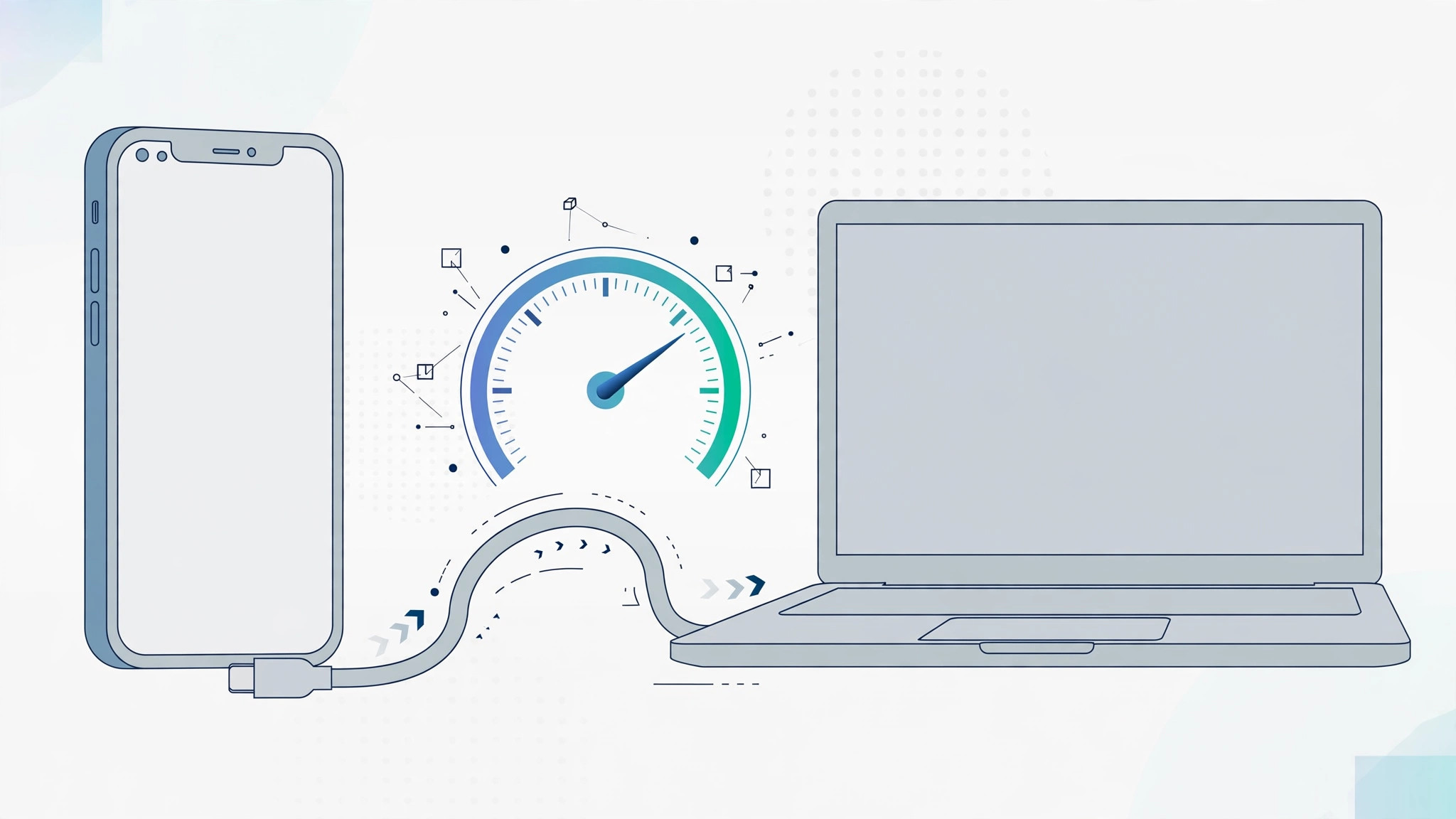
Moving a big photo library, a batch of 4K clips or a ProRes video project from your iPhone to your Mac should take minutes — but sometimes it crawls. Before you blame your Mac, check the real bottleneck: the cable. Not every USB-C cable moves data at the same speed, and the iPhone model itself sets a hard ceiling. The good news is that macOS can tell you exactly what speed your current cable negotiates. Here is how to measure it.
Know your iPhone’s speed limit first
Since Apple switched the iPhone to USB-C, data speeds differ between the regular and Pro lineups. Standard iPhone models top out at USB 2.0 speeds — up to 480 Mbps — no matter which cable you plug in. iPhone Pro models support USB 3, reaching up to 10 Gbps, but there is a catch: the cable Apple includes in the box is a USB 2 cable, so it cannot reach those speeds. To unlock the full rate on a Pro iPhone you need a separate USB 3-rated cable — when shopping, look past the wattage marketing and check the data-speed specs and reviews instead. Apple’s own USB-C guide confirms the port capabilities of each model.
How to check the actual transfer speed on your Mac
To see the speed your current cable and port combination actually supports:
- Connect your iPhone to the Mac with the cable you want to test, and unlock the iPhone.
- On the Mac, click the Apple menu and choose About This Mac, then click More Info.
- Scroll to the very bottom of the window and click System Report.
- In the System Report sidebar, find the USB section and select your connected iPhone.
- Look at the Speed field: it will read “Up to 480 Mb/s” for a USB 2 connection or “Up to 10 Gb/s” for a full-speed USB 3 link. That is the ceiling your cable supports.
If you are new to digging around macOS system tools, our guide on quickly opening the list of installed apps in macOS 26 will make you feel at home in System Report and beyond.
If it still does not work
- Try a different cable. Many USB-C cables are built for charging only, or are USB 2 despite premium looks. 9to5Mac has covered how wildly cable quality varies — a certified USB 3 cable is the single biggest upgrade you can make.
- Try another port on your Mac. Hubs, docks and front-panel ports can negotiate lower speeds; plug directly into the Mac when testing.
- Trust the computer. If the iPhone shows a “Trust This Computer?” prompt, tap Trust, or the device may not enumerate properly in System Report.
- Clean the connectors. Pocket lint in the iPhone’s port is a classic cause of flaky USB 3 connections that silently fall back to USB 2 speeds.
FAQ
Why does my iPhone Pro only show 480 Mbps?
Because the cable is the bottleneck. The bundled cable is USB 2, and any USB 2 cable caps even a Pro iPhone at 480 Mbps. Pair the phone with a proper USB 3 cable and re-check in System Report — you should see the speed jump. If you would rather skip cables entirely, see how to set up automatic hotspot connection from iPhone on Mac.
Can I measure real-world speed, not just the negotiated rate?
Yes — time a large file copy and do the math, or watch YouTube speed-test videos comparing cables head to head. Real throughput always lands a bit below the theoretical ceiling because of protocol overhead.
The bottom line
System Report turns a guessing game into a thirty-second check: plug in, open the USB section, read the Speed field. Once you know whether your cable is USB 2 or USB 3, you can stop wondering why transfers crawl — and buy the right cable with confidence.






[…] doesn’t natively understand. For more context on moving data between Apple devices, see how to measure iPhone-to-Mac transfer speed over cable, and if video calls are your thing, enabling face lighting during video calls on Mac pairs nicely […]