
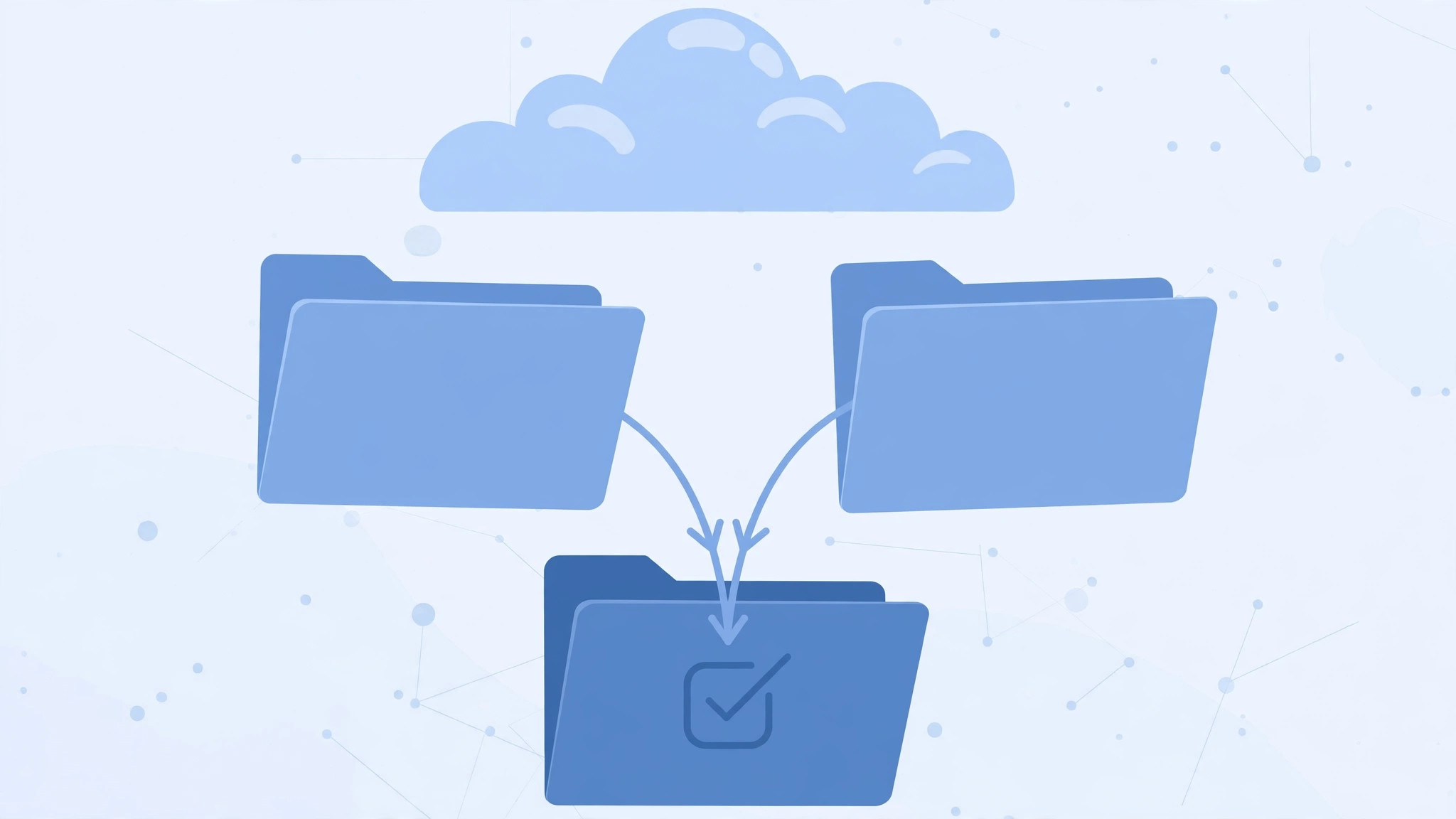
Open Settings > [your name] > iCloud on your iPhone and look closely at what an app like WhatsApp is storing, and you might do a double take: the app’s data appears both inside your iPhone backup and separately under iCloud Drive documents. Are you paying to store the same data twice? And can you safely delete one copy? The answer is nuanced, but the rule of thumb is simple: keep the copy that restores your phone, and question the copy that merely duplicates it.
The two copies, explained
Every app’s iCloud footprint comes in two flavors. The first lives inside your full iPhone backup (Settings > [your name] > iCloud > iCloud Backup). This copy is essential: it is what restores your device after a reset or onto a new phone, and it cannot be carved out per app — it is all or nothing. The second lives in the “Documents and Data” / iCloud Drive section: per-app cloud copies the app saves itself, used as a per-app backup or for sharing data between several devices on the same Apple ID. Apple Support documents how iCloud Backup and iCloud Drive differ, and 9to5Mac has repeatedly advised readers to audit both before paying for extra storage.
1. Know which copy is which
Before touching anything, identify the two copies for the app in question. Check the iPhone backup contents under Settings > [your name] > iCloud > Manage Account Storage > Backups, then check the iCloud Drive / Documents section for the same app. WhatsApp is the textbook example: your chats sit inside the device backup, and WhatsApp’s own in-app backup also writes to iCloud. Both are real, both consume storage, and they are not the same thing.
2. Ask: do several devices need this data?
This is the decision that matters. If the app’s data is used by several devices on the same Apple ID — say a notes app syncing between iPhone and Mac, or an app with an iPad companion — do NOT delete the per-app cloud copy. That copy is what keeps the devices in sync, and removing it breaks continuity. If you already make full device backups, the per-app cloud copy is redundant as a backup, but it may still be essential for sync. Sync needs win over storage savings.
3. Single device? Block the app from iCloud Drive
If only one device uses the app, the duplication is pure waste. Go to Settings > [your name] > iCloud > iCloud Drive and toggle the app off. It will stop saving its documents to the cloud, while the full-device backup keeps protecting your data. This single switch is the most effective step for single-device owners — it stops the duplication at the source instead of requiring endless manual cleanup.
4. Clean up from inside the app
For apps that create their own iCloud backups, manage the cloud copy in the app’s own settings rather than in iOS Settings. In WhatsApp, for instance, open Settings > Chats > Chat Backup to control or delete the app-created iCloud backup, leaving only what cross-device use requires. Never delete the app’s data from the full iPhone backup itself — that copy is what restores your phone, and without it a device restore leaves the app empty. If you are unsure what is safe to remove, our guide to deleting iPhone and iCloud data walks through the same judgment calls, and our iPhone-and-Mac message sync guide shows the cross-device side of the equation.
If it still doesn’t work
If storage still looks doubled after blocking the app, give iCloud up to a day to reconcile, then re-check the per-app breakdown under Settings > [your name] > iCloud > Manage Account Storage. Some apps re-enable their iCloud Drive toggle after an update — if the duplication returns, switch it off again. And if iCloud storage is simply full regardless, deleting an old device backup you no longer need frees far more space than fiddling with individual apps.
Frequently asked questions
Can I delete WhatsApp data from iCloud Drive safely?
Only if you do not need WhatsApp data synced to other devices and you keep full iPhone backups running. The full backup is what restores your chats on a new phone; for single-device users, the iCloud Drive copy is the redundant one.
Will turning off iCloud Drive for an app delete my existing data?
Turning the toggle off stops future saves, and iOS asks whether to also remove the existing cloud documents. If your full backup is current, removing them is safe — but when in doubt, keep them until the next successful backup completes.
Conclusion
Duplicated app data in iCloud is not a bug; it is two different features — device backup and per-app cloud storage — doing their jobs at the same time. Keep the device-backup copy always, keep the cloud copy when multiple devices share the data, and switch the cloud copy off when only one device is involved. One toggle, set thoughtfully, ends the duplication for good.





